
On-device AI
Speech processing always runs on your Mac: audio capture, transcription (Parakeet), speaker identification, echo cancellation, and voice detection. No setup, no plan requirement — audio never leaves the machine.
The AI features that work on transcript text — summaries, the live assistant, dictation cleanup, transform — default to Google Gemini through our open-source proxy. This page is about running those on your own hardware instead. Three levels, in increasing order of setup:
| You want | Use | Covers |
|---|---|---|
| No AI at all | Local Mode | Transcription and speakers only; every AI feature off |
| On-device AI with zero setup | Apple (On-Device) | Dictation, Transform, a reduced meeting summary |
| Every AI feature on your hardware | Custom endpoint → a local server | Dictation, Transform, summaries, live assistant |
Apple (On-Device): typing features and a reduced meeting summary
On macOS 26 with Apple Intelligence enabled, MimicScribe can run Dictation, Transform, and the post-meeting summary on Apple’s built-in on-device model. Nothing to install, nothing to configure.
Open Settings → AI & Data, and under Feature routing set Dictation, Transform, or Post-meeting summary to Apple (On-Device). The option only appears on Macs where the model is available.
Dictation and Transform are short, self-contained tasks, and the on-device model is a good fit for them.
The meeting tier is a reduced summary, not the cloud one. Apple’s model has a context window of roughly 4k tokens, so a meeting transcript can’t be read in one pass — MimicScribe chunks it. What you get back:
- Action items. The app finds candidate sentences in the transcript, then the model judges and rephrases each one. It only ever sees text that was actually said, so it can’t invent a task.
- Summary bullets, written per chunk and then reduced to one list.
- A meeting title.
What the on-device tier does not do:
- No AI speaker naming. Speakers keep their diarizer labels unless you name them or a saved voice profile matches.
- No sectioned summary. You get bullets, not the adaptive structure the cloud path writes.
- No meeting Q&A. Asking questions of a finished meeting needs the whole transcript in context at once.
- No action items outside six languages. The candidate finder recognizes commitment phrasing in English, Spanish, French, German, Italian, and Portuguese. In any other language it finds nothing, the action-item list comes back empty, and the run still reports success — so an empty list there is not evidence that the meeting had no action items. Summary bullets and the title are unaffected.
For a full-strength summary, the live assistant, or a language outside those six, use a local server below.
A local server: every feature
Any server that speaks the OpenAI chat-completions API works. Ollama is the shortest path:
Install Ollama and pull a model:
ollama pull qwen3In Settings → AI & Data, under Custom endpoint, fill in:
- Base URL —
http://localhost:11434/v1 - Model — the name you pulled, e.g.
qwen3.6:27b - API Key — leave blank
- Reasoning — leave at Model default. It omits the field and lets the model use its own setting. None is the fastest option and stops a thinking model reasoning at length before every answer, but some models read it as permission to skip work — one returned an empty speaker list on all 78 calls of a test run, with no error. If you set it, check that speakers still get named.
Click Verify. It checks the server is reachable, then sends a tiny request to confirm the model actually responds.
- Base URL —
Under Feature routing, set the features you want to Custom endpoint. You can mix — summaries on your local model, dictation on Gemini.
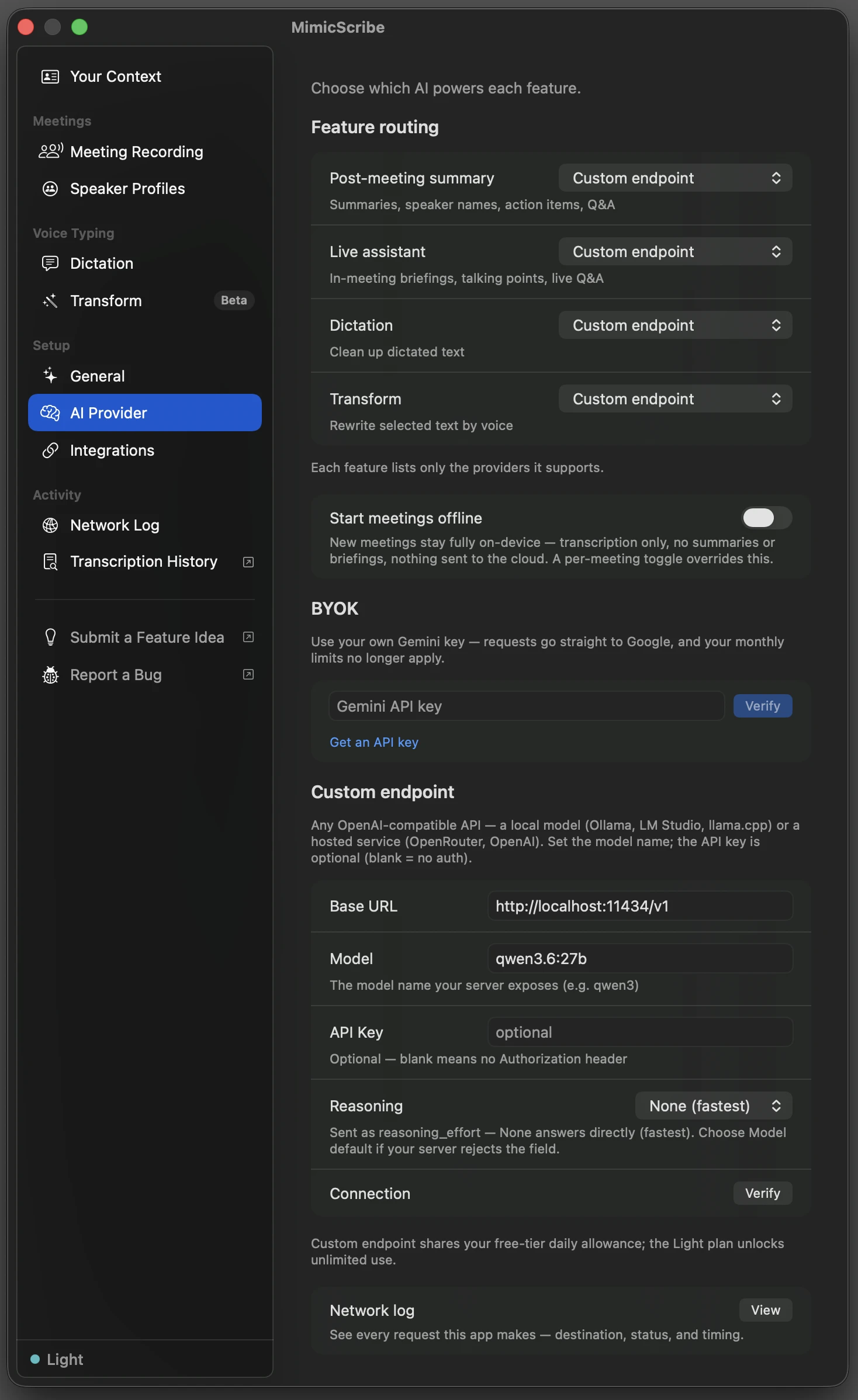
LM Studio and llama.cpp work the same way; only the Base URL and model name change. The full reference — what routes where, plan limits, troubleshooting — is on the Custom AI Endpoint page.
What to expect
Own hardware means owning the quality tradeoff:
- Quality is the model you pick. MimicScribe’s prompts are tuned against Gemini. Dictation and transform are short, focused tasks that mid-size local models handle; meeting summarization is a long-context task — use the largest model your Mac runs comfortably.
- Reference-document search, vocabulary hints, and meeting search share one Supporting features row in Feature routing. Point it at your local server too, or leave it on Gemini. Along with Live assistant, it’s one of the two rows without an Apple (On-Device) option, since those tasks need structured-output and long-context support a small on-device model can’t reliably give.
- Caps mostly don’t apply. Custom-endpoint calls aren’t metered on any plan right now. On Light and Unlimited that’s permanent. On the free tier it’s part of the launch promo, which has no end date. See Plans and limits.
Watch it work
Open Settings → Network Log and run a meeting or a dictation. Each AI request lists where it went — with a local server, that’s your own machine:
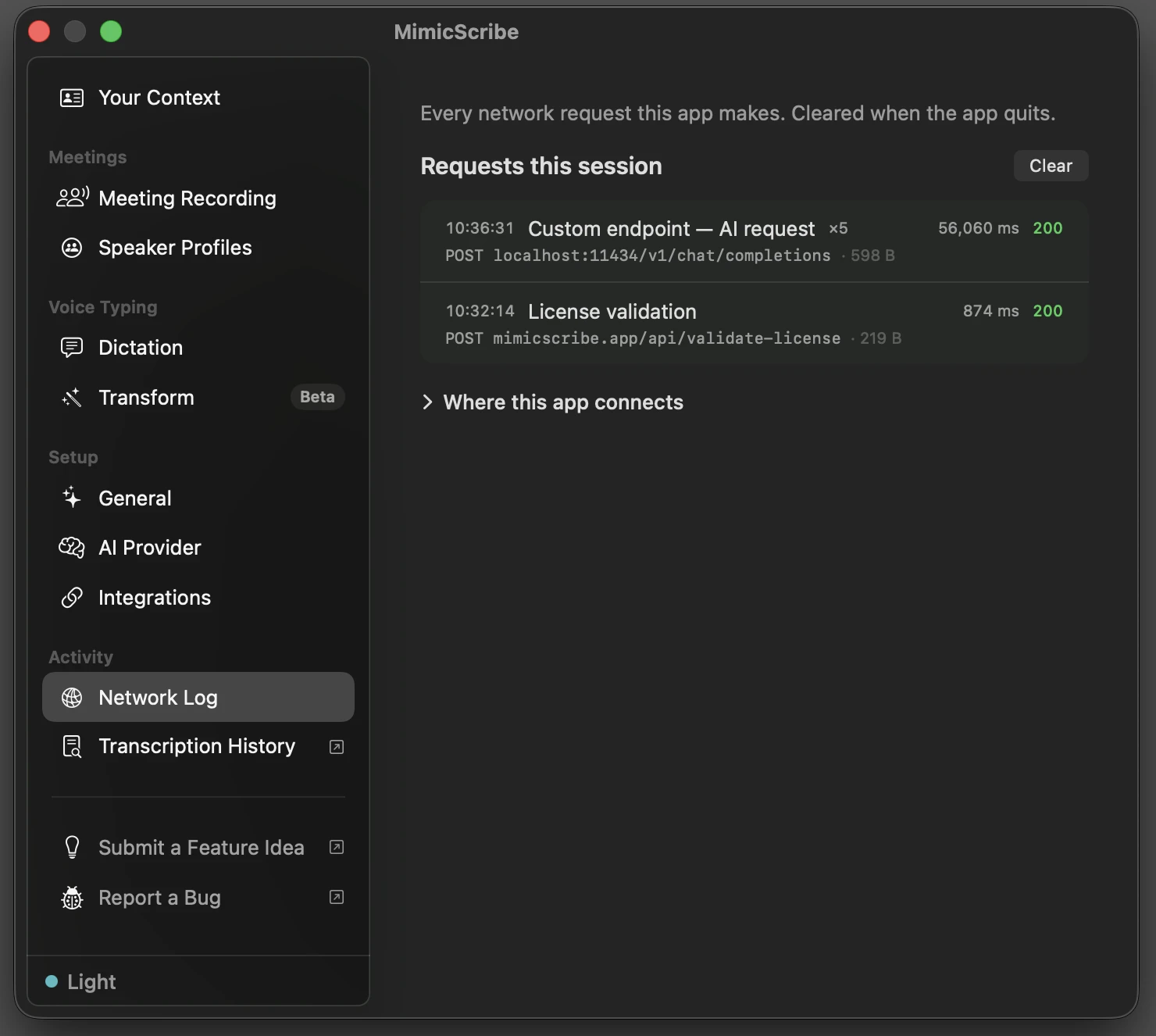
Network Activity documents what the log records and how to verify it from outside the app with nettop or Little Snitch.
Local Mode: no AI at all
Routing changes where the AI runs. Local Mode is different — it turns AI off entirely for a meeting: transcription and speaker separation only, nothing sent anywhere, no summaries to backfill until you choose to. Toggle it per meeting when you start one, or set Start meetings offline in Settings → AI & Data to make it the default. Details in Privacy & Data.