# MimicScribe Documentation
> On-device AI meeting notetaker for macOS — in-meeting capture, no meeting bots: real-time transcription, speaker identification, AI summaries, and agent integrations.
> Source: https://mimicscribe.app/docs
---
# Quick Start
## What do I need to run MimicScribe?
- macOS 15.0 (Sequoia) or later
- Apple Silicon Mac (M1 or newer)
- ~1.2 GB disk space for the speech recognition, speaker diarization, echo cancellation and multilingual search models
## How do I install it?
Download MimicScribe from [mimicscribe.app](https://mimicscribe.app). Drag to Applications and launch — it appears in your menu bar, not the Dock.
## What happens on first launch?
A setup wizard walks through four pages:
1. **Models & permissions** — Downloads the speech recognition, speaker diarization, echo cancellation and multilingual search models (~1.2 GB). Also grants Microphone and System Audio Recording Only permissions. A progress bar shows status; if the download fails, a Retry button appears.
2. **Meeting shortcut** — Practice the Meeting hotkey (default: Control+Space): hold to start and stop recording, tap during a meeting for talking points. Voice typing tools (Insert Mode and Transform Mode) are noted here but not turned on; you enable them later in Settings if you want them.
3. **Where should AI run?** — Choose where the text-AI features (summaries, the live assistant, dictation and transform cleanup) run: **Built-in cloud AI** (Google Gemini through our proxy — the default), **your own AI service** (a custom OpenAI-compatible endpoint — a local model or a provider you control), or **On this Mac** (transcription and speaker separation only; nothing sent anywhere). You can change any of this later in **Settings > Privacy > AI & Data**.
4. **Finish** — Confirm launch-at-login and whether to send crash & error reports automatically (off by default — after a crash you're asked first), and get a tip for finding the menu-bar icon.
## What permissions does MimicScribe need?
| Permission | What it enables | When required |
| --------------------------- | ---------------------------------------------------------- | --------------------------------------------------------------------------------------- |
| Microphone | All speech input | Always |
| System Audio Recording Only | Capturing audio from video calls | Always |
| Accessibility | Keyboard shortcuts, reading selected text, pasting results | Never during setup. Only if you turn on voice typing or automatic recording in Settings |
| Reminders | Sending a meeting's action items to Apple Reminders | Optional. Asked the first time you add an action item to Reminders |
Reminders is optional and isn't requested until you use it — recording, transcription, and summaries all work without it.
Grant or re-grant these in **System Settings > Privacy & Security**.
## What are the default hotkeys?
| Action | Default |
| ---------------------------- | ------------------------------------------------------------- |
| Start / Stop Meeting | Hold Control + Space |
| Meeting Assistant (toggle) | Control + Space (while recording) |
| Flag a moment | Control + Shift + Space (while recording) |
| Voice Input (meeting window) | Cmd + D (when meeting window is active) |
| Insert Mode | Left Option (tap to toggle, or hold for push-to-talk) |
| Transform Mode | Left Option + Shift (tap to toggle, or hold for push-to-talk) |
| Cancel | Escape |
Meeting hotkeys can be changed in **Settings > Meetings > Meeting Recording**. Voice Typing is a group of two panes: the Insert Mode hotkey lives in **Settings > Voice Typing > Dictation** and the Transform Mode hotkey in **Settings > Voice Typing > Transform**.
## How do I move around a meeting with the keyboard?
The meeting window has a full menu bar and standard shortcuts for finding and searching — they work while a meeting is live and after it's saved:
| Action | Shortcut |
| ----------------------------- | -------- |
| Find in Transcript | ⌘F |
| Find Next / Previous | ⌘G / ⇧⌘G |
| Search Meetings | ⌘K |
| Ask About Meeting (follow-up) | ⌘L |
| Show / Hide Transcript | ⌥⌘I |
These live under the **Edit ▸ Find** and **View** menus, so they're discoverable without memorizing them.
---
# Getting Better Results
Two minutes of setup makes the assistant's output noticeably more specific to your work: fill out your role and goals, list the words it keeps misspelling, and add a reference document or two.
This page shows how to do all three well, with fleshed-out examples you can adapt.
## Context
**Settings > Setup > Vocabulary & Context** — a free-form description of who you are and what you do. It's included across the AI features that work from your broader context: meeting summaries, assistant briefings, and voice instructions (Transform). Dictation is the exception — it stays fast by using only your vocabulary list. Writing a good context compounds across the features that use it.
Cover three things, in order of importance:
1. **Who you are and what your job is.** Title, team, the kinds of meetings you run, and what success looks like this quarter. Be concrete — "Solo dev building custom internal tools for 20–200 person teams" beats "I'm a freelance engineer."
2. **What meetings you typically run.** A short list — renewals, QBRs, implementation kickoffs, 1:1s. The assistant uses this to figure out what's signal versus noise.
3. **What you want the assistant to catch (and what to ignore).** Action items, competitor mentions, exec changes, expansion signals, ambiguous commitments. Telling it what _not_ to care about is as useful as telling it what matters.
### Example: Custom software builder
```
I'm Alex Rivera. I build custom internal tools — lightweight CRMs,
workflow apps, and operations dashboards — for 20–200 person teams who've
outgrown spreadsheets but don't fit the generic SaaS mold. I run a solo
practice with one contractor and take on 4–6 engagements at a time.
Typical project: $15K–$60K, 4–10 weeks.
My typical meetings:
- Discovery calls with prospects where I'm mapping their actual workflow
— what tools they glue together today, what breaks, what they've tried
to fix and abandoned
- Scoping sessions after a verbal yes, narrowing the build to a first
shippable version and cutting the rest into a phase two
- Weekly check-ins with active clients — demo, feedback, priority
shuffling, and catching scope drift before it becomes a problem
- Handoff sessions where I walk the client's team through the app, often
training a non-technical owner who'll run it day to day
What I need from meeting summaries:
- Concrete workflow details: the steps people take, the fields they
track, the handoffs between roles. This is what I build from.
- Flag anything that sounds like a pre-existing system I should integrate
with (HubSpot, QuickBooks, Airtable, Google Sheets) rather than replace
- Capture scope-creep signals: "could we also…", "while you're in
there…", new stakeholders introduced mid-project
- Note who actually makes decisions and who just shows up, since the loudest opinion in the meeting isn't always the approver
- Surface pain points the client mentions in passing — those are often
the real reason they're hiring me, even if they lead with something
else
I care less about feature wishlists and more about the workflow
underneath them. If someone says "we want a dashboard," I want to know
what decision they're trying to make with it. Flag vague asks as
ambiguous rather than treating them as requirements.
```
For shorter alternatives tied to specific workflows (dictation profiles, summary views), see [Customizing for Use Cases](/docs/use-case-customization).
## Vocabulary
**Settings > Setup > Vocabulary & Context** — the same pane, below the context box. Add the words, names, and technical terms you want spelled exactly as written: product names, colleagues, clients, internal acronyms, the library your team argues about every week.
This is the one input that reaches every AI feature. Meeting summaries, live assistant briefings, follow-up questions and corrections, meeting search, dictation, and Transform all get the list. Your name is added to it automatically once you've assigned yourself a voice profile.
### It's a hint, not a find-and-replace
Nothing in the app does a literal substitution on your transcript. The list travels as a spelling hint, and the model is told to apply a term only when the transcription phonetically matches it — and, for entries carrying a category tag, when the surrounding text fits that category. It's explicitly told never to swap vocabulary in for pronouns or unrelated words.
So a term in the list is a strong nudge, not a guarantee. If a name still comes out wrong occasionally, that's the mechanism working as designed rather than the setting failing.
Each term you add is classified in the background into a short category — "Swift framework", "antibiotic", "customer account" — using your context notes. That tag is what lets the AI tell "Sonoma the release" from "Sonoma the county". It appears as a small label on the term once classification finishes; the bare term works fine in the meantime.
On the dictation and Transform path, the list is filtered before it's sent: only terms that sound like something you actually said are included. That's what stops a topic word from pulling an unrelated sentence toward it.
### A few things to know
- **Latin script only.** Matching folds accents, so "José" in your list still matches "Jose" as heard. But the phonetic coder keeps ASCII letters only — a Cyrillic, Greek, or CJK entry produces no code at all, so it never matches anything and is dropped from the dictation prompt entirely. Those terms still reach meeting summaries and the assistant, which get the unfiltered list.
- **Short terms don't gate well.** One- and two-letter phonetic codes match far too much to be useful, so very short entries ("AI", "Q") are effectively inert.
- **Proper nouns in your Context box are harvested too.** Names and products you mention there are extracted into a reference vocabulary for dictation automatically — you don't have to list them twice.
## Reference Documents
**Settings > Meetings > Meeting Recording > Reference Documents** — upload URLs or files that the AI can pull from during meetings. Good reference documents are the kind of thing you'd hand a new hire to read — not marketing copy.
Strong candidates:
- Competitive positioning notes (covered in detail below)
- Pricing cheat sheets and discount authority rules
- Objection handlers and common FAQs
- Product roadmap summaries or integration compatibility matrices
- Implementation playbooks or onboarding checklists
- Company wiki pages — team structure, terminology, internal acronyms
A good reference doc has three parts: **where the product wins**, **where it doesn't compete** (honesty helps — it keeps the assistant from hallucinating capabilities you don't have), and **common objections with responses**.
### Example: Build vs. buy framework
Hypothetical practice: "Rivera Workflow Tools," a solo-dev shop that builds custom internal tools — lightweight CRMs, ops dashboards, and workflow apps — for 20–200 person teams. $15K–$60K per project, 4–10 weeks. Best fit: teams whose process is specific enough that off-the-shelf SaaS forces expensive workarounds.
```
# Rivera Workflow Tools — Build vs. Buy Framework
## vs Salesforce / HubSpot (generic CRM)
When custom wins:
- The client's process has 3+ steps that don't fit the "lead →
opportunity → close" shape. Forcing it into Salesforce means custom
objects, flows, and a 6-month admin tail.
- Small team (under 15 sales or ops users). Per-seat SaaS plus
implementation cost exceeds a one-time build within ~18 months.
- They've already tried HubSpot or Salesforce and abandoned it —
usually a sign the workflow is specific enough to justify custom.
When I recommend off-the-shelf instead:
- Standard outbound sales motion. HubSpot or Pipedrive will ship in a
week and handle it better than anything I'd build.
- Team growing past ~40 seats in the next year. At that scale the
maintenance story for a custom build gets expensive, and the SaaS
ecosystem (integrations, hiring pool) starts to pay off.
- Compliance-heavy contexts (regulated finance, healthcare with PHI).
I don't build SOC 2 Type II into a $40K engagement.
Common objections:
- "Won't this be a maintenance burden?" → True if I over-engineer. I
build on boring stacks (Postgres, a thin server, a standard auth
provider) so any competent contractor can maintain it. Three months
of post-ship support is included.
- "What if you disappear?" → Source lives in their GitHub, deployed
to their cloud account, documented for handoff. Walk through the
handoff doc from the Martin & Co engagement as proof.
## vs Airtable / Notion / Monday (no-code)
When custom wins:
- The workflow has real branching logic or calculations — pricing
engines, approval chains, anything where "if this, then that"
starts stacking. No-code hits a wall here fast.
- Integrations beyond the native connectors. Most clients need at
least one API that Zapier doesn't cover cleanly.
- Performance at scale. Airtable over ~10K rows in a relational shape
gets painful; Notion is slower still.
When I recommend no-code instead:
- Internal task tracking, project management, content calendars.
Notion and Airtable are genuinely better than anything I'd build.
- Prototype phase. If the workflow isn't settled, build it in
Airtable first, run it for 3 months, then I'll migrate it.
Common objections:
- "Our team already lives in Notion" → I can build tooling that reads
from and writes to Notion via their API. Reference the Helios
project — we kept task tracking in Notion and built a custom
pipeline view on top.
- "Isn't no-code cheaper?" → Licensing is cheaper. Total cost
including workaround overhead and data extraction when you outgrow
it usually isn't.
## vs Building In-House
When I'm the better fit:
- They don't have a dedicated engineer, or their engineers are booked
on the core product. Internal tools always lose that fight.
- Project is well-scoped, 4–10 weeks. Hiring a contractor for that
window is faster and cheaper than pulling a full-timer.
When I recommend hiring instead:
- The tool becomes core to their business (the thing their customers
touch). Long-term ownership matters more than time-to-first-version.
- They need ongoing iteration with weekly priority shifts. A retained
contractor works, but a full-timer is usually a better match
long-term.
## Things I'm honest about
- I don't do mobile apps. If they need native iOS or Android, I point
them to specialists and scope the build to web-only.
- I don't do ML / AI features beyond API calls to OpenAI or Anthropic.
Anything requiring a trained model is outside scope.
- Ongoing support is project-based, not retainer by default. If they
want a retainer I'll quote it, but a fresh engagement every 6 months
usually keeps scope more honest.
```
### Why this works
During a discovery call, when the prospect says "we tried Salesforce and it was too much," the assistant pulls the relevant section and surfaces diagnostic questions grounded in your framework, such as whether their workflow actually justifies a custom build, or whether Pipedrive would serve them better. The "Things I'm honest about" section keeps the assistant from quoting you on capabilities (mobile, ML) you don't deliver.
## Next steps
- [Customizing for Use Cases](/docs/use-case-customization) — summary views, dictation profiles, and custom prompts
- [Meeting Assistant](/docs/meeting-assistant) — how the real-time briefing uses your context and reference documents
---
# Meeting Assistant
## How do I get live talking points during a meeting?
During an active recording, switch to the **Assistant** tab in the meeting window (or tap Control+Space). An AI briefing appears with talking points and action items based on the conversation so far. The content is driven by your meeting goals, prep notes, and reference documents.
## What can the assistant show me?
Six switches in **Settings > Meetings > Meeting Recording**, in two groups.
**Coaching** — the metered briefing call:
| Switch | What it shows |
| ------------------------ | ---------------------------------------------------------------------------------- |
| Coach me during meetings | The master switch. Off gives you a notes-only assistant and no briefing calls. |
| Talking points | Fresh suggestions anchored on the last few minutes |
| Unanswered questions | A ❓ line when the other person asks something you haven't answered |
| Interpersonal cues | A 💬 line flagging tension to manage — hesitation, disagreement, being talked over |
**Notes** — included with every online meeting:
| Switch | What it shows |
| ------------ | -------------------------------------------------- |
| Live summary | A running catch-up feed of key points as they land |
| Action items | Commitments captured live |
Key points are collected in the background of every online meeting whether or not the live feed is shown — the switch controls what you see, not whether the work happens. The saved summary includes action items either way.
If you've set the live assistant provider to Off in **Settings > Privacy > AI & Data**, all six are locked: nothing below them can run.
## How do I add prep notes before a meeting?
Click **Prepare** in the menu bar panel — it reads **Edit Prep** once you have notes staged — and type attendees, agenda, or goals. This does not start a recording; Start Recording is the button next to it. Once a meeting is running you can keep editing from the **Prep** tab.
For persistent reference material (product docs, knowledge base pages, CRM notes), add them as **Reference Documents** in **Settings > Meetings > Meeting Recording**. These are indexed, and the most relevant sections are retrieved during each meeting based on what's being discussed. See [Customizing for Use Cases](/docs/use-case-customization) for details.
## Can I update prep notes during a meeting?
Yes. Switch to the **Prep** tab in the meeting window to edit your notes at any time during the recording. Changes are applied immediately to the next assistant refresh.
## Does the assistant refresh automatically?
Yes. **Auto-refresh** is a single on/off toggle in **Settings > Meetings > Meeting Recording** (on by default). When it's on, the assistant keeps itself current as the conversation moves — it watches for natural breaks (a completed sentence, a speaker handing off, a question aimed at you) and refreshes the briefing shortly after one, so an update lands at a pause instead of mid-thought. It paces itself so it isn't refreshing on every word, and eases off automatically in long meetings to keep costs down.
Turning it off stops every automatic call, including the background note-taking that keeps long meetings' summaries complete.
You can always refresh on demand with the refresh button in the assistant panel. A keyboard shortcut for manual refresh is also available in Settings if you'd like to bind one (it has no default key).
## What about the summary after the meeting?
Summary views, follow-up questions, and corrections are all post-meeting topics — they live in [Transcription & Summarization](/docs/meetings#what-are-summary-views).
## Can I hide the overlay from screen sharing?
**Hide overlays from screen sharing** is enabled by default in Settings > Meeting Recording. The recording overlay won't appear in Zoom, Meet, or Teams screen shares. You can disable this if you want overlays visible during screen sharing.
---
# Transcription & Summarization
## How do I record a meeting?
Hold Control+Space for ~1s, or click **Start Recording** in the menu bar panel. Recording starts immediately — there is no second confirmation step.
Where the meeting appears depends on what's already on your screen. If the meetings window is open in front of you, the meeting is hosted there in its live pane. Otherwise you get the floating overlay. Either way it's the same recording.
While it runs you have:
- **Prep** — the notes you staged before the call (attendees, agenda, goals), editable at any time
- **Assistant** — live talking points and action items that update as the conversation moves
- **Live transcript** — streams in a side column as people speak, split into paragraphs at speaker turns. It shows the whole meeting, not just the last few minutes, and you can search it while the meeting is still running (⌘F). Toggle the column with ⌥⌘I.
Hold Control+Space again (or click **Stop Recording**) to end it. The window moves through its processing stages — saving, identifying speakers, attributing speakers, generating summary — and then shows the results without losing your place.
## What does tapping the meeting hotkey do?
It depends on what's happening:
| When | A tap of Control+Space does |
| ---------------------- | -------------------------------------------- |
| Nothing is recording | Opens the meeting hub — your recent meetings |
| A meeting is recording | Shows or hides the live assistant |
Holding is what starts and stops a recording. Tapping never does.
## How do I add prep notes before a meeting?
Click **Prepare** in the menu bar panel (it reads **Edit Prep** once notes are staged) and type attendees, agenda, or whatever you want the assistant to know. Prep is a separate button from Start Recording — you can stage notes without starting anything, and you can edit them mid-meeting from the **Prep** tab.
## Does it work with Zoom / Google Meet / Teams?
Yes. Most AI notetakers join the call as a participant — a bot in the attendee list, a recording badge. MimicScribe captures system audio at the OS level via Core Audio Taps instead, so it works with any app that produces audio output — Zoom, Google Meet, Microsoft Teams, FaceTime, Slack, Discord. Speakers are still identified on-device, just without anything joining the call.
## Can it start recording on its own?
Yes, and it's in beta. MimicScribe recognises three native apps — Microsoft Teams, Slack, and Zoom — and records those calls on its own. For calls in a browser it works from a list of meeting sites like Google Meet, so a matched site plus a live call is what starts a recording. Anything it doesn't recognise it leaves alone: it won't record and won't prompt. Set it up in **Settings > Meetings > Automatic Recording** — see [automatic recording](/docs/integrations#automatic-recording) for how each app is detected, which permissions each half needs, and when it stops.
## How do I mark an important moment while it's happening?
Press **Control+Shift+Space**. That's a shipping default, registered only while a meeting is recording, so the chord isn't claimed system-wide the rest of the time. There's also a flag button in the recording toolbar, and its tooltip reads your current binding back to you.
Nothing plays a sound — a chime would go out through your mic to everyone on the call. The menu bar icon is the confirmation, and the flag button's tooltip counts how many you've marked.
Flagged moments land in a **Flagged Moments** section above the finished summary, each one showing the verbatim transcript of what was said plus a short AI caption. Click one to jump to that point in the Transcript tab. The press timestamp is yours and can't be wrong, so the transcript line is always shown — the caption only ever sits on top of it.
## Can I ask a question during a meeting?
Yes. Press ⌘L (or click into the assistant's input) and ask. The answer comes only from the live transcript so far and any reference documents you've loaded — if it isn't in those, it says so rather than guessing. Questions and answers are saved with the meeting.
This is off for meetings you've marked offline, since it's a cloud AI call.
## How do I transcribe a file I already have?
Click **Import** in the menu bar panel and pick one or more audio or video files. You can also drag files onto the meetings window. Each file becomes a meeting, with speakers separated and a summary written, the same as a recording.
Most common formats work — MP3, WAV, M4A, MP4, MOV. A few containers macOS can't decode are rejected rather than half-imported: WebM, MKV, OGG, Opus, FLV and WMA. Convert those first.
Importing a file uses one of your weekly file imports. See [Free Tier](/docs/free-tier).
## Can I import from a link?
Yes. In the meetings window, use **Import from URL…**. A link that points straight at an audio or video file is downloaded directly. Anything else is treated as a page, and MimicScribe pulls the audio out of it using yt-dlp — an open-source helper it downloads on first use, verifies by checksum, and refreshes weekly. If you already have yt-dlp from Homebrew, yours is used and never modified.
## How does speaker identification work?
A speaker diarization model creates voice embeddings for each speaker segment. After a meeting, you can name speakers directly in the **Transcript** tab of the summary view — hover over a speaker label and click the profile icon to assign a name. Once named, MimicScribe stores that voice profile locally and matches it in future meetings. Speaker profiles are suggested once there's enough clean voice data — typically around 20 seconds of speech across a few segments (a single long turn or a couple of sparse ones can qualify with a bit more).
## How do I name a speaker after a meeting?
In the Transcript tab of the summary view, hover over any speaker label (e.g., "Speaker 1"). A profile icon appears — click it to assign a name and save a voice profile. Named profiles are visible in **Settings > Meetings > Speaker Profiles**.
## Will it recognize the same person in future meetings?
Yes. Named speaker profiles are matched against new recordings using voice embeddings. Recognition improves as more voice samples are collected across meetings.
## How do I delete a speaker profile?
**Settings > Meetings > Speaker Profiles** — find the profile and click the trash icon. A confirmation dialog appears.
## Two profiles turned out to be the same person. Can I merge them?
Yes. In **Settings > Meetings > Speaker Profiles**, select a profile and merge it into another. The voice samples from both are combined, so recognition afterwards is better than either was alone. A merge can be undone.
## It asked "Is this you?" and I answered wrong. Can I take it back?
Yes. The confirmation has a single Undo that reverses the whole thing — the link, the voice samples it added, and the profile rebuild that followed.
## Can it fix speaker names in meetings I already recorded?
Sometimes. When MimicScribe recognizes a voice it has heard before, it looks back through earlier meetings for the same voice and offers them as **Suggested links**. You review the list and accept or reject it; nothing is renamed behind your back, and anything it does apply can be undone.
## What does "My mic is always me" do?
It skips speaker detection on your microphone and labels everything from it as you. Processing after a meeting is faster and uses less battery, and you never get a stray second "Mic" speaker.
The tradeoff: anyone else who speaks near your Mac is labeled as you. Leave it off for in-person and hybrid meetings. It also means a correction that would reassign something you said will be refused, since the mic channel is locked to you.
It applies to new recordings only — a meeting already running keeps whatever it started with.
## What are summary views?
A summary view controls how a finished meeting's summary is shaped. By default the summary adapts its structure to each meeting (the **Auto** view). Switch views on any single meeting from the summary's "View" switcher, or set a global default in Settings.
MimicScribe includes four built-in views:
| View | What it produces |
| -------------------------- | ----------------------------------------------------------------------- |
| Simple | A single skimmable Summary, ordered by importance |
| Walkthrough | The meeting reconstructed in the order it happened, plus Open Questions |
| By Participant | One section per person — what each contributed — plus Open Questions |
| Decisions & Open Questions | A Summary, then Decisions, then Open Questions |
The four built-ins are firm: their named sections are produced whether or not the meeting cooperated. A view you write yourself is honored by the strength of its own wording.
## How do I customize what the summary includes?
**Settings > Meetings > Meeting Recording > Summary Views** — each view carries its own guidance for what the AI should produce after a meeting. Edit a built-in view's guidance (there's a "Reset to Default" button per view) or create your own with a name, an icon, and the guidance it should follow. Set the global default here too. See [Customizing for Use Cases](/docs/use-case-customization#meeting-summary-structure) for worked examples.
## How do I ask follow-up questions about a meeting?
After a meeting, the summary view has two tabs — **Summary** and **Transcript** — with a text input at the bottom. Type a question or click the mic button to speak one (⌘L jumps straight to the field). You can also tap Control+Space when no meeting is recording to open the meeting hub and reopen a recent meeting.
## How do I fix something the AI got wrong?
Use the same input. MimicScribe reads what you typed or said and decides what you meant:
- **A question** — "what did we decide about pricing?" — gets answered, and nothing stored changes.
- **A fact to record** — "this was with John Smith from Acme" — is saved as a note on the meeting. The summary body is untouched.
- **A correction** — "actually that was Sarah, not John", "the budget was $50k, not $30k", "there was only one speaker" — changes the stored summary or transcript.
Corrections need explicit framing: a fix verb, a contradiction, a complaint that the summary is wrong or missing something, or a claim about who spoke. A bare statement of fact is filed as a note rather than silently rewriting your summary. Speaker claims are always corrections — they point at the diarizer's labels, which the app re-runs.
## Can I undo an edit to a meeting?
Yes. Every edit — yours, a voice correction, an agent's, or an automatic re-enrichment — is recorded in that meeting's change ledger, and the meeting menu gives you:
- **Undo** the most recent edit, repeatedly, to keep stepping back
- **Redo** an edit you just undid
- **View Edit History…** to jump to any point on the timeline
- **Restore to Original…** to go back to the meeting as it was first saved
Restore is always listed, and tells you why it's unavailable when there's nothing to restore from.
## Can I combine two recordings into one meeting?
Yes. Select two or more saved meetings in the meetings window — the multi-select action bar, or the right-click menu — and choose **Merge**.
Merging reconstructs the real wall clock: each source is placed by when it was actually recorded, so the two halves of a crash-split meeting land in sequence with their true gap, and two channel files of one session interleave into a conversation. When no source carries a real recording time (imports of files with no date metadata), they're aligned to a shared start instead.
Speakers collapse into one person only when the evidence agrees — the same voice profile, or voices similar enough acoustically. Two meetings' "Speaker 1" stay separate, because those are unrelated artifacts of two different recordings.
Merging deletes the source meetings and cannot be undone, so it asks first and lists what you selected. A meeting still being enriched can't be merged.
## What happens if the app quits mid-recording?
The audio is preserved. On the next launch you get a notice naming the meeting and when it started, with **Transcribe Now** — which runs the preserved microphone and system audio back through the real dual-channel pipeline, echo cancellation and Mic/Remote labelling included, rather than sending you to Finder to import two disjoint files by hand.
If you dismiss it, the recording stays in the meetings window as its own row with the same three choices — Transcribe Now, Show in Finder, Delete. Recovered recordings are kept for 14 days.
Live bookmarks and in-meeting Q&A survive a crash too: each one is written to a journal file beside the audio as it happens, and replayed when the recovered recording is transcribed.
## Where are meeting recordings saved?
Transcripts and summaries are stored in a local database at `~/Library/Application Support/app.mimicscribe/mimicscribe.db`.
Audio is separate, and covered in [Audio Playback & Retention](/docs/audio-playback) — where it's kept, how long, and how to play a meeting back.
## How do I get a meeting out of the app?
A saved meeting exports as Markdown, plain text, SRT or WebVTT subtitles, JSON, or CSV, and it can drop a Markdown note straight into a notes vault. See [Exporting](/docs/exporting).
## Can it summarize in a different language from the one spoken?
Yes — the spoken language and the summary language are separate settings, per meeting and globally. See [Languages](/docs/languages).
## How do I search across past meetings?
Open the Transcriptions window from the menu bar panel. Use the search bar to query across all meetings with natural language — AI-enriched search results appear at the top. Search also matches **speaker names**: typing a person's name (or a label like "Remote 2") surfaces the meetings they spoke in, including where they were mentioned.
---
# Languages
## What languages can MimicScribe transcribe?
Twenty-five, all on-device:
Bulgarian, Croatian, Czech, Danish, Dutch, English, Estonian, Finnish, French, German, Greek, Hungarian, Italian, Latvian, Lithuanian, Maltese, Polish, Portuguese, Romanian, Russian, Slovak, Slovenian, Spanish, Swedish, Ukrainian.
The speech model is Parakeet Ultra (moondream's post-training of NVIDIA's Parakeet TDT), running on the Neural Engine through CoreML. It is the same model for every language — there is no separate download per language, and no language pack to install.
## Do I have to tell it which language I'm speaking?
No. There is no language picker for transcription, and nothing to switch when you change languages. The model reads whatever it hears.
## What happens in a meeting that switches between languages?
A meeting that is mostly one language with occasional switching — a quote in Spanish, a German product name, a colleague answering in French — transcribes cleanly and stays searchable.
A meeting that is genuinely half in one language and half in another is a weaker case. Transcription still works, but everything downstream treats a meeting as having one language: the summary picks a single language, and the transcript is not tagged per segment. If you regularly run balanced bilingual meetings, expect the summary to land in the dominant one.
## What language will my summary be in?
By default, the language the meeting was spoken in. That is the **Same as meeting (Auto)** setting, and it works by not constraining the model at all. It writes in whatever language it just read.
Your Mac's system language is never a factor. A Spanish interface does not produce Spanish summaries of English meetings.
## How do I set a summary language for all meetings?
**Settings > Meetings > Meeting Recording > Summary Language.** Pick **Same as meeting (Auto)**, or any of the 25 languages to pin every new meeting to it — useful when you work in one language and report in another.
## How do I change the language for one meeting?
Open the meeting, click the **•••** menu, and choose **Summary Language**. The row shows what the meeting is currently in, and for an Auto meeting it names the language that was detected — "Auto (Spanish)".
Picking a different language re-runs the summary in that language on the spot. It costs one AI call, and it rewrites the existing summary rather than re-transcribing anything — your transcript is untouched.
Two things to know:
- The choice sticks to that meeting. If you later edit a speaker name or regenerate the summary, it comes back in the language you picked, not the global one.
- Changing the global setting does **not** retranslate meetings you already have. It applies to meetings summarized after the change.
## Which parts follow the summary language?
The summary, the overview, the meeting title, action items and their due descriptions, and the search tags.
Two things deliberately do not:
- **Speaker names and action-item owners are never translated.** "Søren" stays "Søren"; a name is data, not prose.
- **Questions are answered in the language you asked them in.** Ask the assistant something in English about a German meeting and you get an English answer. That holds both during the meeting and afterwards.
## Is the app itself translated?
Yes — the interface ships in the same 25 languages, and it follows your Mac's system language. There is no separate in-app language picker; change it in System Settings → General → Language & Region and MimicScribe follows.
Menus, settings, dates, durations and counts are all translated. Your own content is not: meeting titles, transcript text and anything the AI wrote stay in their own language, and placeholder speaker labels like "Speaker 2" are left alone because the app matches on them internally.
## Will a Spanish interface retitle my English meeting's notes?
No. An exported document is written in the **meeting's** language, not your interface language. If your Mac is in Spanish and the meeting was in English, the note's headings — Participants, Action Items, Transcript — come out in English, because that is the language of the thing you are exporting.
That covers vault notes, Markdown and TXT exports, Reminders and Calendar entries, webhook fields, and the markdown an agent gets back over MCP.
## How are dates, times and numbers formatted?
Everything you read on screen uses your Mac's locale — 12- or 24-hour clocks, day-month order, decimal commas, the local words for units in a duration, and non-Gregorian calendars where you use one.
Anything a machine has to read back stays fixed and identical in every language: subtitle timecodes in SRT and WebVTT files, CSV and JSON exports, note filenames, and the property values Obsidian and Logseq parse. A date field that another tool reads should not change shape because you switched your Mac to French.
## Does search work in other languages?
Keyword search does, including accents — searching `reunion` finds "réunion", and `cafe` finds "café". You can also search dates in your own language: "letzte Woche", "mardi dernier", "прошлая неделя" all parse.
Meaning-based search needs a multilingual model that downloads in the background after you update. Until it finishes and you relaunch the app, meaning-based search over non-English meetings is poor — keyword search is unaffected throughout.
Two limits: there is no compound splitting, so searching "Abstimmung" will not find "Projektabstimmung", and Chinese, Japanese and Korean are not supported by the search tokenizer.
## Can I dictate and use Transform in other languages?
Yes. Insert and Transform use the same 25-language speech model, and the cleanup step keeps whatever language you spoke.
There is no language setting for either one, and no per-language prompt. Keeping your language is the model's own behavior rather than a rule the app enforces — I tested adding an explicit instruction and it changed nothing except making the cleanup worse, so it is not there. If you want a specific behavior in a specific language, put it in the prompt for that dictation profile.
## What doesn't work as well outside English yet?
A few things work less well outside English. Three are worth knowing by name.
**Danish, Dutch, Swedish and German real-word fillers are fixed for live meetings.** The step that strips filled pauses ("um", "er") out of speech used to also take those letters when they were real words — "er" is Danish for "is", Dutch for "there", Swedish for "you" and German for "he"; "um" is German for "at/around" and Portuguese for "a/one". "er" no longer gets treated as a filler at all, in any language. "um" now checks the row's own detected spoken language before deciding: a German or Portuguese row keeps it, an English row still loses it.
That detection is automatic and per-row — there is nothing to turn on. It does not yet reach an imported file with no live recording behind it; that path still has no language signal, so an imported German "um" can still disappear. If you import files in one of these languages, play a turn back to check a line that reads oddly.
**Greek: questions do not end sentences.** Greek writes its question mark as `;`, and the app only treats `.`, `?` and `!` as the end of a sentence. So a Greek question does not start a new paragraph, and sentence-level tidying does not fire at it. No words are lost, but a Greek transcript is less well organized than the others.
**Greek: a dropped letter can shorten a word.** The speech model's vocabulary has no token for the Greek word-final sigma (ς), so it used to emit an unprintable placeholder there instead of the letter. The app now catches that placeholder at the end of a word and turns it back into ς, and it never prints the raw placeholder into a transcript. What it can't fix is a word the model shortened some other way, with no placeholder left behind to catch.
The smaller ones:
- **Custom vocabulary** is matched by sound, and that matching is Latin-script only. Entries in Cyrillic, Greek or CJK are dropped from the dictation prompt rather than helping.
- **Renaming a speaker by voice** expects English phrasing ("that was Dana, not Speaker 2"). Renaming by clicking works in every language.
- **Most published accuracy numbers are English.** The diarization and live transcription benchmarks run on English corpora. For the other languages there is one published measurement: word error rate in all 25 languages on read speech (FLEURS), through the app ([multilingual results](https://github.com/MimicScribe/benchmarks/blob/main/multilingual/RESULTS.md)). It covers read sentences only, not meetings or accents.
---
# Audio Playback & Retention
## Does MimicScribe keep the audio of my meetings?
Yes, by default, and it keeps it until you choose a retention window. The audio lives on your Mac and is never uploaded.
It is kept so you can play the meeting back — to check a quote the transcript got wrong, or to hear a voice before you put a name to it. If you would rather it kept nothing, turn off **Save meeting audio** in **Settings > Meetings > Meeting Recording**.
## How do I play a meeting back?
Three ways, depending on how much you want to hear:
- **The whole meeting** — press play in the meeting header. Playback follows the transcript as it goes.
- **One turn** — hover any turn in the Transcript tab and press its play button. It plays that turn and stops.
- **A three-second sample of one speaker** — when the app asks who a voice belongs to, the popover has a play button. You hear the person before you decide.
Playback starts and ends at natural pauses rather than at exact timestamps, so a turn does not open mid-word.
## How long is audio kept?
Indefinitely by default. **Settings > Meetings > Meeting Recording > Audio retention** offers 14 days, 30 days, 90 days, or **Keep indefinitely**. The window pictures saved during a meeting follow the same setting.
Only the audio is deleted when the window passes. Transcripts, summaries, action items and notes are kept forever regardless of this setting — deleting a recording does not touch what was said in it.
## What if I already had "save meeting audio" turned on?
Your recordings are kept indefinitely, as everyone's now are by default. Nothing is deleted until you pick a retention window yourself.
Older recordings that lived in your Documents folder are also left alone. They are not moved, not deleted, and not swept.
## Where are recordings stored, and how big are they?
`~/Library/Application Support/app.mimicscribe/Recordings/`, in a directory that only your user account can read.
About **14 MB per hour** — a single mono AAC track at 32 kbps, mixed from your microphone and the system audio. An hour-long meeting every workday for a month is roughly 300 MB at the default retention.
Recordings moved to Application Support in rc.31. They used to sit in your Documents folder, which meant macOS asked for permission to your Documents the first time a meeting saved — a prompt that had nothing to do with what the app was doing.
## Can I get the audio file itself?
Yes — the file is a standard `.m4a` and you can open the Recordings folder in Finder. Nothing about it is proprietary.
## Does keeping audio affect what gets sent anywhere?
No. Audio never leaves your Mac on any configuration — it is not uploaded for transcription, summarization, or anything else. Speech recognition and speaker separation run on the Neural Engine on your machine.
What does leave, if you have text-AI enabled, is transcript **text** — and it goes wherever you point it. See [Privacy & Data](/docs/privacy-data) for the full boundary.
---
# Exporting & Sharing
## How do I export a single meeting?
Open the meeting and choose **Export Transcript…**. The save panel has a format picker with six options.
| Format | Extension | What you get |
| ---------------- | --------- | ----------------------------------------------------------------------------------------------------------------------------- |
| Markdown | `.md` | The full note — summary, action items, participants, transcript. The format the vault drop writes. |
| Plain Text | `.txt` | The same content without markup, for pasting into email or a ticket. |
| SubRip Subtitles | `.srt` | Timed cues for video editors and players. |
| WebVTT Subtitles | `.vtt` | Timed cues for the web. |
| JSON | `.json` | The structured document — segments, speakers, word timings where available, summary, action items, notes, flagged moments. |
| CSV | `.csv` | One row per segment: `index`, `start_seconds`, `end_seconds`, `start_timecode`, `end_timecode`, `speaker`, `text`, `flagged`. |
The same six formats are available to an agent over MCP through `get_meeting_data(format:)`, rendered by the same code, so a script and the save panel cannot disagree about a timecode.
## Which format should I pick?
- Feeding it to another tool or a script — **JSON**. It is the only format that carries word-level timings and the summary structure.
- Opening it in a spreadsheet — **CSV**. Files written to disk carry a UTF-8 byte-order mark so Excel decodes accents and Cyrillic correctly.
- Captioning a recording — **SRT** or **WebVTT**.
- Reading it, or putting it in a notes app — **Markdown**.
## Do exported files come out in my language?
They come out in the **meeting's** language, not your interface language. Headings like Participants, Action Items and Transcript follow the language the meeting was summarized in. See [Languages](/docs/languages).
Timecodes, filenames and machine-read property values are the exception — those stay fixed in every language, so a tool parsing them never has to care about your locale.
## Can it write a note into my notes app automatically?
Yes. Point MimicScribe at a folder in **Settings > Integrations** and it drops a Markdown note per meeting, flavored for the vault you picked — Obsidian, Logseq, or plain Markdown. Each flavor gets the front matter and task syntax that vault actually reads.
Timestamps in the note are rendered in the **meeting's** time zone, not the one you are in when you read it.
## What happens if I edit a note the app wrote?
The app stops overwriting it. MimicScribe tracks whether a note is still its own by hashing the content it wrote; once that hash no longer matches, the note is yours and later updates leave it alone.
Ticking a checkbox is not an edit for this purpose. Task states — `- [x]`, the Tasks plugin's `✅` completion dates, Logseq's `TODO`/`DONE` and `:LOGBOOK:` drawers — are stripped before the comparison, so checking off an action item does not cost you future updates.
## Can it push meetings somewhere automatically?
There is an outbound webhook: **Settings > Integrations > Webhook**. When a meeting completes or is updated, it POSTs the summary, action items, tags and participants as JSON. A Discord webhook URL is reshaped into an embed automatically.
Three things to know before you rely on it:
- **It never sends the transcript.** Summary and metadata only.
- **It does not retry.** One POST, 30-second timeout, and a failure is silent.
- **It fires for on-device meetings too**, once they have a summary: turning it on is your consent for every meeting. Only `https` URLs are accepted, except for loopback addresses.
You can sign requests with an HMAC secret stored in the Keychain.
## Can I send action items to Reminders?
Yes. An action item can be pushed to Reminders from the summary, and the reminder's body is written in the meeting's language. An item with a date can go to Calendar instead. Each needs its own macOS permission, and both are optional — MimicScribe works fine without either.
## Can I export more than one meeting at once?
Not from the save panel — it is one meeting at a time. For anything bulk, an agent connected over MCP can walk `search_meetings` and pull each one with `get_meeting_data`. See [Integrations](/docs/integrations).
---
# Dictation
## How do I dictate text into an app?
There are two ways to use Insert Mode:
- **Hold (push-to-talk):** Hold the Insert Mode hotkey (default: Left Option), speak, then release. Your speech is transcribed and pasted at the cursor position.
- **Tap-to-toggle:** Tap the hotkey once to start recording, speak, then tap again to stop.
Works in any text field — editors, browsers, email clients, chat apps.
## Can I use a mouse button instead of a keyboard shortcut?
Yes. **Settings > Voice Typing > Dictation** has a Mouse Button picker on the Insert Mode row, alongside the keyboard shortcut. Options include Mouse4, Mouse5, and others. Transform has the same picker on its own pane, **Settings > Voice Typing > Transform**.
## Does it press Enter after I dictate?
Not unless you ask it to. **Submit on Hold Release** is off by default, so your text is inserted and nothing is submitted. Turn it on in **Settings > Voice Typing > Dictation** if you want hold-to-talk dictation to press Enter for you when you release the key.
## Can I use different settings for different apps?
Yes. **Settings > Voice Typing > Dictation > App Profiles** lets you create per-app overrides. Each profile can:
- Match specific apps — pick one you're running, or **Browse…** for one that isn't open
- Match sites by address (e.g. "twitter.com"), from the preset list or one you add
- Override the AI provider (Gemini, Apple On-Device, a custom endpoint, or None) and the refinement prompt
One profile is already there: **Chat & Social**, matching Messages, Slack, Discord, Telegram, WhatsApp, Signal, and the common social apps and sites. Edit that one rather than making a second profile for the same apps — the first matching profile wins, so a duplicate further down the list never runs.
Dictation stays deliberately lean: a profile sees only your prompt and your vocabulary list — not your context notes or reference documents (those are used by Transform and meetings). Put anything a profile needs to know, like a signature or a tone rule, directly in its prompt.
## Can I change how the AI refines my dictation?
**Settings > Voice Typing > Dictation > Advanced > Dictation Prompt** — edit the system prompt that controls how raw transcription is refined. Each app profile can also override this prompt with one of its own.
## Can I dictate without AI correction?
Set the provider to **None** in a dictation profile. The on-device transcription is inserted with basic cleanup — filler words removed, stutters collapsed, a paragraph break after a long pause, spelled-out acronyms joined back up ("D V D" → "DVD") — but no AI refinement. This works offline and doesn't use free tier credits.
Spoken quantities stay in the words you spoke them in: you get "twenty twenty five", not "2025". The step that turned them into figures was removed in rc.29 because when it guessed wrong — "twenty ten milliseconds" as "2010 ms" — the words behind the figure were gone for good. Reading a whole sentence well enough to format its numbers is a job for a language model, so the AI providers still do it; the raw path doesn't guess.
## Where do my past dictations go?
They're kept, and you can go back to them. **Settings > Transcription History** opens a window listing every Insert and Transform result, searchable, with copy and delete. It's also reachable from the menu bar panel's transcriptions button.
This is the place to look when you dictated something into the wrong window, or want the text of a transform you ran last week.
## Can I paste my last result again?
Turn on **Double-Tap to Repaste** in **Settings > Voice Typing > Dictation** — it's off by default, so that an accidental double-tap never drops old text at your cursor. With it on, tap the hotkey to start and stop again within 2 seconds without speaking, and your last result is pasted at the cursor. It works for both Dictation and Transform, each re-pasting its own last result.
---
# Voice Editing
Transform is in **beta**. It's likely to change — a future update may move it to an overlay that previews an edit before applying it.
## How do I edit text with my voice?
1. Select text in any application
2. Press the Transform hotkey (default: Left Option + Shift) — tap to toggle, or hold for push-to-talk
3. Speak your command (e.g. "make this more formal", "fix the grammar", "translate to Spanish")
4. The AI response replaces your selection directly
If no text is selected, transform mode falls back to dictation — your speech is transcribed and inserted at the cursor.
## What happens to the text I select?
The selected text is read via Accessibility APIs and sent, with your spoken instruction, to whichever provider Transform is routed to: Google Gemini through our proxy, or your own endpoint. The raw audio is never sent; only the transcribed text. Where that request goes is yours to set in **Settings → AI & Data**, and if you point it at a local model nothing leaves the Mac. See [Custom Endpoint](/docs/custom-endpoint) and [On-Device AI](/docs/on-device-ai).
## Can I follow up on an edit?
Yes. Transform keeps a short conversation. Speak again within **3 minutes** of the last result, in the same app, and your new instruction arrives with the previous turns attached — so "now make it shorter" or "undo that last sentence" works without re-selecting or restating context. Three idle minutes, or switching to a different app, starts fresh.
## Can I re-paste the last result?
Yes, once you turn it on. **Double-Tap to Repaste** is off by default — an accidental double-tap would otherwise drop old text at your cursor — and the switch lives on the Dictation pane, **Settings > Voice Typing > Dictation**, since it covers both modes. With it on, tap the Transform hotkey to start and stop again within 2 seconds without speaking, and the most recent transform result is pasted at the cursor.
## Can I make it write the way I write?
**Settings > Voice Typing > Transform > Writing Samples** — paste a few examples of how you write: emails, messages, notes. Transform uses them to match your voice. Up to 8,000 characters are sent; leave it empty to skip. Transform also picks up your context notes automatically, from **Settings → Vocabulary & Context**.
## How do I change the AI model or prompt?
**Settings > Voice Typing > Transform**:
- **Enable Transform** — the on/off switch for the whole feature. Transform has no non-AI behavior to fall back on, so unlike Dictation it has no "Off" provider; this toggle is how you turn it off.
- **AI provider** — shows the provider Transform currently uses, with **Manage in AI settings** to change it. Routing lives in the unified **Settings → AI & Data** pane, where Transform can use Gemini or a custom endpoint.
- **Transform Prompt** — editable system prompt, under its own disclosure, with "Reset to Default"
---
# Customizing for Use Cases
MimicScribe's prompts, profiles, and vocabulary are all editable. This page shows how to configure them and includes examples for common workflows.
## Meeting summary structure
By default, the summary adapts its structure to each meeting (the **Auto** view). You can also apply a fixed **summary view** that renders the summary the same way every time. Pick a view from the summary's "View" switcher after a meeting, or set a global default in Settings.
MimicScribe ships with four built-in views:
| View | What it produces |
| -------------------------- | ------------------------------------------------------------------------ |
| Simple | A single skimmable Summary section, ordered by importance. |
| Walkthrough | The meeting reconstructed in the order it happened, plus Open Questions. |
| By Participant | One section per person — what each contributed — plus Open Questions. |
| Decisions & Open Questions | A Summary, then Decisions, then Open Questions. |
A built-in view produces its named sections rather than collapsing them into one summary — that layout is treated as a requirement, not a suggestion. A section that carries its own "omit if there were none" rule can still be left out: Open Questions doesn't appear when nothing was left unresolved, and Decisions & Open Questions drops its Decisions section when the choices are already covered by the action items. Auto includes Summary and Open Questions when the meeting has content for them and adapts the rest to what was discussed. Action Items (with owners, deadlines, and a one-click push to Reminders) are generated separately regardless of the view.
### Per-view customization
**Settings > Meeting Recording > Summary Views > [view name] > Summary Guidance** -- edit how any view shapes the summary, or add your own. A view you create is honored at the strength you write it: a loose preference ("focus on decisions and blockers") adapts to the meeting, while an explicit requirement ("always include a Risk Register") is always included. To force a section even when the meeting didn't cover it, start a line with `REQUIRED:`.
## Custom summary prompts
**Settings > Meeting Recording > Global Summary Template** -- a global override that applies when no per-view instructions are set. Replace or edit the default to fit your workflow.
### Sales call follow-up
```
Produce a brief follow-up email draft and a separate internal summary:
FOLLOW-UP EMAIL:
- Thank the prospect by name
- Restate the key points of interest they expressed
- List any commitments or next steps
INTERNAL SUMMARY:
- Deal stage and signals (positive/negative)
- Objections raised
- Action items with owners
## Strategic Opportunities
- Based on what was discussed, identify 1-3 specific opportunities
where we could provide additional value to their business.
Reference concrete details from the conversation, not generic suggestions.
```
### Recruitment interview debrief
```
Summarize this interview in two sections:
CANDIDATE ASSESSMENT:
- Strengths demonstrated (with specific examples from the conversation)
- Areas of concern or gaps
- Culture fit observations
- Overall recommendation: Strong Yes / Yes / No / Strong No
HIRING TEAM NOTES:
- Key questions asked and quality of responses
- Follow-up questions for the next round
- Comparison notes vs. role requirements
```
### Product review / user feedback session
```
Summarize this product feedback session:
KEY FINDINGS:
- List each piece of feedback as: [Feature/Area] — what the user said, their sentiment (positive/negative/neutral)
- Note exact quotes for particularly strong reactions
THEMES:
- Group findings into 2-4 themes
- For each theme, note how many participants mentioned it
ACTION ITEMS:
- Bugs or issues reported (with reproduction steps if mentioned)
- Feature requests with priority signals (e.g., "would be a dealbreaker")
- Items to bring back to the team
```
### Engineering standup
```
List each participant's update in this format:
- **Name**: What they did, what they're doing next, any blockers
End with a section called "Action Items" listing anything someone committed to doing.
```
## Dictation profiles
**Settings > Voice Typing > Dictation > App Profiles** — create per-app overrides with custom prompts.
Before you build one, check what's already there: MimicScribe ships a **Chat & Social** profile covering Messages, Slack, Discord, Telegram, WhatsApp, Signal, and the common social apps and sites. The first profile that matches an app wins, so a second profile listing the same apps is shadowed and never runs. Edit Chat & Social instead of duplicating it.
### Email with signature and calendar link
Create a profile matching your email app. In the Dictation Prompt:
```
Format the dictated text as a professional email.
Always end with this signature:
Best,
[Your Name]
Book a time: https://cal.com/yourname
```
Dictation profiles use only the prompt and your vocabulary list — not your context notes — so put your name, role, and signature directly in the prompt text above.
### Casual messaging
Open the built-in **Chat & Social** profile — it already matches Slack, Messages, Discord and the rest — and edit its Dictation Prompt:
```
Transcribe naturally. Do not formalize the text. Keep it
conversational — contractions, casual punctuation, lowercase
where appropriate. Do not add a greeting or sign-off.
```
### Technical writing
Create a profile for your code editor or documentation tool:
```
Preserve technical terms exactly as spoken. Use Markdown
formatting. Do not simplify jargon or expand abbreviations.
Spell code identifiers in camelCase or snake_case as context
suggests.
```
## Transform prompt
**Settings > Voice Typing > Transform > Transform Prompt** — controls how transform mode responds to voice commands. Transform also has a **Writing Samples** box on the same pane: paste a few things you've written and it matches your voice without you having to describe it in the prompt.
### Editing assistant
```
You are a writing editor. When given text and an instruction,
apply the edit precisely. Match the original tone and style
unless told otherwise. Return only the edited text with no
commentary or explanation.
```
## Reference Documents
**Settings → Vocabulary & Context → Reference Documents** — add URLs or files that the AI can reference during meetings and their summaries. Content is automatically processed into searchable sections and retrieved based on what's being discussed.
### How it works
When you add a URL or file, MimicScribe fetches the content, uses AI to split it into semantic sections, and indexes them for fast retrieval. During a meeting, the most relevant sections are automatically included in the AI's context (for the live assistant and the summary) based on what's currently being discussed.
### Good candidates for reference documents
- Product documentation or knowledge base pages
- Client/CRM notes for upcoming meetings
- Company wiki pages with team structure, terminology, or processes
- Project briefs or specifications
### Adding documents
- **Add URL** — paste a URL and click Add URL. Works best with public pages or pages that don't require authentication (e.g., `llms.txt` files, public documentation).
- **Add File** — click Add File to select a local file. Text (.txt, .md, .json, .yaml), PDF, Word (.docx / .doc), and rich text (.rtf / .rtfd) are all supported; the app extracts the text and processes it the same way.
- **Drag and drop** — drop files directly onto the Reference Documents section.
You can add up to 10 reference documents. Each document can be up to 200,000 characters. Click the document icon on any processed source to preview how it was split into sections.
### Where reference documents are used
| Feature | How it's used |
| ----------------- | -------------------------------------------------------------------------------------- |
| Meeting summary | Relevant sections included for richer, more accurate summaries (larger context budget) |
| Meeting assistant | Relevant sections included based on what's being discussed |
Reference documents are **not** used for dictation (vocabulary handles terminology), for Transform / voice instructions (to avoid pulling unrelated facts into a targeted edit — the selection always wins), or for speaker attribution (a structured task that doesn't benefit from reference content).
## Context
**Settings → Vocabulary & Context** — included in AI requests across features. A well-written context improves all AI outputs.
### Example
```
Name: Jordan Lee
Role: Product manager at Acme Corp
Tools: Linear for issues, Notion for docs, Google Meet for calls
Writing style: Clear and direct. No jargon unless talking to engineers.
Calendar: https://cal.com/jordanlee
Vocabulary: Acme Corp, OKRs, Q3 roadmap, Project Falcon
```
## Vocabulary
**Settings → Vocabulary & Context → Vocabulary** — add words and names that the AI should spell exactly as written. Type a term and click Add. Terms appear as removable chips.
Use this for proper names, company names, product names, acronyms, and technical terms that the transcription model might misspell. Vocabulary terms are separate from the free-form context field — they're specifically for exact spelling. Spelling is applied by the AI pass, so an offline meeting keeps the raw transcription.
---
# Integrations
MimicScribe connects your meetings to the tools around them. AI agents reach them through an [MCP server](#mcp-server); macOS itself reaches them through [App Intents](#app-intents) — Spotlight, Shortcuts, and Siri; it writes a [Markdown note](#markdown-notes-folder-obsidian-logseq-or-any-folder) into your Obsidian or Logseq vault; and it can POST to a [webhook](#webhook). All configured in **Settings > Integrations**, along with the [URL import helper](#url-import-helper-yt-dlp) that pulls audio out of a video or podcast page.
For saving a meeting out by hand — Markdown, subtitles, JSON, CSV — see [Exporting & sharing](/docs/exporting).
[Automatic recording](#automatic-recording) is documented here too, though it's configured in **Settings > Meeting > Automatic Recording**. It connects to nothing — it watches which app takes your microphone and starts the recording for you.
> **Quick setup:** If you're already using an AI agent like Claude Code, Gemini CLI, or Codex, you can ask it to set this up for you. Try: _"Set up the MimicScribe MCP server. Read the docs at mimicscribe.app/llms-full.txt for instructions."_ Your agent will read this page and configure everything automatically. You turn on the **MCP Server** switch in **Settings > Integrations** yourself; an agent can't.
---
## MCP Server
The [Model Context Protocol](https://modelcontextprotocol.io) (MCP) server lets AI agents interact with your meeting data directly. Agents can search past meetings, pull action items, prepare context for upcoming meetings, and more — all without you copying and pasting.
### What can agents do with it?
**After meetings** — ask your agent to work with what was discussed:
- _"What did we decide about pricing in yesterday's meeting?"_
- _"List all my action items from this week"_
- _"Write a follow-up email based on the client call from Monday"_
- _"Create Jira tickets for the action items from the planning meeting"_
- _"Draft a project status update from my meetings this past week"_
**Fix and re-export** — correct who-said-what, then send the cleaned copy somewhere new, in one instruction:
- _"In yesterday's client call, 'Speaker 2' is Jane Okafor — rename her, then save a clean copy to my Obsidian vault"_
- _"All the microphone speech in the standup is me — merge it into 'Marshall', then re-export the summary to Notion"_
- _"Drop the phantom noise speaker from the interview and email me the corrected transcript"_
- _"'Alice' and 'Bob' are swapped in the planning meeting — fix them and update the doc I made from it"_
The agent reads the meeting, applies the speaker correction, waits for MimicScribe to re-attribute and regenerate the summary, then re-reads the corrected meeting and writes it wherever you asked, with no copy-paste or manual relabeling. See [Correcting speaker attribution](#correcting-speaker-attribution).
**Import recordings** — have your agent transcribe files from disk:
- _"Transcribe the recording from yesterday's client call — it's in ~/Downloads/client-call.m4a"_
- _"Import all the audio files in ~/Meetings/ and summarize what was discussed"_
- _"Get word-level timestamps for this podcast episode so I can cut the filler words"_
**Before meetings** — have your agent prepare context:
- _"Prep my next meeting — look up the attendees in our CRM, set the context, and pick the right summary template"_
- _"I have a meeting with jane@acme.com in 30 minutes. Look up our past meetings with anyone from Acme, check their website, and set the context in MimicScribe."_
- _"Add our product pricing page as a reference source so the assistant has it during sales calls"_
- _"Add our company's org chart and key terminology as reference context for all my meetings"_
### How do I tell it which meeting I mean?
Every meeting-scoped tool takes the reference you'd actually say out loud, not just a UUID. `get_meeting_data`, `get_action_items`, `correct_meeting`, and `update_meeting` all accept the same grammar:
| You pass | It resolves to |
| ----------------------------------------------------------- | ---------------------------------------------------------- |
| A UUID | That meeting, exactly. |
| `meeting://` or `mimicscribe://meeting/` | The same — the URIs `resources/list` and the app hand out. |
| `latest` (also `last`, `most recent`, `my last meeting`, …) | The newest meeting by start time. |
| `focus` (also `current`, `open`, `the meeting I have open`) | The meeting the app last displayed. |
| An ISO8601 date — `2026-09-01` | Every meeting that started on that local calendar day. |
| Any other text | Matched against meeting titles. |
Two rules to know before your agent leans on it:
- **It does no natural-language date parsing.** "Yesterday" is the agent's job to convert — pass the ISO date. The alias lists above are matched on the whole argument, never as a substring, so a meeting genuinely titled "Last Call With Legal" stays findable by its name.
- **Ambiguity is an error, never a silent pick.** If a title fragment or a date matches more than one meeting, the tool returns `ambiguous_meeting_reference` with a candidate list — id, title, ISO date, local time, duration, speakers — and the instruction to ask you which one. An agent that picks the first is doing it wrong.
Deletion is the exception: `update_meeting` with `delete: true` takes a UUID and nothing else. Reading the wrong meeting wastes a turn; deleting it can't be undone through MCP.
One more thing an interpreted reference can hide: if "latest" also matched an offline meeting the server can't see, the response says so explicitly rather than quietly resolving to the second-newest.
### Available tools
| Tool | Purpose |
| -------------------------- | --------------------------------------------------------------------------------------------------------------------------------------------------------------------------------------------------------------------------------------------------------------------------------------------------------------------------------------------------------------------------------------------------------------------------------------------------------------------------------------------------------------------------------------------------------------------------------------------------------------------------------------------------------------------------------------------------------------------- |
| `search_meetings` | Search by keyword or list recent meetings. Returns summaries and metadata. |
| `get_meeting_data` | Get detailed data for a specific meeting — summary, transcript, action items, or all of them. On live-recorded meetings, speakers and transcript lines are tagged with the capture channel they came from — `(mic)` (this Mac's microphone — you) or `(remote)` (system audio — other participants or played media) — so an agent can repair attribution without guessing. Each participant in the metadata is also tagged `(you)` (the app's primary user) or `(unnamed)` (an un-attributed placeholder like "Speaker 2"), so an agent can build an attendee list and link real people without guessing who's who. See [Capture channels](#capture-channels-mic--remote) and [Who's who](#whos-who-you-and-unnamed). |
| `get_meeting_images` | Look at a meeting's screen snapshots — the pictures of shared screens, slides and documents MimicScribe saved while you recorded. `get_meeting_data` lists them by number with the time and the transcript line beside each; this tool returns the ones you ask for as images (up to 5 per call), with each original's file path on your Mac. A meeting still recording has none until it is saved. |
| `get_action_items` | Pull action items across multiple meetings, filtered by date or assignee. Each item carries a stable `id` (upsert into a task tool without duplicating). Pages with `limit`/`offset`; `totalCount` says how many match. |
| `list_speakers` | List saved speaker profiles across all meetings — name, `isPrimaryUser`, meeting count, and last seen. Use to seed CRM contacts or find who to research before a call. |
| `get_meeting_context` | Read the current meeting prep state — context text and the selected summary template, from any source (user input or prior agent writes). Agents must check this before setting context to avoid overwriting the user's notes. |
| `set_meeting_context` | Set context for an upcoming meeting — attendee roles, goals, background, deal info. **Overwrites all existing context**, including user-typed notes. Always call `get_meeting_context` first and preserve existing content. Expires after a configurable TTL (default: 3 hours). Optional `template_id` also selects the summary template governing the post-meeting output. |
| `list_templates` | List every summary template — built-in (Simple, Walkthrough, By Participant, Decisions & Open Questions) and user-custom — with full section-by-section summary instructions. Call this first if you want to pick a `template_id` to pass to `set_meeting_context`. |
| `transcribe_with_speakers` | Queue an audio or video file for ASR + on-device diarization. Returns anonymous speaker IDs ("Speaker 1", "Speaker 2") with word-level timestamps and preserved filler words. It makes no Gemini calls and doesn't count against the AI cap. Use when you need raw timestamped words and speaker separation without real names. |
| `transcribe_attributed` | Queue an audio or video file for AI speaker attribution. Returns a compact transcript with real speaker names (from voice profiles or transcript context) and an `attributionSource` field per speaker. It skips the summary and action items and isn't saved to the library. Use when you want a polished script without polluting the user's meeting history. |
| `import_meeting` | Queue an audio or video file for full meeting import. Runs the complete pipeline (diarization + attribution + summary + action items) and persists the result to the user's library. Optional `offline: true` skips Gemini and saves as offline mode — the user can backfill via "Generate Summary Now". Use when the user wants this saved as a meeting. |
| `get_import_status` | Check the status of recent file imports, corrections, and meeting updates. Returns a unified `recentResults` array with `type` discriminator (`transcription` / `attributed_transcript` / `meeting` / `correction` / `meeting_update`), plus `recentFailures` and `recentRejections`. Call after a notification to see what happened. |
| `get_transcript_result` | Retrieve a completed `transcribe_with_speakers` **or** `transcribe_attributed` result by id. One getter for both — the result id carries no store marker, so you don't have to remember which tool you queued. Returns `{type, result}`; pass `format` for a ready-to-save document instead of JSON. |
| `set_context_source` | Manage persistent reference documents — add, replace, or remove sources (URLs, files, or raw text) that are semantically retrieved during meetings. Sources are chunked, embedded, and matched to what's being discussed. |
| `correct_meeting` | Fix speaker attribution on a completed meeting — **rename**, **merge**, **swap**, or **remove** a speaker's turns. The app re-validates the change, applies it, and regenerates the summary. See [Correcting speaker attribution](#correcting-speaker-attribution). |
| `update_meeting` | Edit a meeting's library metadata: **rename** it (`title`), or **delete** it (`delete: true`). Exactly one action per call. Works on offline meetings when offline access is enabled. Deletion is permanent with no MCP undo — confirm with the user first. Queued and applied by the app; poll `get_import_status` (type `meeting_update`). |
| `delete_meeting` | Permanently delete a meeting from your library. Strict privilege separation from `update_meeting`: requires the meeting's exact UUID (never interpreted references like `latest`) and explicit `confirm: true`. Deletion is permanent with no MCP undo — confirm with the user first. Queued and applied by the app; poll `get_import_status` (type `meeting_update`). |
| `write_meeting_summary` | Write or overwrite an AI-generated meeting summary, key decisions, overview, and action items. Preserves pre-edit restore points in the change ledger, updates SQLite FTS5 search, and regenerates local on-device vector embeddings. Stamped with `summarySource: "agent"`. Queued and applied by the app; poll `get_import_status` (type `summary_write`). |
| `update_action_items` | Update existing action items (lifecycle state: `open`, `completed`, `dismissed`; task text, owner, due date) or append new action items without rewriting the entire summary. Preserves pre-edit restore points in the change ledger, updates FTS5 search, and re-indexes vector embeddings. Queued and applied by the app; poll `get_import_status` (type `action_items_update`). |
### Capture channels (mic / remote)
Every live-recorded meeting captures two separate audio channels: your **microphone** and the **system audio** (everyone else on the call, plus any media you play). MimicScribe keeps that provenance and surfaces it to agents on `get_meeting_data`, where speakers and transcript lines carry a channel tag. (`get_transcript_result` exposes the same information as an optional `channel` field, but only for dual-channel sources — the files the two transcription tools take today are single-channel, so it's empty there.)
The tags are:
- `mic` — this Mac's microphone: the device owner (you).
- `remote` — system audio: other participants, or played-back media.
- `mixed` — the segment spans both channels or its provenance couldn't be resolved. Treat as **unknown** — only `mic` and `remote` are reliable evidence.
This comes straight from the recording hardware, so an agent can repair attribution with zero AI calls. The canonical example: _"everything on the mic channel is the same person — me,"_ turned into a `merge` via `correct_meeting`. It also disambiguates a name the AI attributed to the wrong side.
Tags are omitted where the label already names its channel (the diarizer's own `"Mic 1"`, `"Remote 2"` families) — so a **tagged** line is one whose speaker was renamed or AI-attributed, i.e. exactly where the channel would otherwise be invisible. **File imports are single-channel and carry no tags** — there's no separate mic/system stream in an imported file.
### Who's who: `you` and `unnamed`
On top of the channel tag, `get_meeting_data`'s participant list marks two things an agent would otherwise have to guess:
- `(you)` — the app's primary user. Exclude this person when building a list of _other_ attendees, like a CRM contact list.
- `(unnamed)` — a placeholder the diarizer assigned that nobody renamed, like `Speaker 2` or `Remote 1`. Not a real identification — don't link it or file it as a contact.
A participant with neither tag is an attributed real name. In this line:
```
**Speakers:** Jane Okafor (remote), Marshall (mic, you), Speaker 2 (remote, unnamed)
```
Jane is an attendee to link, Marshall is you, and "Speaker 2" is unresolved. These tags are what let an agent file a meeting into another tool without asking you who each speaker was.
### Filing meetings into your tools
For Notion, your CRM, task managers, and most other tools, your agent does the filing — using what these tools return. There's no per-tool connector to configure; the mapping below is what a capable agent needs to do the filing itself. (Two things MimicScribe _can_ do without an agent: write Markdown notes into an Obsidian vault, Logseq graph, or any folder — see [Markdown notes folder](#markdown-notes-folder-obsidian-logseq-or-any-folder) — and POST each meeting to a URL for Zapier/Make/n8n — see [Webhook](#webhook).)
Two output shapes carry the material. `get_meeting_data` returns Markdown:
```
# Q3 Planning Sync
**Date:** Jul 16, 2026 at 2:30 PM
**Duration:** 45m
**Speakers:** Jane Okafor (remote), Marshall (mic, you), Speaker 2 (remote, unnamed)
**Status:** completed
**Tags:** pricing, roadmap
## Summary
The team agreed to ship the revised pricing before the board review...
## Action Items
- **Marshall**: Send the revised pricing deck
- Due: 2026-07-20
```
`get_action_items` returns the same items as structured JSON, across one or many meetings:
```json
{
"actionItems": [
{
"owner": "Marshall",
"task": "Send the revised pricing deck",
"due": "2026-07-20",
"type": "task",
"confidence": "firm",
"meetingId": "…",
"meetingTitle": "Q3 Planning Sync",
"meetingDate": "2026-07-16T14:30:00Z"
}
],
"returnedCount": 1
}
```
**Obsidian.** You don't need an agent for this one — MimicScribe can write a note into your vault automatically ([Markdown notes folder](#markdown-notes-folder-obsidian-logseq-or-any-folder) below). An agent is still useful for _retroactive_ filing (backlinking a meeting to a contact you're researching right now) or one-off exports outside your normal vault location: pull `get_meeting_data` and write the Markdown yourself — date and duration become YAML front-matter fields, participants tagged as real names become `[[wikilinks]]` (skip `(you)` and `(unnamed)`), and the summary and action items are the body.
**Notion.** Same data, filed as a database page: map date, participants, and tags to database properties, and render the summary and action items as blocks (action items as to-do blocks). Do this through the Notion API — Notion's plain-Markdown import flattens the structure.
**CRM (HubSpot, Attio, Salesforce).** The participant tags do the work here. Every participant except your `(you)` entry and any `(unnamed)` placeholder is a real attendee — map them to contacts, log the summary as an activity note on the account, and turn `get_action_items` into follow-up tasks carrying their owner and due date.
**Task managers and Apple Notes.** For tasks, skip the transcript entirely and pull `get_action_items`: each item already carries an owner, a due date, and a `firm` / `tentative` confidence — send the firm ones to Things, Todoist, or Reminders and drop the tentative ones unless you want maybes. For Apple Notes, paste the summary rather than raw Markdown; Notes renders rich text, so the prose lands clean and the `##` headings don't show through.
### Resources
The server also exposes meetings as MCP resources. Calling `resources/list` returns the 20 most recent meetings as `meeting://{id}` URIs. Calling `resources/read` with a URI returns the meeting content:
- `meeting://{id}` — full transcript as markdown
- `meeting://{id}/summary` — AI-generated summary
- `meeting://{id}/action-items` — structured action items as JSON
- `meeting://{id}/segments` — structured transcript as JSON (speakers + timestamped segments), for importers that can't parse prose
Resources are read-only. Most agents will find the tools (`search_meetings`, `get_meeting_data`) more convenient, but resources provide an alternative access pattern for MCP clients that prefer it.
### Notifications
The MCP server sends `notifications/resources/list_changed` when meetings change — new meetings ready, imports completed or failed, meetings deleted or merged. After receiving a notification, agents should determine what changed:
- **For imports:** call `get_import_status` to see outcomes (success with meeting ID, rejected, or failed with reason)
- **For everything else:** call `search_meetings` to see the current meeting list, or `resources/list` to re-fetch resources
The notification includes structured details in its params for MCP clients that support reading them. Not all clients do — the tool-based approach above works universally.
**When notifications fire:**
| Event | When | How to check |
| --------------------------- | ---------------------------------------------------------------- | ----------------------------------------------------------------------------------------------- |
| Live meeting ready | User closes the summary view (after any speaker corrections) | `search_meetings` to find new meeting |
| Meeting import succeeded | `import_meeting` enrichment completes | `get_import_status` → `recentResults` (type=="meeting") → `get_meeting_data` |
| Diarized transcript ready | `transcribe_with_speakers` finishes | `get_import_status` → `recentResults` (type=="transcription") → `get_transcript_result` |
| Attributed transcript ready | `transcribe_attributed` finishes | `get_import_status` → `recentResults` (type=="attributed_transcript") → `get_transcript_result` |
| Import rejected | Billing cap reached before processing | `get_import_status` → `recentRejections` for reason |
| Import failed | Transcription or enrichment errored | `get_import_status` → `recentFailures` for reason |
| Meeting deleted | User deletes a meeting | `search_meetings` to see updated list |
| Meetings merged | User merges multiple meetings | `search_meetings` to see updated list |
| Correction applied | `correct_meeting` request finished (applied, partial, or failed) | `get_import_status` → `recentResults` (type=="correction") → `get_meeting_data` |
**Notification params (for custom MCP clients):** The `list_changed` notification carries optional params with arrays describing what changed. Presence of each key indicates the event type:
- `meetings[]` — `{id, title, sourceFilename?}` — meeting ready (live recording or `import_meeting` completion)
- `transcriptions[]` — `{filename, resultId}` — `transcribe_with_speakers` completed (use `get_transcript_result` with `resultId`)
- `attributedTranscripts[]` — `{filename, resultId}` — `transcribe_attributed` completed (use `get_transcript_result` with `resultId`)
- `rejections[]` — `{filename, reason}` — import blocked before processing
- `failures[]` — `{filename, reason}` — import errored during processing
- `deleted[]` — `{id, title}` — meeting removed
- `merged[]` — `{id, title, replacedIds[]}` — meetings combined into one
- `corrections[]` — `{meetingId, title?, requestId, status, reason?}` — a `correct_meeting` request finished (`status`: `applied` / `partial` / `failed`)
Standard MCP clients that ignore notification params can use the tool-based fallback above. These params are an optimization for clients that can parse them.
### File import
Agents can import audio and video files for processing. **The MimicScribe app must be running** — the MCP server queues the request, and the app picks it up. Each of the three tools takes either a local `path` or an https `url` (the app downloads it, then processes it the same way). Three tools cover three distinct use cases:
| Tool | Pipeline | Library | Gemini | Use for |
| -------------------------- | ------------------------------------------------------------------ | ------- | ------ | --------------------------------------------------------------------------------- |
| `transcribe_with_speakers` | ASR + on-device diarization (anonymous IDs, fillers preserved) | No | No | Raw timestamped words with speaker separation (subtitle gen, alignment, agent QA) |
| `transcribe_attributed` | ASR + diarization + AI speaker attribution (no summary) | No | Yes | Polished named-speaker transcript without saving to the library |
| `import_meeting` | Full pipeline + persisted to library (or `offline: true` to defer) | Yes | Yes\* | Anything the user wants saved as a meeting in their MimicScribe library |
\* `import_meeting` with `offline: true` skips Gemini and saves the meeting in offline mode — the user can backfill the summary later via "Generate Summary Now". Use this for the cap-exhaustion recovery path.
Each write tool returns immediately with `{ status: "queued", requestId, filename }` (plus `offline` echo for `import_meeting`). The app processes the file asynchronously, sends a `notifications/resources/list_changed` when complete, and exposes the result through `get_import_status`. Match queued requests to results by `filename` + `createdAt` ordering.
#### Workflow: fetching a transcription result
Both transcription tools use the same three steps and the same getter:
1. Call `transcribe_with_speakers` or `transcribe_attributed` with the path
2. On notification (or polling), call `get_import_status` — look in `recentResults` for `type=="transcription"` or `type=="attributed_transcript"`
3. Call `get_transcript_result` with the `resultId`
There is one getter because a result id is a bare UUID with no store marker in it, and "I called the wrong getter for the tool I queued" was a routine failure when there were two. `get_transcript_result` tries both stores and tells you which one answered:
```
{ "type": "transcription" | "attributed_transcript", "result": { … } }
```
`type` echoes the pipeline that produced the payload, so an agent doesn't have to infer it from which fields happen to be present. Pass `format` (`markdown`, `txt`, `srt`, `vtt`, `json`, `csv`) to get a ready-to-save document instead of the JSON envelope — JSON is the only shape carrying per-word data or attribution provenance, so prefer it when you need either.
**`type: "transcription"`** — from `transcribe_with_speakers`:
```json
{
"filename": "interview.m4a",
"durationSeconds": 1823.5,
"createdAt": "2026-03-29T10:00:00Z",
"text": "hello um welcome to the show today...",
"speakers": [
{ "id": "Speaker 1", "totalDurationSeconds": 1102.3 },
{ "id": "Speaker 2", "totalDurationSeconds": 721.2 }
],
"segments": [
{
"speakerId": "Speaker 1",
"start": 0.24,
"end": 2.8,
"text": "hello um welcome to the show",
"words": [
{ "word": "hello", "start": 0.24, "end": 0.56, "confidence": 0.97 },
{ "word": "um", "start": 0.64, "end": 0.88, "confidence": 0.85 },
{ "word": "welcome", "start": 1.04, "end": 1.52, "confidence": 0.99 }
]
}
]
}
```
Speaker IDs are always anonymous (`"Speaker 1"`, `"Speaker 2"`, …) — they are never real names. Filler words (`um`, `uh`, `like`) are preserved. Payload is roughly 80–120 KB per hour of audio.
**`type: "attributed_transcript"`** — from `transcribe_attributed`:
```json
{
"filename": "standup.mp4",
"durationSeconds": 940.2,
"createdAt": "2026-03-29T10:15:00Z",
"speakers": [
{
"name": "Alice",
"attributionSource": "voiceProfile",
"totalDurationSeconds": 412.6
},
{
"name": "Bob",
"attributionSource": "transcript",
"totalDurationSeconds": 327.4
},
{
"name": "Speaker C",
"attributionSource": "fallback",
"totalDurationSeconds": 200.2
}
],
"transcript": [
{
"speaker": "Alice",
"start": 0.5,
"end": 12.3,
"text": "Hi everyone — let's start with the deploy status."
}
]
}
```
`attributionSource` reports how each speaker name was derived:
- `voiceProfile` — matched a registered voice profile in MimicScribe (highest confidence)
- `transcript` — name inferred from speech context (someone addressed by name)
- `fallback` — no identification possible; the label is generic (e.g., "Speaker C")
Always surface `attributionSource` to users for `fallback` speakers — those names are not real identifications. Filler words are filtered on this path. Payload is roughly 8–12 KB per hour, safe to pass through agent context even for multi-hour recordings.
**Degraded mode.** If no AI provider was reachable, the result carries `attributionDegraded: true` and a `degradedReason`, the speakers are anonymous cluster labels, and the text is on-device rather than model-cleaned. A normal result omits both fields. Name the speakers from context yourself rather than presenting the cluster labels as identifications.
#### Workflow: `import_meeting`
1. Call `import_meeting` with the path (and `offline: true` if the user wants to skip Gemini)
2. On notification (or polling), call `get_import_status` — look for `type=="meeting"`
3. Call `get_meeting_data` with the `meetingId` to read the summary, transcript, and action items
`import_meeting` with `offline: false` runs the full pipeline (the same one used for live meetings) and counts against the AI cap. With `offline: true`, the meeting saves with diarization only and skips Gemini — useful when the cap is exhausted or the user has opted out of AI for this meeting. The user can backfill the summary later by tapping "Generate Summary Now" in the app.
#### Result lifecycle
`transcribe_with_speakers` and `transcribe_attributed` results are ephemeral — stored for 24 hours, then garbage-collected. No meeting is created in the user's library; if `get_transcript_result` comes back "not found", the result has expired (or the id was never issued) and the agent should re-queue with the original write tool. A malformed id gets its own distinct error rather than being reported as an expiry, so an agent doesn't go re-queue work that was never queued.
`import_meeting` results are permanent — the meeting lives in the user's library and is searchable via `search_meetings`. MCP tools reach every meeting, on-device ones included: turning MCP on in Settings → Integrations is your consent for all of them, whether or not **Require on-device AI** is on. Connected tools can read on-device meetings and change them: rename and delete (`update_meeting`, `delete_meeting` — deletion requires an exact UUID), correct speakers and facts (`correct_meeting`, which skips the summary refresh for on-device meetings), write a summary (`write_meeting_summary`), and update action items (`update_action_items`). MimicScribe itself never sends an on-device meeting to off-device AI.
#### Billing & caps
MCP tool calls are unlimited on every plan until January 1, 2027; from then the Free tier gets **100 calls per week** (resets Monday; Pro and paid plans are unlimited). The per-feature limits below also apply:
| Tool | Counts against AI cap? | Free-tier weekly limit (shared bucket) |
| -------------------------- | --------------------------- | --------------------------------------------------------------- |
| `transcribe_with_speakers` | No — on-device only | No cap |
| `transcribe_attributed` | Yes — one AI call | 20 file transcriptions/week, shared with `import_meeting` |
| `import_meeting` | Yes (attribution + summary) | 20 file transcriptions/week, shared with `transcribe_attributed` |
| `import_meeting` (offline) | No — AI skipped | No AI-cap charge |
The file-transcription bucket is separate from the MCP-calls cap — from January 1, 2027 a file import draws on both.
`correct_meeting` counts as one call against the shared MCP cap (paid plans are unlimited). It doesn't draw the file-transcription bucket, but the summary regeneration it triggers runs through the meeting AI provider like any other meeting summary.
If `import_meeting` is rejected due to a cap, retry the same path with `offline: true` — the meeting saves without Gemini and the user can backfill the summary later.
#### Shared details
**Supported formats:** M4A, WAV, MP3, MP4, MOV, and any format readable by AVFoundation. Minimum 3 seconds, maximum 4 hours of audio. The file path must be absolute and accessible to the MimicScribe app — files on the local disk work; files on network volumes may not.
**Meeting processing status values** (`import_meeting` only — the two transcription paths complete in one step):
| Status | Meaning |
| -------------------- | --------------------------------------------------------------------------- |
| `pending_enrichment` | Diarized; Gemini summary pending |
| `processing` | Gemini enrichment in progress |
| `completed` | Fully processed — transcript, speakers, summary, and action items available |
| `offline_mode` | Saved without AI — user can backfill via "Generate Summary Now" in the app |
| `billing_blocked` | Transcript saved but Gemini enrichment requires an active subscription |
**Queueing:** Multiple files can be queued at once — they process sequentially across all three tools (only one Neural Engine task runs at a time). If a meeting is being recorded, queued imports pause and resume automatically when the meeting ends. Agents can poll `get_import_status` if they don't support notifications.
### Correcting speaker attribution
`correct_meeting` is the one MCP tool that writes back to a saved meeting. Everything else reads or queues new work — this fixes an existing one. It closes the loop behind the [Fix and re-export](#what-can-agents-do-with-it) prompts above: an agent can read a meeting, correct who-said-what, and hand you (or another app) a cleaned copy without you touching the app.
The agent never edits the transcript directly. It **proposes** a small list of operations; MimicScribe re-validates each one against the meeting's current speaker roster and applies it deterministically, then regenerates the summary and action items so they reflect the new names.
**Operations:**
| Kind | Fields | Effect |
| -------- | ------------ | ------------------------------------------------------------------------------------------------------------- |
| `rename` | `from`, `to` | Give a speaker a real name. If `to` is already a speaker, this becomes a **merge** (flagged in the response). |
| `merge` | `from`, `to` | Fold one speaker's turns into another — e.g. two mic clusters that are both you. |
| `swap` | `from`, `to` | Exchange two speakers' labels in one step (use this instead of a temp-name shuffle). |
| `remove` | `target` | Delete a speaker's turns entirely — a phantom or noise "speaker" the diarizer invented. |
Labels must match what `get_meeting_data` returns (case-insensitive). Combined with [channel tags](#capture-channels-mic--remote), the agent has everything it needs to fix attribution — often without an AI call of its own.
**Workflow:**
1. Call `get_meeting_data` to read the current roster (and channel tags).
2. Call `correct_meeting` with the meeting `id` and an `operations` array. It returns immediately with `{ status: "queued", requestId }` after pre-validating every op.
3. On the correction notification (or by polling `get_import_status` for `type == "correction"` with your `requestId`), check the status:
- `applied` — done; re-fetch with `get_meeting_data` to see the corrected transcript and summary.
- `partial` — the speaker changes landed but the summary regeneration failed. **Do not resubmit the operations** (they already applied); the summary is stale until the user regenerates it in the app.
- a failure appears in `recentFailures`.
4. Re-read the corrected meeting and do whatever the user asked next — export it, email it, file tickets.
**Rules and guardrails:**
- **One request at a time per meeting.** All ops in a single request resolve against the same roster snapshot — chained renames or temp-name staging in one batch will not work. For exchanged labels, use `swap`. Wait for the outcome before the next request.
- **Merges and removes are destructive.** The user can undo them in the app, but there is **no undo through MCP** — confirm intent with the user before a destructive op.
- **Renames can follow the voice forward.** Pass `enrollVoiceProfile: true` (default `false`) to also update the saved voice profile, so the name attaches to that voice in _future_ meetings. This is **not** covered by the in-app undo — only set it once the user has confirmed the name.
- **"My mic is always me" locks the mic channel.** If the meeting was recorded with that setting on, renaming, swapping, removing, or merging the mic speaker into someone else is refused with `mic_locked`. Merging another speaker into the mic speaker is allowed.
- **Not for wording or factual fixes.** `correct_meeting` only moves speaker labels around. It deliberately rejects transcript-wording edits, factual summary corrections, and "there was really only one speaker" — those have unbounded blast radius. If the user is exporting the meeting, apply that kind of fix **in the exported copy** and tell them the stored meeting is unchanged. To fix the stored meeting itself, they type the correction into that meeting's **Q&A box** in MimicScribe.
- **On-device meetings are corrected without a summary refresh.** Speaker corrections apply to on-device meetings too. The summary isn't regenerated for them, so an existing one keeps its wording.
**Errors are structured** — `{ error: , message }` — so agents branch on the stable code, not the prose. Codes: `invalid_meeting_id`, `invalid_operations`, `unsupported_kind`, `provider_off`, `meeting_not_found`, `local_mode_meeting`, `not_completed`, `op_unbound`, `would_empty_transcript`, `mic_locked`. On `op_unbound` the message echoes the current roster, so an agent can correct the labels and retry in one turn. Every op is validated before anything changes — a request either applies in full or fails whole, never halfway.
### Meeting prep
Agents can set context before a meeting starts, enriching the AI assistant with background information it wouldn't otherwise have. Agent-set context and user-typed prep notes (from the app's "Prepare for Meeting" feature) share the same store — both are visible to agents and to the user.
A typical agent workflow:
1. Call `get_meeting_context` to check for existing content (could be user prep notes or another agent's context)
2. Research attendees (from a CRM, email threads, past MimicScribe meetings, etc.)
3. To shape the post-meeting summary, either call `list_templates` and pick a `template_id` (a saved summary view — e.g. Walkthrough or By Participant), or pass `summary_format` free-text rules to shape this one meeting without a saved view
4. Call `set_meeting_context` — preserve any existing content verbatim at the top, append your additions below, and pass `template_id` or `summary_format` to shape the summary
5. When the user starts their next meeting, MimicScribe automatically injects the context and applies the chosen view (or formatting rules) to the summary
**Important:** `set_meeting_context` overwrites the entire context slot. If the user has already typed prep notes in the app and your agent doesn't call `get_meeting_context` first, those notes will be lost. Agents should always read before writing.
**View and format semantics on re-writes:** When you omit `template_id` (or `summary_format`), any previously-staged value is preserved — a safe default for get → append → set flows. Pass an empty string to explicitly clear it and fall back to the global default. A `template_id` that isn't a known view returns an error; always source ids from `list_templates` rather than hardcoding. If both `template_id` and `summary_format` are set, the saved view wins. A view the user picks in the app is always respected at meeting start — agent-staged values only apply when the user hasn't made a pick.
Context set by agents expires after 3 hours by default (configurable via `ttl_minutes`, max 24 hours). Prep notes saved by the user via the app do not expire. The maximum context size is 50,000 characters. Only one slot of context exists at a time — setting new context overwrites whatever was there. The context is cleared when a meeting ends and won't carry over to subsequent meetings.
### Reference documents
Agents can manage persistent reference documents that are semantically retrieved during meetings. Unlike meeting prep context (which is consumed once and expires), reference documents persist across all meetings and are automatically matched to what's being discussed.
Use `set_context_source` to add URLs, local files, or raw text as reference sources. The app chunks, embeds, and indexes each source — during meetings, the most relevant chunks are injected into AI prompts based on the conversation.
A typical agent workflow:
1. Call `set_context_source` with `operation: "upsert"`, a `title`, `source_type`, and `content`
2. The source appears immediately in the response. Processing (chunking + embedding) takes 5-15 seconds.
3. Call with `operation: "list"` to check status — look for `status: "ready"`
**Source types:**
| Type | Content |
| ------ | ---------------------------------------------------------------------------------------- |
| `url` | A web page URL — the app fetches and processes the page content |
| `file` | An absolute local file path — the app reads and processes the file |
| `text` | Raw text provided inline — best for company info, org charts, or content from any source |
**What makes good reference context:** company background, product documentation, org charts, competitive landscape, key terminology glossaries, project briefs, or prior meeting summaries. Structure text with markdown headers — headers become the semantic search keys, so make them descriptive.
Sources are managed by title (case-insensitive). Upserting with an existing title replaces that source. Maximum 10 sources, up to 200,000 characters each. Sources added through the app UI can be viewed by agents but can only be removed through the app.
**Reference documents vs. prep notes:** Use `set_context_source` for persistent material reused across many meetings (product docs, org charts, glossaries). Use `set_meeting_context` for per-meeting prep notes that should expire (today's attendees, agenda, deal stage). For best results, use both.
### Configuration
Open **Settings > Integrations** in MimicScribe and click **Copy Configuration** to get the MCP config JSON for your agent client. The configuration looks like this:
```json
{
"mcpServers": {
"mimicscribe": {
"command": "/Applications/MimicScribe.app/Contents/MacOS/mimicscribe",
"args": ["--mcp-server"]
}
}
}
```
The **MCP Server** card has a master switch. It's off on a new install, so turn it on before connecting an agent; once on, connected agents can read every meeting, on-device ones included. (If you set up MimicScribe before October 2026 it was on by default and keeps your setting.) Turn it off and the server still starts and lists its tools to a connecting agent, but every request to read or import a meeting is refused with a message telling the agent (and you) that MCP is turned off in Settings — no meeting content leaves your Mac. A freshly connecting agent sees the change immediately; an agent with a long-lived connection open may take a few seconds to pick it up (or reconnect to be sure). No app restart is needed either way.
**CLI agents** can be configured with a single command:
| Agent | Command |
| ----------- | ----------------------------------------------------------------------------------------------------- |
| Claude Code | `claude mcp add mimicscribe -- /Applications/MimicScribe.app/Contents/MacOS/mimicscribe --mcp-server` |
| Gemini CLI | `gemini mcp add mimicscribe /Applications/MimicScribe.app/Contents/MacOS/mimicscribe --mcp-server` |
| Codex CLI | `codex mcp add mimicscribe -- /Applications/MimicScribe.app/Contents/MacOS/mimicscribe --mcp-server` |
For Gemini CLI, if the server shows as "Disconnected," run `gemini trust` in your working directory.
Codex also supports adding to `~/.codex/config.toml`:
```toml
[mcp_servers.mimicscribe]
command = "/Applications/MimicScribe.app/Contents/MacOS/mimicscribe"
args = ["--mcp-server"]
```
**Desktop and IDE agents** — paste the JSON config above into the appropriate settings file:
| Agent | Config location |
| -------------- | ------------------------------------------------------------------------------------- |
| Claude Desktop | `claude_desktop_config.json` (Claude menu > Settings > Developer > Edit Config) |
| Cursor | `~/.cursor/mcp.json` or `.cursor/mcp.json` in your project |
| Windsurf | `~/.codeium/windsurf/mcp_config.json` or Windsurf Settings > Cascade > MCP Servers |
| Zed | `~/.config/zed/settings.json` (use key `"context_servers"` instead of `"mcpServers"`) |
**VS Code (GitHub Copilot)** uses a slightly different format in `.vscode/mcp.json`:
```json
{
"servers": {
"mimicscribe": {
"type": "stdio",
"command": "/Applications/MimicScribe.app/Contents/MacOS/mimicscribe",
"args": ["--mcp-server"]
}
}
}
```
Requires VS Code 1.99+ and Copilot Agent Mode.
Any other MCP client that supports stdio transport will work — use the JSON config from Settings > Integrations.
### Remote access via SSH
The MCP server uses stdio (standard input/output), which means it runs locally by default. If you need to access your meetings from another machine — for example, from a cloud-hosted agent or a remote workstation — you can use SSH:
```bash
ssh user@your-mac.local "/Applications/MimicScribe.app/Contents/MacOS/mimicscribe --mcp-server"
```
Configure your MCP client to use this SSH command instead of the local binary path. The SSH connection handles authentication and encryption — no additional security configuration is needed.
**Requirements:** Enable Remote Login on your Mac (System Settings > General > Sharing > Remote Login). The MimicScribe app must be installed at the path specified in the command.
### Troubleshooting MCP
**Agent can't connect or shows "server exited":** MimicScribe needs to have been launched at least once to create its database. Open the app, then restart your agent client.
**Agent can't find any meetings:** Make sure you've recorded at least one meeting. The MCP server reads from the same database as the app.
**Agent shows stale data:** The MCP server reads the database directly, so data is always current. For live meetings, the server waits to notify agents until you close the summary view — so if you're still reviewing or correcting speakers, the agent won't have the latest version yet. Close the summary when you're done to trigger the notification.
**Wrong binary path:** If you moved MimicScribe from `/Applications/`, update the `command` path in your MCP configuration. You can find the correct path in **Settings > Integrations**.
---
## App Intents
MimicScribe exposes your meetings to macOS itself through Apple's App Intents: they show up in **Spotlight**, and you can drive recording and pull up meetings from **Shortcuts** and **Siri**. There's nothing to wire up — the Shortcuts and Siri actions are available as soon as the app has launched once, and Spotlight indexing is on by default.
This is a local integration. MimicScribe doesn't send your meeting data anywhere for it — the Spotlight index is an on-device macOS index, and the Shortcuts and Siri actions run against your local library. (If you invoke an action by voice, Siri's own speech processing is Apple's, not MimicScribe's.)
### Meetings in Spotlight
With Spotlight indexing on (the default), every finished meeting is searchable straight from ⌘Space — and not just by title. MimicScribe indexes the title, the summary, the meeting's tags, action-item owners, speaker names, and the **full transcript text**, so you can find a meeting by something that was _said_ in it. Click a result to open the meeting in MimicScribe.
- **Offline meetings are indexed too** — a local, on-device transcript is exactly what Spotlight should be able to find.
- **Only unfinished meetings are left out** — anything still processing or permanently failed has no transcript to index yet. Everything else, online or offline, is in.
- The index is **on-device**, never expires, and deleting a meeting removes it.
- A very long meeting has the **first 100,000 characters** of its transcript indexed for Spotlight. This is a Spotlight-index bound only; search inside MimicScribe reads the whole transcript.
Control it in **Settings > Integrations**, under the **Spotlight, Shortcuts & Siri** card — the **Show meetings in Spotlight** switch. It's on by default; turning it off removes every meeting from the index. This switch only affects Spotlight — the Shortcuts and Siri actions below keep working either way.
### Shortcuts and Siri
MimicScribe ships seven actions. Find them in the **Shortcuts** app under MimicScribe, or trigger the voice-enabled ones with **Siri**:
| Action | What it does | Siri |
| ---------------------------- | ----------------------------------------------------------------------------------------------------------- | -------------- |
| **Record Meeting** | Start a recording (optional title). Opens the app. | Yes |
| **Stop Recording** | Stop and save the current recording. | Yes |
| **Toggle Meeting Recording** | Start if idle, stop if recording. | Yes |
| **Search Meetings** | Return meetings matching a keyword, optionally scoped to a date range. Uses the same search as the app. | Yes |
| **Get Action Items** | Return a meeting's action items (defaults to your most recent; tentative items excluded unless you opt in). | Yes |
| **Get Meeting Summary** | Return a meeting's summary (defaults to your most recent). | Shortcuts only |
| **Open Meeting** | Open a specific meeting in the app. | Shortcuts only |
Siri fills in the app name, so phrases look like:
- _"Record a meeting with MimicScribe"_ · _"Start recording meeting in MimicScribe"_
- _"Stop recording in MimicScribe"_ · _"Finish recording in MimicScribe"_
- _"Toggle meeting recording in MimicScribe"_
- _"Search meetings in MimicScribe"_ · _"Find meetings in MimicScribe"_
- _"Get action items from MimicScribe"_ · _"What are my action items in MimicScribe"_
**Open Meeting** and **Get Meeting Summary** take a specific meeting as input, so a blind Siri phrase can't tell which one you mean — they're reachable from the Shortcuts app, where you pick the meeting, and are built to chain (e.g. _Search Meetings → Get Meeting Summary → append to a note_). Like the app's own window, all of these actions can see every meeting in your library, including offline ones.
### Automations to try
Because these are real App Intents, you can chain them in the Shortcuts app or fire them from an Automation — a time of day, a calendar event starting, a Focus turning on, or a tap on your Home Screen or Apple Watch. A few that people find useful:
- **One-tap record.** A single-action shortcut that runs **Toggle Meeting Recording**, pinned to the menu bar, your Home Screen, or an Apple Watch complication — start and stop without reaching for the app.
- **Morning action-item briefing.** A daily Automation that runs **Get Action Items** on your most recent meeting and reads the result aloud or drops it into Reminders — your follow-ups, before the day starts.
- **Meeting → note.** Chain **Search Meetings → Get Meeting Summary → Append to Note** (or a Slack message, or an email) to file a recap wherever your team lives, right after the call.
- **Hands-free start.** Trigger **Record Meeting** from a Focus mode or a calendar event so recording begins the moment your meeting does — or just say _"Record a meeting with MimicScribe."_
- **Ask Siri for the recap.** _"What are my action items in MimicScribe"_ reads your latest follow-ups back to you, no app switch.
Every action reads or controls your on-device library, so these run without sending your meetings anywhere.
## Automatic recording
> **Beta.** This is the newest part of MimicScribe and the part most likely to
> change. It recognises three native apps and a list of meeting sites, and
> anything it does not recognise it leaves alone. Please report a call it misses,
> or anything it starts that was not a meeting.
MimicScribe can notice when you are in a call and catch it from the start. It
lives in **Settings > Meeting > Automatic Recording**, not under Integrations,
because it does not connect to anything: it watches your Mac locally and decides
whether to record.
Nothing is armed until you turn on the master switch at the top of the pane, and
nothing listens before a recording is running.
**While an automatic recording is running, the menu bar shows "Capturing audio"
with the elapsed time.** MimicScribe does not record you silently, and that is
the signal — an automatic start deliberately never steals focus or opens a
window, so the menu bar is where you check. To throw one away, open MimicScribe
and discard it from the meeting; discarding deletes the audio and the database
row together.
### Apps
Three, and only three: **Microsoft Teams**, **Slack**, and **Zoom**. Each is
recognised by a signal that was measured on a real call, with an idle control to
prove it does not fire when the app is merely open. Teams and Slack are detected
from a power assertion macOS exposes while a call is up; Zoom from the helper
process it runs only during a meeting.
Two consequences of that standard:
- **These apps need no Accessibility permission.** macOS tells MimicScribe the app
is in a call, so nothing has to read your screen or your windows.
- **An app that is not on the list does nothing at all.** It will not record and
will not prompt you. The list is the complete set of apps that can act, which is
what makes it a list worth reading.
Apps that used to appear here and no longer do: Webex and FaceTime, which
provided no signal that distinguished a call from being open; Discord, whose only
signal fires the moment you join a voice channel and sit silently; and Teams
classic, which was never watched on a real call. A row that cannot fire, or that
nobody verified, is worse than no row, because in the pane it looks identical to
one that works. That is about the native apps only — **Webex in a browser is
still covered**, as one of the default Meeting Sites below.
### Meeting Sites
For calls in a browser, the unit is the **meeting service**, not the browser:
Google Meet, Zoom, Teams, and so on. A site matches on its address, and
optionally on words in the window title for a service whose host you cannot
predict. You can add your own.
Seven sites ship on by default: **Google Meet**, **Zoom**, **Microsoft Teams**,
**Webex**, **Slack huddles**, **Whereby**, and **Around**. Webex is on this list
even though it was dropped from the Apps list above — the two are separate
questions. The native Webex app gave no signal that told a call apart from being
open; `webex.com` in a browser is matched by address like any other site, and the
browser's own live-call signal supplies the rest.
Two of those seven can never fire on their address alone. `app.slack.com` is all
of Slack and `around.co` is a product website, so for those the window title has
to confirm ("Huddle", "Around") before anything can start. A custom site you add
yourself is matched on its address — adding it is itself the statement that the
host is meeting-shaped.
Recording a browser call needs **both** a matched site and evidence that a call
is actually live, so a Meet tab left open in the background does not trigger
anything.
**Sites need Accessibility permission** and apps do not, which is why Apps comes
first in the pane. Decline the permission and the three apps above keep working;
only site matching goes quiet. Firefox is unsupported for site matching.
### Stopping
An automatic recording stops on its own when the call ends, after five minutes of
silence on both sides, or when your Mac sleeps.
How quickly "the call ended" counts depends on which signal started it, because
each signal ends differently and they are not equally trustworthy. One number
can't cover all of them:
| How the call was detected | Stops after | Why that number |
| ---------------------------------------------------------------------- | ----------- | -------------------------------------------------------------------------------------------------------------------------------------------------------------------------- |
| **Safari**, and the calling tab was closed | ~3 seconds | A closed tab has nothing to come back with, so waiting is pure delay. Still three polls, not one, because a single failed read of the tab list was seen mid-call. |
| **Microsoft Teams, Slack, Zoom** — an app signal disappearing | ~5 seconds | These signals track the call itself: they appear on join, vanish on leave, and don't blink while a call is healthy. |
| **Chrome, Brave, Edge, Arc, Vivaldi** — the browser's call signal ends | ~5 seconds | Same signal class as the apps. A single flaky read resets the timer rather than spending it, so what's being waited out is a signal confidently absent five polls running. |
| **Safari**, tab still open but no longer calling | ~5 seconds | The tab could start calling again, so it gets the full grace rather than the closed-tab shortcut. |
A recording started by automatic recording always ends on one of the rows above,
or on the silence and sleep backstops. Firefox is the one browser with no
measured signal at all, so automatic recording never starts a call there in the
first place.
Five seconds is a judgment call. Nobody has measured it. It has to survive a genuine reconnect, where a wifi blip tears a call down and rebuilds it, and nobody has killed wifi mid-call and timed how long the signal stays away. It sat at
fifteen seconds for a day, and at forty-five before that; users said forty-five felt broken, twice, so too long has a cost too.
If a call drops and comes back within a couple of minutes, the recording that
follows is treated as a continuation rather than a fresh meeting, so a reconnect
does not cost you the tail of your call.
A meeting you started yourself is never stopped for you, however long it goes
quiet: a break in a workshop recording should not end the recording. Stopping one
is always your call.
Two cleanup rules:
- An automatic recording you discard, or one that auto-stopped with under two
minutes of audio, is deleted completely: audio and database row. That is the
escape hatch for a false positive.
- A **Stop** you tap yourself always saves, however short. You said yes; that
wins.
## Markdown notes folder (Obsidian, Logseq, or any folder)
MimicScribe can write a Markdown note for every meeting straight into a folder on your Mac — no agent, no MCP client, nothing to script. Turn it on in **Settings > Integrations > Markdown notes folder**, point it at a folder, and every meeting from then on gets a file.
This is a purely local file write — the note's delivery never touches the network. What the note _contains_ depends on how you generate summaries (see [What each lane sends](#what-each-lane-sends-and-where)).
### Setup
1. Open **Settings > Integrations** and find the **Markdown notes folder** card.
2. If MimicScribe finds an Obsidian vault or a Logseq graph on your Mac, it lists it under **Quick setup** as a button labeled `Obsidian: ` or `Logseq: ` — click it and the folder fills in (`/Meetings` for Obsidian, `/pages` for Logseq). Obsidian is read from its own local vault list; Logseq has no such list, so detection is a best-effort check of the default graph locations (`~/Documents/logseq`, `~/logseq`, the iCloud Logseq folder) — nothing is sent anywhere to detect either.
3. No vault or graph detected, or want a different location? Pick or paste any folder path directly. For a Logseq graph that wasn't auto-detected, point at its `pages` folder.
4. Turn on the auto-save switch at the top of the card.
From then on, a note appears in the folder as soon as a meeting finishes processing.
### What flavor you get
The output format follows _where the folder sits_, not a setting you pick. MimicScribe walks up from the destination folder looking for a vault/graph marker, so a subfolder is detected exactly like the root:
| Destination | What you get |
| ----------------------------------------------------------------------- | ------------------------------------------------------------------------------------------------------------------------------------------------------------------------------------------------------------------------------------------------------------------------------------------------------------------------------------------------------------------------------------------------- |
| Inside an Obsidian vault (any folder under one containing `.obsidian/`) | YAML front matter, then the body. `people:`, `assignees:` and `journal:` create real graph edges (Obsidian 1.4+). Bookmarked moments get a `## Flagged Moments` list that transcludes each marked turn from the transcript below it, so the words live in the note once. Action items render as Tasks-plugin checkboxes (`- [ ] …`), with a `📅 yyyy-MM-dd` due marker when a date was extracted. |
| Inside a Logseq graph (any folder under one containing `logseq/`) | Logseq's native `key:: value` page properties as the first block, then the body. Attendees linked the same way as Obsidian. **Point this at your graph's `pages` folder** — Logseq only indexes `pages/` and `journals/`, so a note dropped in the graph root won't show up in Logseq's UI. |
| Anywhere else | The same YAML front matter + a human-readable header (Start/End/Duration/Participants) — valid Markdown everywhere, just without the vault-specific linking. |
All three flavors write the same facts; only the syntax differs. Obsidian and plain Markdown get YAML front matter (`key: value`), Logseq gets its own page-property block (`key:: value`) as the first block of the file. Here is every key, and which flavor emits it:
| Key | Obsidian | Logseq | Plain | What it holds |
| ------------------ | :------: | :----: | :---: | --------------------------------------------------------------------------------------------------------------------------------------------------------------------------------------------------------------- |
| `title` | ✓ | — | ✓ | The meeting's display title. Logseq omits it on purpose: the page name is the filename, and `title::` would override it and collide across two recordings of the same recurring meeting. |
| `date` | ✓ | ✓ | ✓ | `yyyy-MM-dd` of the recording, in the meeting's own timezone. |
| `start` | ✓ | ✓ | ✓ | The full start timestamp. `date` is derivable from it and stays because queries already read it. |
| `timezone` | ✓ | ✓ | ✓ | The IANA zone the meeting was recorded in — **only when the meeting was stamped with one**. Never guessed. |
| `imported` | ✓ | ✓ | ✓ | **File imports only.** The day you dragged the file in, which is what the filename carries. `date` stays on the day the audio was made. |
| `duration` | ✓ | ✓ | ✓ | Human-readable, e.g. `"45m"`. |
| `duration_minutes` | ✓ | — | ✓ | The same number, numeric, so Dataview and Bases can sort on it. |
| `meeting-id` | ✓ | ✓ | ✓ | The stable id. This is what lets a later re-export follow the note if you rename the meeting in the app instead of leaving a duplicate behind. |
| `source` | ✓ | ✓ | ✓ | `recording`, `file_import`, or `text_import`. |
| `source-filename` | ✓ | ✓ | ✓ | The imported file's name, when there was one. |
| `people` | ✓ | — | — | Every voice in the recording. A name you've attributed is a quoted `"[[Wikilink]]"`; a placeholder the diarizer assigned is plain text and never linked, so it can't mint a page for someone who doesn't exist. |
| `attendees` | — | ✓ | — | The same roster, comma-joined, linked the same way. |
| `participants` | — | — | ✓ | The same roster as plain names, attributed ones first. |
| `assignees` | ✓ | ✓ | — | Who owes something — the subset of the roster that action items are assigned to, and the one a Base can act on. |
| `journal` | ✓ | — | — | `"[[yyyy-MM-dd]]"` pointing at the day's daily note, using your vault's own daily-note path and format. Omitted rather than guessed when that format has a token this can't render. |
| `flags` | ✓ | ✓ | ✓ | How many moments you bookmarked, numeric — **only when there's at least one**, so `flags > 0` is the query. There is deliberately no `flagged` tag: `flags: 1` and `flags: 9` would be the same tag. |
| `action_items` | ✓ | ✓ | ✓ | How many action items the meeting produced, always present — `action_items: 0` is the useful one. Underscored, not hyphenated, because Dataview reads `action-items > 0` as a subtraction. |
| `tags` | ✓ | ✓ | ✓ | See below. |
**Tags are namespaced.** The list is always `meeting` first, then the meeting's own search tags as **`meeting/`** — not bare. So a meeting tagged "Q3 Planning" and "budget review" writes:
```yaml
tags:
- meeting
- meeting/q3-planning
- meeting/budget-review
```
Each tag is lowercased, spaces collapsed to `-`, and other punctuation stripped; non-ASCII letters are kept (`meeting/münchen`, `meeting/会議室`), and a tag with no letters at all is dropped because Obsidian rejects all-numeric tags. Write your Dataview queries against `meeting/…`, not the bare keyword. These are one-off keywords a language model invented for one meeting, and a few hundred meetings would put a few hundred of them beside your own hand-made tags in the tag pane — nested, they collapse under `meeting` and stay searchable, since Obsidian's `#meeting` matches `#meeting/roadmap` too.
### Offline meetings are included
An offline meeting still gets a note. Audio, transcription, and speaker ID always run on your Mac, and an offline meeting is never sent to a cloud AI. Its note is **transcript-only** unless you add a summary with AI that runs on your Mac, and nothing on the way from recording to the file in your vault leaves your Mac.
For an AI summary that never leaves your Mac, point your AI endpoint at a local model (Settings → AI & Data, e.g. Ollama on `localhost`). Online meetings then get their summary automatically, and an offline meeting can use it through **Generate with Your AI**. The note carries the summary and action items.
### Editing a note after it's written
MimicScribe writes the note when the meeting's summary finishes, and keeps it in sync with the app after that — a speaker correction, a rename, or a summary you generate later all update the file in place. The moment you edit the note yourself in your vault, it's yours: MimicScribe detects the change and never touches that file again, so nothing it does afterward can silently overwrite your edit.
**Ticking a checkbox is not an edit.** Action items are exported as checkboxes so you can tick them. Under a plain byte comparison, ticking one would hand the file over to you and silently stop every later correction from reaching it. So ownership is decided on a canonical projection of the file rather than its raw bytes, and a short list of marks your tools make by themselves are erased from both sides before the comparison:
- `- [ ]` → `- [x]` — any status character between the brackets, including the Tasks plugin's custom ones (`/`, `-`, `>`).
- The Tasks plugin's `✅ 2026-09-03` / `❌ 2026-09-03` completion stamp on that same click.
- Logseq flipping `TODO` → `DONE` (or `DOING`, `NOW`, `LATER`, `WAITING`, `CANCELED`), and the `:LOGBOOK:` drawer it writes underneath.
- Logseq's own per-block bookkeeping — `id::`, `collapsed::`.
- A trailing `^block-id`, which Obsidian appends to any line you link to from another note.
Those marks also survive the next refresh: when a line changed only in one of those ways, the file's version of it wins and your tick is carried forward rather than reset. Everything else — a sentence you rewrote, a bullet you added, a section you deleted — still hands the note to you permanently.
The `📅 yyyy-MM-dd` due marker is deliberately **not** on that list. MimicScribe writes it from the action item's own due date, so ignoring it would both hide a due-date correction and freeze a stale date on your page.
Want an edited note back in sync with the app? Re-export that meeting with **Export Transcript…** and save Markdown over it — that's an explicit hand-back, and auto-save picks it up again from there.
### Exporting existing meetings
Just turned this on and want your back-catalog in your vault too? Click **Export existing meetings…** in the same card. It writes a note for every meeting you've already recorded — offline ones included — skipping anything still processing. It's independent of the auto-save switch, so you can run it any time you point the folder at a new location. **Safe to re-run:** it refreshes any note you haven't edited (picking up corrections, renames, or a summary generated since), and never touches one you have — so re-running after you've hand-edited notes in your vault won't clobber them.
### Manual one-off export
Don't want auto-save at all, or need a note somewhere outside your usual folder? Every meeting has an **Export Transcript…** action (transcript detail view, sidebar right-click, or the review overlay) that opens a save panel offering six formats — Markdown, plain text, SRT and WebVTT subtitles, JSON, and CSV. See [Exporting & sharing](/docs/exporting) for what each one contains.
Pick **Markdown** and you get the vault note exactly as auto-save would have written it: same renderer, so the flavor still follows whatever folder you save into, and saving over a note you'd edited is the explicit hand-back described above. The other five formats are plain document writes — they don't touch vault-note ownership and don't hand anything back to auto-save.
---
## URL import helper (yt-dlp)
There's one more card on **Settings > Integrations**, and it exists because MimicScribe downloads a third-party executable onto your Mac — you're entitled to see that it happened, know which copy is in use, and remove it.
**When it's used.** A link pointing straight at a media file — an `.mp3`, an `.m4a`, an `.mp4` — is downloaded directly and the helper isn't involved. Anything else is a _page_: a podcast episode, a conference talk, a video with a player on it. Pulling audio out of a page is what [yt-dlp](https://github.com/yt-dlp/yt-dlp) does, so that's the path that uses it. This applies to URL imports from the app and to the `url` argument on the MCP import tools alike.
**How the copy is managed.** MimicScribe downloads the helper from its official GitHub release, verifies its SHA-256 before running it, refreshes it weekly, and single-flights the whole thing so two imports can't race. The card shows the path it resolved and the version.
**If you already have your own yt-dlp** — a Homebrew install, say — that one wins and MimicScribe never modifies, updates, or removes it. The card says "Using your own install" so it's clear this app isn't the thing managing it, and it doesn't offer to install a second copy alongside.
**Nothing installs itself.** A managed copy only ever comes into existence because a person pressed the button, either on this card or on the offer that appears in the import sheet. Installing an executable needs your consent, and pressing the button is how you give it. An agent asking for a page import over MCP gets a link to the setting, never a silent install. If you're setting up an agent, install it here first — otherwise the agent's first page import stops to ask a question you're not there to answer.
If MimicScribe installed it, the card has a **Remove** button.
---
## Webhook
Point MimicScribe at any URL and it POSTs a JSON payload there whenever a meeting finishes , which is how you connect Zapier, Make, n8n, or anything else that can receive a webhook. It needs no agent or client software. Unlike the notes folder, this is the one lane that leaves your Mac over the network, so read [What each lane sends](#what-each-lane-sends-and-where) before turning it on.
### Setup
1. Open **Settings > Integrations > Webhook**.
2. Paste your endpoint URL. It must be `https://` — plain `http://` is only accepted for `localhost`/`127.0.0.1`, for a local automation runner like a self-hosted n8n.
3. Optionally set a **signing secret** — this adds an `X-MimicScribe-Signature` header so your endpoint can verify the request really came from MimicScribe. It's stored in your login Keychain, not in plain preferences.
4. Click **Send test event** to POST a sample payload and confirm your endpoint receives it — the result (`HTTP 200`, or the error) shows right in the card. This works before you flip the switch on, so you can verify the wiring first.
5. Turn the webhook on.
### What fires, and when
| Event | Fires when | Notes |
| ------------------- | ------------------------------------------------ | ------------------------------------------------------------------------------------------- |
| `meeting.completed` | A meeting's AI summary finishes | Fires promptly. |
| `meeting.updated` | Anything about a saved meeting changes afterward | Coalesced — a burst of edits inside an ~8-second window becomes one POST, not one per edit. |
| `meeting.test` | You click **Send test event** in Settings | A synthetic sample payload, not a real meeting, so your endpoint can tell it apart. |
**`meeting.updated` is broader than "you corrected a speaker."** It hangs off the app's internal "this meeting was edited" signal, which has around nineteen call sites, and it deliberately fires on all of them. Expect a POST from at least:
- Any speaker correction, rename, merge, swap, or removal — from the app or from `correct_meeting`.
- A summary regenerated, a summary generated later on an offline meeting, a Q&A correction applied.
- **Renaming the meeting's title.** Nothing about the transcript changed; you'll still get an `updated`.
- A moment bookmarked or unbookmarked from a saved transcript, not just during recording.
- **Edits made in Settings → Speaker Profiles**, including undoing a profile merge or a co-enrollment. One gesture there can touch many meetings and emit an `updated` for each one.
That's intentional. A webhook owns nothing downstream, so it is cheaper to fire and let you upsert than to guess which changes you care about. But size your endpoint for it: filter on `event` if you only want completions, and never let an `updated` create a second record.
**On-device meetings are sent too** once they have a summary: turning on the webhook is your consent for every meeting. Their local Markdown note, if you use the folder-drop above, still gets written; that's a local file, not network traffic.
Every payload carries the meeting's `id` and the `event` name. Treat it as an **upsert-by-id** contract: apply an `updated` payload by overwriting whatever record you created from the matching `completed` payload, rather than creating a second one.
### What happens if my endpoint is down?
**There are no retries**, so design around that. Each event is one POST with a 30-second timeout. If your endpoint is unreachable, returns a 500, or times out, that event is gone — nothing is queued, nothing is re-sent, and the app does not warn you.
I made it one-shot rather than adding a retry queue because a retry queue that survives quits and reboots is a real piece of infrastructure, and this is a webhook, not a delivery guarantee. Two things follow for you:
- **The failure is visible, but you have to look.** Every attempt — success or failure, with the status code or the error — is recorded in **Settings → Network Log** for the current session. That's where to check when a Zap stopped firing.
- **Don't make the webhook your only copy.** If a meeting has to reach your system, have the consumer reconcile against `search_meetings` or the notes folder rather than trusting that every POST landed.
Use **Send test event** before you rely on it. It posts a sample payload and shows the result (`HTTP 200`, or the error) in the card, and it works before you turn the switch on.
### Payload shape
```json
{
"event": "meeting.completed",
"meeting": {
"id": "3f2e1a9b-6c4d-4b8a-9e2f-1a2b3c4d5e6f",
"title": "Q3 Planning Sync",
"date": "2026-07-16T14:30:00Z",
"durationSeconds": 2712.4,
"tags": ["pricing", "roadmap"],
"participants": [
{ "name": "Jane Okafor", "placeholder": false },
{ "name": "Marshall", "placeholder": false },
{ "name": "Speaker 2", "placeholder": true }
],
"summary": {
"overview": "Pricing changes agreed ahead of the board review.",
"body": "The team agreed to ship the revised pricing before the board review..."
},
"actionItems": [
{
"id": "9c1e2b7a-…",
"owner": "Marshall",
"task": "Send the revised pricing deck",
"due": "2026-07-20",
"dueDescription": null,
"dueTimezone": null,
"type": "task",
"confidence": "firm"
}
],
"flaggedMoments": [
{
"id": "b7d3c8f1-…",
"offsetSeconds": 734.2,
"timestamp": "12:14",
"excerpt": "Jane Okafor: We can't commit to the June date until legal signs off."
}
]
}
}
```
`participants[].placeholder` is `true` for a diarizer label nobody renamed (e.g. `Speaker 2`) — the same signal MCP agents use, so your automation can skip unresolved speakers when creating contacts.
`flaggedMoments[]` holds the moments you bookmarked, during the meeting or afterwards from the saved transcript, each with the lines spoken at that point. The array is empty on most meetings. A moment marked during silence arrives with an empty `excerpt` rather than being dropped, so your count matches what you see in the app.
**The full transcript is never sent** — it's the largest and most edit-sensitive part of a meeting, deliberately excluded from network egress. A flagged moment carries only the lines at the instant you marked.
Request headers:
| Header | Value |
| ------------------------- | --------------------------------------------------------------------------------------------- |
| `Content-Type` | `application/json` |
| `X-MimicScribe-Event` | `meeting.completed`, `meeting.updated`, or `meeting.test` (the Settings test button) |
| `User-Agent` | `MimicScribe/` |
| `X-MimicScribe-Signature` | `sha256=` — only present if you set a signing secret |
### Discord
Discord's incoming webhooks don't render arbitrary JSON — they need a `content` string or an `embeds` array, and ignore everything else. So when the URL you paste is a Discord webhook (`https://discord.com/api/webhooks/...`), MimicScribe automatically sends a Discord **message embed** instead of the raw payload above: the meeting title as the embed title, the summary overview as the description, and action items and tags as fields. Paste the URL, click **Send test event**, and a card appears in the channel — no relay or formatter in between. (A signing secret still adds the signature header; Discord ignores it, which is harmless.)
### Verifying the signature
The signature is an HMAC-SHA256 of the **raw request body bytes** under your secret — verify against the bytes you received, not a re-serialized copy of the parsed JSON (re-serializing can reorder keys or change whitespace, changing the hash).
**Node.js:**
```js
import crypto from 'node:crypto';
function isValidSignature(rawBody, signatureHeader, secret) {
if (!signatureHeader?.startsWith('sha256=')) return false;
const expected = crypto
.createHmac('sha256', secret)
.update(rawBody)
.digest('hex');
const provided = signatureHeader.slice('sha256='.length);
const a = Buffer.from(expected, 'hex');
const b = Buffer.from(provided, 'hex');
return a.length === b.length && crypto.timingSafeEqual(a, b);
}
```
**Python:**
```python
import hashlib
import hmac
def is_valid_signature(raw_body: bytes, signature_header: str, secret: str) -> bool:
if not signature_header or not signature_header.startswith("sha256="):
return False
expected = hmac.new(secret.encode(), raw_body, hashlib.sha256).hexdigest()
provided = signature_header.removeprefix("sha256=")
return hmac.compare_digest(expected, provided)
```
Both compare with a constant-time function (`crypto.timingSafeEqual` / `hmac.compare_digest`), so a mismatched signature can't be brute-forced by timing.
### Example: Zapier
1. Create a Zap with trigger **Webhooks by Zapier > Catch Hook**. Zapier gives you a unique URL.
2. Paste that URL into MimicScribe's webhook field and turn it on.
3. Let one real meeting complete, then use Zapier's "test trigger" so it learns the payload fields (`meeting__title`, `meeting__summary__body`, `meeting__action_items[]`, …).
4. Add a **Filter** step so only `event` = `meeting.completed` continues, if you don't want an action on every later edit too.
5. Add your action — e.g. **Slack: Send Channel Message** pulling in `meeting__title` and `meeting__summary__body`.
### Example: Make
1. New scenario > **Webhooks > Custom webhook > Add** to generate a URL.
2. Paste it into MimicScribe, enable the webhook.
3. Run **Determine data structure** by letting one real meeting complete — Make reads the shape automatically.
4. Filter the route on `event` equals `meeting.completed`.
5. Add a destination — e.g. **Notion: Create a Database Item**, mapping `meeting.title` → Name and `meeting.summary.body` → a text property, with an iterator over `meeting.actionItems[]`.
### Example: n8n (self-hosted)
1. Add a **Webhook** node (method `POST`), copy its Production URL. Because n8n runs locally, `http://localhost:…` is accepted.
2. Paste into MimicScribe, enable the webhook, set a signing secret.
3. Add a **Code** node to verify `X-MimicScribe-Signature` against the raw body (n8n runs on Node, so the crypto snippet above applies — check your n8n version's API for raw-body access) and reject the run on mismatch.
4. Add an **IF** node checking `{{$json["event"]}} === "meeting.completed"`.
5. Wire your destination node — Notion, Google Sheets, or a task-manager node reading `actionItems`.
---
## What each lane sends, and where
MimicScribe has a few ways data can move, and only some touch the network. This doesn't change based on which integration you use — it's the same rule everywhere:
| Lane | What happens | Ever leaves your Mac? |
| ---------------------------------------- | --------------------------------------------------------------------------------------------------------------------- | --------------------------------------------------------------------------------------------------------------------------------------------------------------------------------------------------------------------------------------------------------------------------------------------------------------------------------------------------------------------------------------------------------------- |
| Recording, transcription, speaker ID | Audio capture, ASR, and diarization | **Never.** Always on-device, whatever else you configure. |
| Text AI (summary + action items) | Runs via MimicScribe Cloud AI (Gemini), a custom AI endpoint you configure, or is skipped (the default on a new install) | **Your choice.** Gemini and most custom endpoints are cloud calls. A custom endpoint can point at a local model (e.g. Ollama on `localhost`), which also keeps it on-device. An offline meeting never uses a cloud AI here. |
| Automatic recording | Watches for a call in progress, then starts a recording | **Never.** Process names, call signals, and browser tab titles and addresses are all read from macOS on-device and are never sent anywhere. No audio is read by this lane at all. Reading browser tabs is part of matching a Meeting Site and happens whenever the master switch is on and you've granted Accessibility — there's no separate switch for it, and turning the master switch off stops all of it. |
| Markdown notes folder | Writes a Markdown file to a folder you chose | **Never** — a local file write. The file's _contents_ reflect what the text-AI lane did for that meeting (transcript-only if offline, full summary otherwise). |
| Webhook | POSTs summary + action items + participant names to a URL you provide | **Yes, by design** — that's the point. Never sends the transcript. Sends on-device meetings too, once they have a summary. HTTPS only, except `localhost`. |
| MCP | Local stdio between MimicScribe and your agent process | **Not by MimicScribe** — the exchange is local. What your agent then _does_ with the data (emails it, pastes it into a cloud doc, calls an API) is the agent's own action, outside MimicScribe's control. |
| App Intents (Spotlight, Shortcuts, Siri) | Indexes meetings into the local macOS Spotlight index; Shortcuts/Siri actions read and control your on-device library | **Not by MimicScribe** — the Spotlight index is a local macOS index and the actions run on-device. If you invoke an action by voice, Siri's own speech processing is Apple's, not MimicScribe's. |
The short version: recording and transcription are always private. Whether a meeting's _summary_ touches the network is a setting you control per meeting (Offline) or globally (which AI endpoint you point at). Once a summary exists, only the webhook — and only if you turn it on — sends it anywhere; the notes folder and MCP are both local-machine operations.
---
# Free Tier
## What's always free?
Recording, transcription and speaker separation are **free and unlimited**. No account, license key or credit card. The speech models run on your Mac's Apple Silicon, so there are no per-minute fees and the audio never leaves your Mac. Voice typing, search and voice profiles are free too.
MimicScribe starts offline. Cloud AI is opt-in, and the free tier includes an allowance of it so you can try it.
## Cloud AI allowance
Cloud AI runs on Google Gemini through our open-source proxy, on transcript text (never audio). On the free tier:
| Feature | Free allowance |
| ----------------------------------------- | -------------- |
| Meeting summaries & named speakers | Light use |
| In-meeting briefing refreshes | 120/week |
| Meeting follow-up questions & corrections | 25/week |
| File imports (audio/video) | 20/week |
| Voice typing with AI cleanup | 1,000/week |
Follow-up questions and corrections share one weekly bucket. Each allowance resets Monday at local midnight, and current usage is shown in Settings › Subscription. When an allowance runs out, everything on-device keeps working; only that cloud feature pauses until Monday.
## Integrations
| Integration | Free | From Jan 1, 2027 |
| ------------------------------------------- | ---------------------------- | ----------------- |
| MCP server for AI agents | Unlimited | 100 calls/week |
| Auto-export Markdown (Obsidian, Logseq, any folder) | Unlimited | 5 meetings/week |
| AI on any OpenAI-compatible endpoint | Unlimited | 15 summaries/week |
Manual export is never limited, so a note is always one click away. Weekly limits reset Monday at local midnight. [Pro](/docs/subscriptions) removes them.
## Upgrading
- **Pro** — a one-time purchase ($75; $50 launch price until October 31, 2026). No limits on MCP, auto-export or your own AI endpoint, all 1.x updates, and it keeps working offline.
- **Cloud AI** — $10/month or $84/year. Unlimited meeting summaries, in-meeting briefings, follow-ups and file imports on our Gemini proxy, under fair-use limits. Includes Pro while you're subscribed.
See [Purchasing & Licensing](/docs/subscriptions), or buy at [mimicscribe.app](https://mimicscribe.app/#pricing).
---
# Privacy & Data
## Does MimicScribe work offline?
Core speech-to-text transcription works completely offline — the model runs on-device using Apple Silicon. The text-AI features (dictation corrections, text transforms, meeting summaries, assistant, and search) are off until you choose an AI provider: setup starts on **Transcripts only**, with **Require on-device AI** on. You can send them to Google Gemini through our proxy or to your own endpoint, or run all of them on your Mac with no network at all using a **local server** like Ollama or LM Studio, or turn them off so only transcription and speaker separation run. See [On-Device AI](/docs/on-device-ai).
## What data leaves my device?
Only when you actively use the features that need them:
1. **AI feature requests** — when you use dictation corrections, text transforms, or meeting summaries, the transcribed text (never audio) is sent to whichever AI provider you choose. Nothing is sent until you pick one, in setup or in **Settings → AI & Data**: Google Gemini through our open-source proxy, or your own **OpenAI-compatible endpoint**. That endpoint can be a provider your company already trusts (Microsoft Foundry, Amazon Bedrock, a company gateway), a hosted service, or a fully local model that sends nothing off the Mac. On your own endpoint the request skips our proxy entirely. See [Custom Endpoint](/docs/custom-endpoint) and [On-Device AI](/docs/on-device-ai).
Audio is processed entirely on your Mac on every path. Depending on the feature, the request may also include:
- **Dictation mode:** your configured name, personal context, and vocabulary list (if set in Preferences)
- **Transform mode:** the selected text from the active app. Clipboard contents are never sent
- **Reference documents:** when you add a URL or file as a reference document (Settings → Meeting Recording), its content is sent once to your Summary & Q&A provider for processing into searchable sections. After processing, only relevant sections are included in AI requests — the full document is not sent on every call. Reference document content and search indexes are stored locally on your device
2. **Meeting webhook** (off unless you turn it on) — if you set a webhook URL in **Settings → Integrations**, each finished meeting's summary, action items, tags, and participant names are POSTed there when the summary is ready, and again if you later edit it. This is the only path that hands meeting content to a third party of your choosing. The transcript is never included. Turning the webhook on is your consent for every meeting, so on-device meetings are sent too once they have a summary, even while **Require on-device AI** is on. The URL must be https (localhost excepted). You can sign the requests with a secret so your receiver can verify they came from this app
3. **Encrypted backup copy to iCloud Drive** (off unless you turn it on) — you can have MimicScribe drop a copy of each encrypted `.mscbackup` export into iCloud Drive. The archive is encrypted on your Mac before it is written, so Apple stores ciphertext. The key syncs through iCloud Keychain unless you turn off **Keep in iCloud Keychain**. Everything else about backup is local. See [Backup & Restore](/docs/backup-restore)
4. **License validation** — a periodic check to verify your license key against our server. Billing is handled by Stripe; the app never contacts Stripe directly. No personal data beyond the key itself is sent
5. **Usage reporting** (licensed copies only) — aggregate token counts and feature names are sent periodically. Our server does not currently store them. No transcription text is included
6. **Device identifier** — a one-way hash of your Mac's hardware ID is sent to our proxy server to enforce free-tier usage limits. Our server keeps a weekly usage counter under it (counts only) and deletes it about a year after the app last contacts us (at most 13 months). It is not shared with Google or any third party, and cannot be used to identify you personally
## What data stays on my device?
All audio, transcripts, meeting recordings, and speaker profiles are stored locally. MimicScribe does not sync between Macs and never uploads a recording anywhere. It leaves the Mac only through an integration, export, or backup you turn on (MCP, webhook, notes folder, encrypted backup or its iCloud Drive copy); backups hold the database, not the audio files. Meeting audio is saved locally as compressed mono M4A files (~14.4 MB/hr) to power transcript playback and speaker tagging, and is kept until you choose a retention window in **Settings → Meeting Recording** (14, 30 or 90 days). If Spotlight indexing is on (Settings > Integrations), your meetings are also indexed into the local, on-device macOS Spotlight index so you can find them from ⌘Space — that index never leaves your Mac either.
Window titles and the browser address bar are read on your Mac and never stored anywhere. See [Accessibility](#accessibility-optional) below.
## Accessibility (optional)
Accessibility is the macOS permission that lets one app read and control another. Two MimicScribe features use it. Both are off until you switch them on in Settings, setup never asks for it, and recording, transcription, speaker identification, and summaries don't use it.
- **Dictation and Transform** put text into the app you're working in, at your cursor. Transform also reads whatever text you have selected there.
- **Automatic recording** works out a meeting has started using whatever signal each app actually gives off. Microsoft Teams and Slack report a call directly, through a power assertion the OS already tracks; Zoom through a helper process it runs only during a call — none of the three is recognized by its audio, and none of the three needs this permission at all. A browser is different: there's no such signal to read, so MimicScribe reads its window titles and address bar to recognize a meeting site.
| Reads | When | Kept |
| ---------------------------------------------------------------- | -------------------------------------------------------------------------------------------------------------------------------------------------------------------------------------------------------------------------------------- | ------------------------------------------------- |
| Window titles of a browser MimicScribe is checking for a meeting | Automatic recording, about once a second — triggered by the browser itself reporting a call in progress (or, for Safari, simply being open, since Safari has no such signal to check first), not by whether audio is currently playing | In memory, 12 most recent, gone when you quit |
| The frontmost browser's address bar | Same trigger as the window title read above, and when a dictation starts in a browser | In memory for the recording, then discarded |
| The text you selected | You press the Transform shortcut | Sent to your AI provider as the text to transform |
| Keyboard and mouse events | While a single-modifier shortcut is set | Nothing kept; unmatched events pass through |
The permission is a single switch. Anything holding it can read the contents of any app's window, including web page text, and can see every keystroke. macOS doesn't scope it to particular apps or attributes, so the reads above are MimicScribe's own boundaries rather than limits the system enforces.
Revoke it at any time in **System Settings → Privacy & Security → Accessibility**. Dictation still transcribes without it and offers ⌘C to copy instead of pasting.
## Where is my data stored?
| Data | Location |
| --------------------------------------------------------------------------------------------------------------- | -------------------------------------------------------------------------- |
| Database (transcripts, meetings, speaker profiles, action items, transform history, reference document indexes) | `~/Library/Application Support/app.mimicscribe/mimicscribe.db` |
| Audio recordings (local M4A playback, kept unless you set a retention window) | `~/Library/Application Support/app.mimicscribe/Recordings/` |
| Meeting window snapshots (faces blurred, same retention window as audio, not in backups) | `~/Library/Application Support/app.mimicscribe/Snapshots/` |
| Local database snapshots and encrypted `.mscbackup` exports | `~/Library/Application Support/app.mimicscribe/Backups/` |
| Diagnostic logs, only while you have them turned on | `~/Library/Application Support/app.mimicscribe/DiagnosticLogs/` |
| Settings, prompts, dictation profiles, and summary views | The app's own preferences (`defaults read app.mimicscribe`) — not a folder |
| Speech models | `~/Library/Application Support/FluidAudio/Models/` |
| Spotlight index (meeting titles, summaries, tags, transcript text) | macOS Spotlight index — on-device, managed by macOS |
There is no `Templates/` folder. Your edited prompts, your dictation profiles, and your summary views are preference values, not files, so they travel with the app's preferences rather than with the database.
You can open these folders in Finder by pasting the path into **Go > Go to Folder** (Shift+Cmd+G).
## How do I back up my data?
**Time Machine** backs up `~/Library/Application Support/` by default, so your database, snapshots, and audio recordings are all covered automatically.
If you don't use Time Machine, the key location to back up is:
- `~/Library/Application Support/app.mimicscribe/` — database, local snapshots, and audio recordings
These are standard files that can be copied, moved, or synced with any backup tool.
MimicScribe also keeps its own rotating local snapshots and can write an encrypted, portable export — see [Backup & Restore](/docs/backup-restore) for both, and for the recovery key you need to keep.
Speech recognition models don't need to be backed up — see the next section.
## Speech recognition models
MimicScribe downloads about **1.4 GB** of models, most of it on first launch:
| Model | Purpose | Size |
| ----------------------------- | ------------------------------------------------ | ------- |
| Parakeet Ultra | Speech-to-text transcription | ~632 MB |
| Multilingual MiniLM (L12-v2) | Reference document & meeting search | ~500 MB |
| Speaker diarization | Identifying who is speaking | ~22 MB |
| Nemotron 3 speaker refinement | Checking and refining who spoke, after a meeting | ~190 MB |
| LocalVQE | Echo cancellation for meetings | ~5 MB |
| Silero VAD | Voice activity detection | ~1 MB |
The speech, diarization, speaker-refinement and VAD models live in `~/Library/Application Support/FluidAudio/Models/`. The speaker-refinement model, and any model update, downloads in the background after launch, only while the app is idle and on a network that isn't a hotspot or in Low Data Mode. This includes when **Require on-device AI** is on: a model download fetches public files pinned to an exact version and checked against their published hashes, and sends nothing from your meetings, like an app update. The models run on your Mac, and audio never leaves it. The embedding model is cached by HuggingFace under `~/.cache/huggingface/`, and LocalVQE sits alongside the database in `~/Library/Application Support/app.mimicscribe/`.
Nothing else downloads unless you ask for it. The one exception is a 38 MB helper for importing audio from a web page, and it is only fetched if you press Install for that feature.
The search model became multilingual in rc.31, which is why it is larger than it was — it covers all 25 languages rather than English alone. See [Languages](/docs/languages).
**Safe to delete.** If you need to free up space, you can delete these model folders. No data is lost — only the pre-trained model weights are removed, and MimicScribe re-downloads whatever's missing on the next launch.
When you next launch MimicScribe, it will automatically re-download the models in the background. If you try to dictate or record before the download finishes, you'll see a brief "Loading model..." overlay that disappears once the models are ready. The re-download requires an internet connection; after that, all transcription runs fully offline.
## Crash reports (no usage analytics)
MimicScribe sends no usage analytics: it does not report which features you use or how often. (Cloud AI requests carry the billing metadata listed in [Network activity](/docs/network-activity), which plans need for metering.)
**Settings → AI & Data** — under the Privacy group in the sidebar, alongside the Network Log — has one toggle: **Send crash & error reports automatically**. A report carries the app and macOS version, the error type or crash location (function names, never file paths), and a one-way hash of your Mac's hardware identifier so repeat crashes on one Mac can be grouped. That hash cannot be reversed to identify you and uses a different salt than the billing identifier, so the two cannot be correlated. No audio, transcript text, or meeting content is ever included, and everything sent is deleted from our server after 90 days.
It is off by default, whatever AI option you choose. Off means "ask me first": if MimicScribe crashes, the next launch asks whether to send that one report (with an option to always send). Error events that aren't crashes are only sent when the toggle is on.
## Verify it yourself
**Settings → Network Log** shows every request the app sends, live — what it was for, where it went, and when. Every endpoint MimicScribe contacts is also documented and inspectable from outside the app: see [Network Activity](/docs/network-activity) for the full inventory and the `nettop` / `lsof` commands to confirm what's leaving your Mac at any moment.
---
# Backup & Restore
## Does MimicScribe back itself up?
Yes. It keeps rotating local snapshots of its database automatically, and it keeps the last ten. Each one is verified after it is written — a snapshot that cannot be opened is not allowed to displace a good one.
Three smaller pools sit alongside it — snapshots taken before a restore, before a batch merge, and before a delete — each rotating on its own, so a messy import or a merge spree cannot push your ordinary daily snapshots out.
Snapshots live in `~/Library/Application Support/app.mimicscribe/Backups/`.
## What is in a snapshot, and what isn't?
The database — meetings, transcripts, summaries, action items, speaker profiles, notes. **Audio recordings are not included.** They are large, they already expire on their own schedule, and copying them into every snapshot would multiply your disk use for no benefit.
## How do I make a backup I can take off this Mac?
**Settings > Backup**, then **Back Up To…**. That writes a single encrypted `.mscbackup` file wherever you choose.
The archive is an Apple Encrypted Archive, which means it is not a proprietary format: `/usr/bin/aea` ships with macOS and can decrypt it with your key, today or in ten years, whether or not MimicScribe is still installed. The exported key file is written alongside a README containing the exact Terminal command.
## What is the master key, and what happens if I lose it?
One key encrypts every archive you export. Without it, an archive can't be opened by anyone, including me. There's no recovery path and no reset. A key I could reset is a key I could read.
Custody is deliberately spread across independent paths so no single loss is fatal:
1. **Your login Keychain.** For newly created keys this syncs through iCloud Keychain by default, so it survives losing the Mac. iCloud Keychain is end-to-end encrypted. An existing key stays local until you flip the toggle yourself — nothing migrates silently.
2. **An exported key file**, which is mandatory rather than optional. This is the path that works when the Mac is gone and the only path if you turn iCloud Keychain sync off.
Keep the key file somewhere other than the machine it protects.
## Can it put a copy in iCloud Drive?
Optionally, and it is off unless you turn it on. When enabled, the encrypted archive is copied to iCloud Drive — encrypted before it leaves, so iCloud holds a file it cannot read.
The Backup pane distinguishes "encrypted on this Mac" from "encrypted copy in iCloud Drive" and only claims the second once the upload has actually completed. A pending or failed upload says so rather than implying your data is safe off-machine when it is not.
This is the one place MimicScribe can copy your meeting content off the device without a text-AI provider being involved, so it's worth knowing it exists and that it's off by default.
## How do I restore?
**Settings > Backup > Restore**, and pick either a local snapshot or a `.mscbackup` file. MimicScribe takes a safety snapshot of the current database first, so a restore you did not mean is itself reversible.
After restoring, a reconciliation pass reconnects speaker profiles and meeting links so the restored data behaves like data that was always there.
## Is a backup the same as an export?
No, and they solve different problems.
- A **backup** is the whole application state, encrypted, meant to be restored into MimicScribe.
- An **[export](/docs/exporting)** is one meeting as a document — Markdown, subtitles, JSON — meant to be read by you or another tool.
If you are leaving the app, export what you want to keep as documents. If you are moving Macs or guarding against disk failure, use a backup.
---
# On-device AI
Speech processing always runs on your Mac: audio capture, transcription (Parakeet), speaker identification, echo cancellation, and voice detection. No setup, no plan requirement — audio never leaves the machine.
The AI features that work on transcript _text_ — summaries, the live assistant, dictation cleanup, transform — are off until you choose a provider. Setup starts on **Transcripts only**, and the built-in cloud option is Google Gemini through our [open-source proxy](https://github.com/mimicscribe/mimicscribe-proxy). This page is about running them on your own hardware instead. Two levels, in increasing order of setup:
| You want | Use | Covers |
| --------------------------------- | ------------------------------------ | ----------------------------------------------------- |
| No cloud AI for a meeting | **On-device** | Transcription and speakers on your Mac; off-device AI off |
| Every AI feature on your hardware | **Custom endpoint → a local server** | Dictation, Transform, summaries, live assistant |
## A local server: every feature
Any server that speaks the OpenAI chat-completions API works. [Ollama](https://ollama.com) is the shortest path:
1. Install Ollama and pull a model:
```sh
ollama pull qwen3
```
2. In **Settings → AI & Data**, under **Custom endpoint**, fill in:
- **Base URL** — `http://localhost:11434/v1`
- **Model** — the name you pulled, e.g. `qwen3.6:27b`
- **API Key** — leave blank
- **Reasoning** — leave at **Model default**. It omits the field and lets the model use its own setting. **None** is the fastest option and stops a thinking model reasoning at length before every answer, but some models read it as permission to skip work — one returned an empty speaker list on all 78 calls of a test run, with no error. If you set it, check that speakers still get named.
Click **Verify**. It checks the server is reachable, then sends a tiny request to confirm the model actually responds.
3. Under **Feature routing**, set the features you want to **Custom endpoint**. You can mix — summaries on your local model, dictation on Gemini.
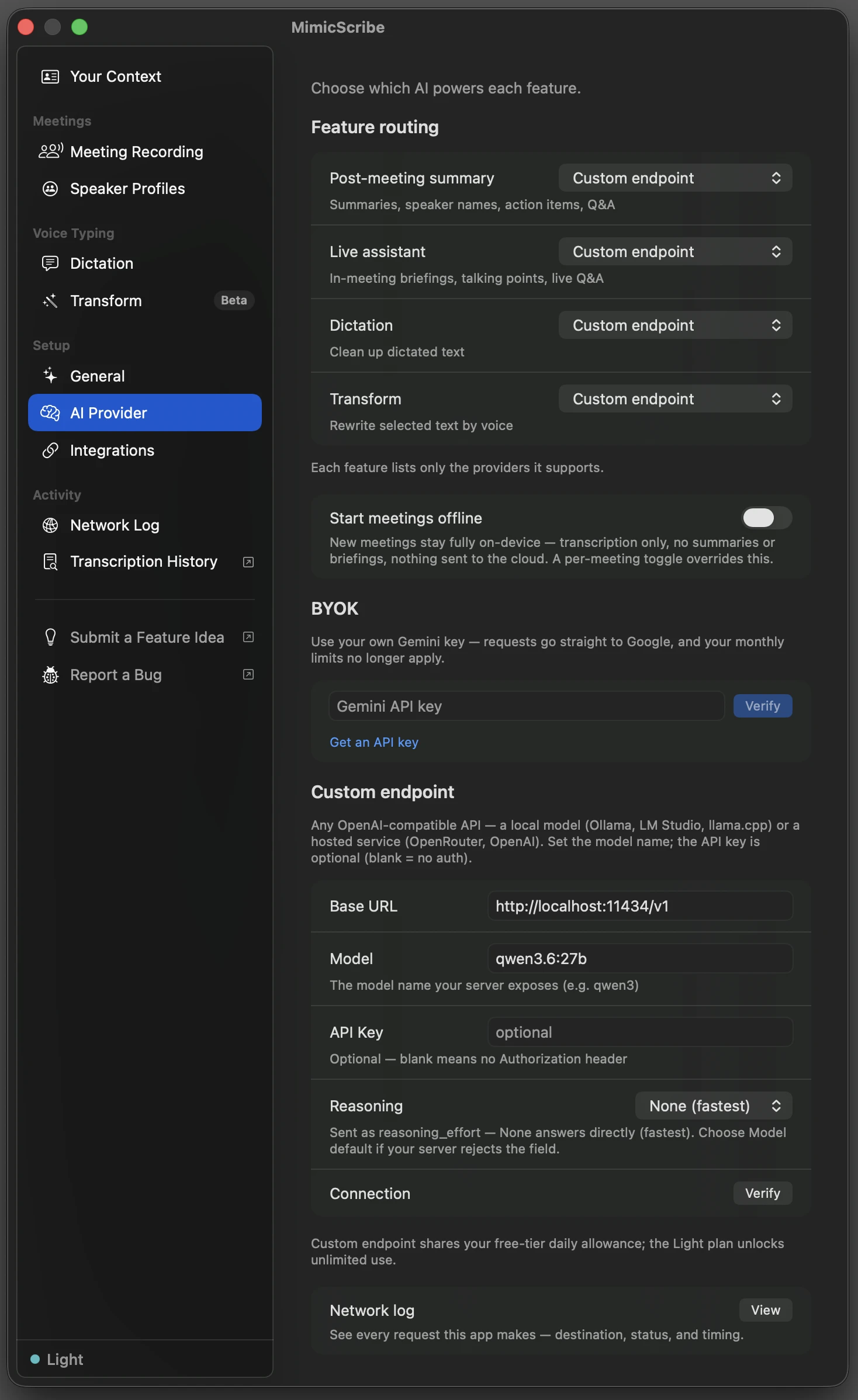
LM Studio and llama.cpp work the same way; only the Base URL and model name change. The full reference — what routes where, plan limits, troubleshooting — is on the [Custom AI Endpoint](/docs/custom-endpoint) page.
## What to expect
Own hardware means owning the quality tradeoff:
- **Quality is the model you pick.** MimicScribe's prompts are tuned against Gemini. Dictation and transform are short, focused tasks that mid-size local models handle; meeting summarization is a long-context task — use the largest model your Mac runs comfortably.
- **Meeting search and reference documents** use the **Post-meeting summary** provider, and **vocabulary hints** use the **Dictation** provider. With Off there, they work without AI: search matches keywords, documents are used as written, and vocabulary is the words you added.
- **Caps mostly don't apply.** Custom-endpoint calls never count against the cloud AI allowance. Pro and Cloud AI are uncapped; from January 1, 2027 the free tier gets 15 summaries a week on your own endpoint. See [Free Tier](/docs/free-tier).
## Watch it work
Open **Settings → Network Log** and run a meeting or a dictation. Each AI request lists where it went — with a local server, that's your own machine:
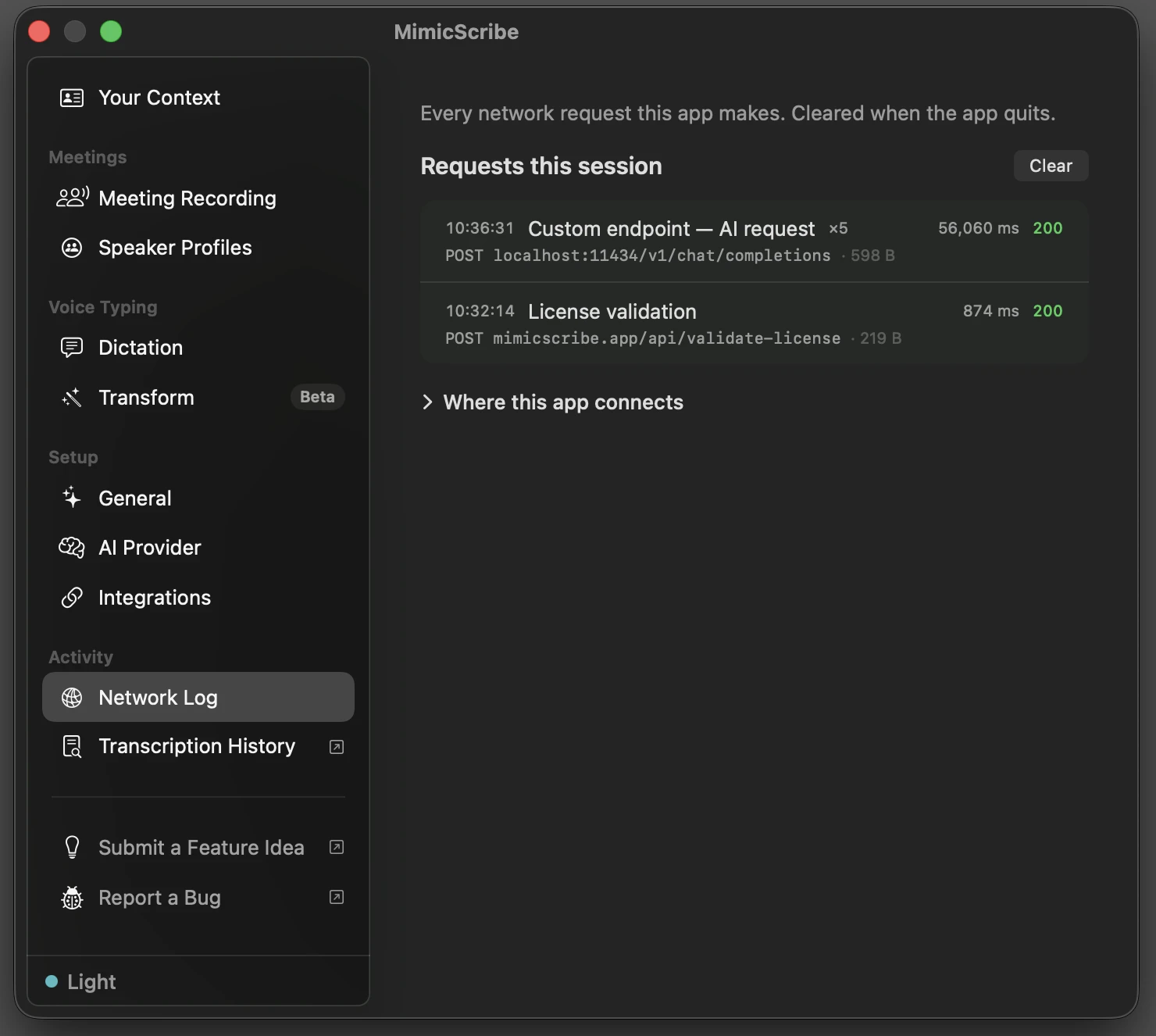
[Network Activity](/docs/network-activity) documents what the log records and how to verify it from outside the app with `nettop` or Little Snitch.
## On-device meetings: no cloud AI
Routing changes where the AI runs. **On-device** is different: it keeps one meeting away from every cloud AI. Transcription and speaker separation run on your Mac, no AI off your Mac sees it unless you switch that meeting back online, and a summary comes only from AI on your Mac. MCP tools and a webhook you turn on still reach it. Toggle it per meeting when you start one. **Require on-device AI** in Settings → AI & Data goes further: every meeting stays on-device, and no feature can use off-device AI until you turn it off. Details in [Privacy & Data](/docs/privacy-data).
---
# Custom AI Endpoint
MimicScribe's text-AI features — summaries, speaker attribution, action items, the live assistant, dictation, and transform — are off until you choose a provider. The built-in option is Google Gemini through our open-source proxy. Audio always stays on your Mac; only transcript text is sent.
You can route those features to your own **OpenAI-compatible endpoint** instead — a model running locally on your Mac, or any hosted provider. It's a power-user option for flexibility, and with a local model it keeps transcript text on your machine.
## What you can connect
Any endpoint that speaks the OpenAI chat-completions API. Presets fill the Base URL for common ones:
- **Local — text stays on your Mac.** Ollama, LM Studio, or llama.cpp. Nothing leaves the device. Step-by-step: [On-Device AI](/docs/on-device-ai).
- **Company-approved (enterprise).** Microsoft Foundry (Azure OpenAI) or Amazon Bedrock — route transcript text to a provider your org already trusts, with no MimicScribe proxy in the path. See [Enterprise providers](#enterprise-providers) below.
- **Hosted inference.** Google Gemini (your own key), OpenAI, Fireworks, Groq, Mistral, OpenRouter, or Scaleway. Transcript text goes to that provider directly, not through our proxy. Scaleway is there for EU data residency — its Generative APIs run in France, and it takes a Scaleway IAM API key.
- **Other.** Any OpenAI-compatible server (vLLM, LiteLLM, Together, an internal gateway). Pick **Other**, paste the base URL, model, and key. Gateways that authenticate on their own header (Azure API Management, Portkey, Kong) work too — see [Company gateways](#company-gateways) below.
With your own model, the output quality is the quality of the model you pick, so **Verify** (and the long-meeting probe) before relying on one.
## Which model to pick
You don't need a frontier model. The prompts are tuned for a small, fast **flash-class** model — the built-in default runs on that tier — so a comparable hosted or local model is usually enough. What matters more than raw size is two things, both of which **Verify** checks for you:
- **Reliable structured (JSON) output.** The summary, speaker-attribution, and action-item features ask the model for structured responses. A model that can't hold a nested schema produces malformed or thin results.
- **A 32k+ context window** so a full-length meeting fits. Smaller windows silently truncate long transcripts — Verify's long-meeting probe catches this, and MimicScribe fails loud rather than summarize half a meeting.
Practical guidance: dictation and transform are short and forgiving, so almost any current model handles them. Full-meeting summarization is the demanding case. The prompts are tuned specifically against Gemini Flash-Lite, so another provider's smallest tier can be flakier on the nested schemas even at a similar size — if summaries come back malformed or thin, step up to a stronger instruction-following model (for example a Qwen3- or DeepSeek-class model, or a larger production model on Groq/Fireworks) rather than a mid-size Llama. When in doubt, let **Verify** and a real meeting decide.
## Set it up
Open **Settings → AI & Data**.
1. Under **Custom endpoint**, fill in:
- **Preset** — optional starting point. Pick one (Ollama, OpenRouter, …) to fill the Base URL — and a default model where one applies — then adjust.
- **Base URL** — your server's OpenAI-compatible address, e.g. `http://localhost:11434/v1` for Ollama.
- **Model** — the model name your server exposes, e.g. `qwen3.6:27b`. Use the dropdown next to the field to pick from the models your server advertises — it's filled in automatically when a server is running — or type a name directly.
- **API Key** — optional. Leave it blank for a local server with no auth; set it for a hosted provider. It's stored in the macOS Keychain, not in plain settings.
- **Auth header** — leave blank for the standard scheme (`Authorization: Bearer`, or `api-key` on Azure/Foundry hosts, chosen automatically). Set it only when your endpoint authenticates on a different header — a company gateway like Azure API Management (`Ocp-Apim-Subscription-Key`) or Portkey (`x-portkey-api-key`). The key is sent in that header instead.
- **Reasoning** — sent as `reasoning_effort`. Leave it at **Model default**, which omits the field and lets the model use its own setting. **None** is the fastest option and stops a thinking model reasoning at length before every answer, but some models read it as permission to skip work. In one test run, a local model returned an empty speaker list on all 78 calls, with valid JSON, a normal summary, and no error anywhere. If you pick it, check that speakers still get named. Some hosted providers accept only Low/Medium/High; if Verify or a feature reports the field was rejected, switch to one of those.
2. Click **Verify**. It runs three checks in order, then tells you what it found:
- **Reachable** — the server answers at that Base URL.
- **Model responds** — a tiny request comes back from the model you named. A reachable server with the wrong model name is the most common misconfiguration, and a reachability check alone won't catch it.
- **Capabilities** — it probes what your endpoint actually supports and shows a line like _Structured output: native · Reasoning control: supported · Long meetings: OK_. The important one is the last: it sends a meeting-length prompt and checks the model reads the **start** of it. Many local servers (Ollama in particular) **silently truncate** a prompt that's longer than the model's context window, so a one-hour meeting summarizes into fine-looking garbage with no error anywhere. If the probe finds the window is too small, Verify warns you to raise the model's context length (e.g. Ollama's `num_ctx`) or pick a 32k+ model. MimicScribe also remembers the measured window and, at runtime, **fails loud** rather than let a long meeting be truncated.
3. Under **Feature routing**, set any feature — Dictation, Transform, Post-meeting summary, Live assistant — to **Custom endpoint**. Each feature lists only the providers it supports, and you can mix: summaries on your local model, dictation on Gemini. A successful Verify already points every active feature at the endpoint, so this step is only for fine-tuning which features go where.
## Set it up with an agent
This is the easiest way if you already use a coding agent like **Claude Code**. Everything the **Custom endpoint** card does, one command does too — so you can describe what you want in plain language and let the agent run it.
The app writes the prompt for you: under **Your own AI service**, open **Have a coding agent set this up**. It shows the full prompt — the command, your current base URL and model, and what to check afterwards — so you can read it before you copy it. It also tells the agent to keep your API key out of its context: local models need no key, an existing key can be passed as `--api-key "$YOUR_VAR"` for the shell to expand, and otherwise you type the key into the app, where it goes straight to the Keychain.
Or paste something like this to your agent:
> Set MimicScribe up to use my local qwen3 model through Ollama. The command is
> `/Applications/MimicScribe.app/Contents/MacOS/mimicscribe --configure-ai-endpoint`
> with `--base-url`, `--model`, `--api-key`, and `--reasoning` flags. Run it,
> read back the STATUS line, and tell me if anything needs fixing.
For a hosted provider: _"Point MimicScribe at OpenRouter with API key `sk-…` and the `qwen3-plus` model."_ The agent maps either request to the command below and runs it.
### The command
The app's executable accepts a `--configure-ai-endpoint` flag, runs headless, and exits:
```sh
/Applications/MimicScribe.app/Contents/MacOS/mimicscribe \
--configure-ai-endpoint \
--base-url http://localhost:11434/v1 \
--model qwen3
```
- `--base-url`, `--model`, `--api-key`, `--reasoning`, `--auth-header` — the same fields as the card. Pass only the ones you want to change; the rest are left as they are. An empty `--api-key ""` clears the stored key. `--reasoning` takes `default` (the default — omits the field), `none`, `minimal`, `low`, `medium`, or `high`. `--auth-header` names the HTTP header the key is sent in (for gateways — e.g. `Ocp-Apim-Subscription-Key`); an empty `--auth-header ""` restores the automatic scheme.
- `--allow-insecure` — required for a **remote `http://` base URL**. Plain HTTP to another machine would send transcript text in cleartext, so the command refuses it and exits non-zero unless you pass this flag. `https://` and loopback (`http://localhost…`, the normal Ollama and LM Studio case) never need it. Note this is stricter than the Settings card, which warns about a remote `http://` endpoint but still lets you save it: if a gateway URL works in the UI and fails from the command line, this is why.
- It **verifies by default** — the same checks the card's Verify button runs: reachable, then the model responds, then a capability probe (structured output, reasoning field, and the long-context/silent-truncation check). If verification fails, the command exits non-zero and does **not** switch any feature over. Pass `--no-verify` to skip the check (e.g. for a server you'll start later).
- On success it points every active feature at the endpoint, exactly like the card does. A feature you've turned off stays off. Pass `--no-adopt` to set the fields without switching any feature over.
### Reading the output
It prints one `key: value` line per setting and a final `STATUS:` line, so an agent can act on the result without screen-scraping:
```
base-url: http://localhost:11434/v1
model: qwen3
reasoning: default
api-key: none
auth-header: automatic
verify: ok — Model responding · Structured output: native · Reasoning control: supported · Long meetings: OK
adopt: active features → custom endpoint
STATUS: ok
```
- `STATUS: ok` — configured, verified, and adopted. Nothing else to do (but restart the app if it's running — see below).
- `STATUS: verify-failed` — settings were saved but the endpoint didn't respond; the exit code is non-zero. The `verify:` line above says why (can't reach the server, or the model didn't answer).
- `STATUS: incomplete` — no model name is set, so the endpoint can't be used. Pass `--model`.
- `STATUS: not-adopted` — the settings were saved but no feature switched over, because adopting a **remote** endpoint routes your transcript text off this Mac. Either pass `--assume-yes`, or (if you also passed `--no-verify`) drop it so the endpoint can verify first. Also non-zero exit.
- A `WARNING:` line means something is wrong even though `STATUS` is `ok` — most importantly a context window too small for full meetings. Raise it (`num_ctx`) or pick a larger model. This is the one an agent should surface to you, because everything still "works," just wrong.
The API key is stored in the macOS Keychain, the same place the card puts it. If the app is already running, quit and reopen it to pick up the change (the command prints a `NOTE:` reminding you).
## What routes to your endpoint
Every feature in **Feature routing** is its own row you can point at your endpoint: dictation, transform, post-meeting summaries (including speaker attribution, action items, and corrections), and the live assistant. Meeting search and reference documents follow the post-meeting summary row; vocabulary hints follow dictation. A successful Verify points all of your active rows at the endpoint at once; you can then move any of them back to Gemini or Off individually.
**Live assistant** offers Gemini, your custom endpoint, or Off.
## Enterprise providers
These use the same Custom endpoint card. Verify still works when the provider doesn't expose an OpenAI-style `/models` listing — a tiny completion against the model you named is the real check.
### Microsoft Foundry (Azure OpenAI)
| Field | What to enter |
| -------- | ------------------------------------------------------------------------------------- |
| Base URL | `https://YOUR-RESOURCE.openai.azure.com/openai/v1` (replace `YOUR-RESOURCE`) |
| Model | Your **deployment name**, not the base model id (e.g. `gpt-4o-meeting`, not `gpt-4o`) |
| API Key | The resource key from the Azure / Foundry portal |
MimicScribe sends the key in the `api-key` header (what Foundry expects for resource keys), including on the Azure Government (`.azure.us`) and China (`.azure.cn`) clouds. **Microsoft Entra ID / keyless auth is not supported yet.** If your org disables resource keys, route through a company gateway instead (many orgs front Foundry with Azure API Management; see [Company gateways](#company-gateways)).
### Amazon Bedrock
| Field | What to enter |
| -------- | ------------------------------------------------------------------------------------------------------------------------- |
| Base URL | `https://bedrock-mantle.REGION.api.aws/v1` (e.g. `us-east-1`) — AWS's recommended OpenAI-compat Chat Completions endpoint |
| Model | A Bedrock model id, e.g. `openai.gpt-oss-120b` |
| API Key | A **Bedrock API key** (Bearer token), not an IAM access-key pair |
IAM SigV4 signing is not supported — paste a Bedrock API key from the AWS console. The Mantle endpoint serves a subset of Bedrock's catalog; if Verify reports your model id isn't found there (some Anthropic ids), use **Other** with `https://bedrock-runtime.REGION.amazonaws.com/openai/v1` and the same key.
### Fireworks / Groq
| Provider | Base URL | Model guidance |
| --------- | --------------------------------------- | ------------------------------------------------------------------------------------------------------------------------------------------------------------------------------------------------------------------------------------- |
| Fireworks | `https://api.fireworks.ai/inference/v1` | Full path id from the Fireworks console. For **meetings**, prefer a large instruction model with strong structured JSON (e.g. Qwen3 / DeepSeek class) — mid-size Llama is fast but often flaky on nested summary/attribution schemas. |
| Groq | `https://api.groq.com/openai/v1` | An id from [console.groq.com](https://console.groq.com). For meetings prefer a larger production model (e.g. `openai/gpt-oss-120b`) over mid-size Llama. Short dictation/transform is less demanding. |
Paste the provider API key; both use `Authorization: Bearer`. MimicScribe's prompts are tuned on Gemini — any custom model is a quality tradeoff; use **Verify** (and the long-meeting capability probe) before relying on a pick for real meetings.
### Company gateways
Many companies put one gateway in front of every approved AI provider — a LiteLLM proxy, Azure API Management, Portkey, or Kong. If your org hands you a gateway URL and a key instead of a provider account, that's what goes in the card:
| Gateway | Base URL | Auth header setting |
| -------------------- | ------------------------ | ------------------------------------------------- |
| LiteLLM proxy | Your gateway's `/v1` URL | Leave blank — LiteLLM takes a standard Bearer key |
| Azure API Management | The API's gateway URL | `Ocp-Apim-Subscription-Key` |
| Portkey | Your Portkey gateway URL | `x-portkey-api-key` |
| Kong (key-auth) | Your gateway route URL | `apikey` (or whatever your Kong config names) |
The **Auth header** field (on the Custom endpoint card, or `--auth-header` on the command line) names the header your key is sent in; blank means the standard scheme. Gateway configurations vary — if Verify returns 401, ask whoever runs the gateway which header it authenticates on. Some gateways need extra routing headers MimicScribe doesn't send; those need a server-side default (most gateways can pin a provider per key).
### What about GitHub Copilot?
You can't point MimicScribe at a Copilot subscription, because GitHub doesn't offer an API for apps like this one. Copilot's model access is scoped to GitHub's own surfaces (the IDE extensions, github.com, the Copilot CLI and SDK), and its inference endpoints are off-limits to third-party clients. Tools that call them anyway are unsupported and put the account at risk. GitHub Models, the OpenAI-compatible endpoint GitHub briefly offered, was retired in July 2026; GitHub points its users at Azure AI Foundry instead.
In practice, a company with Copilot seats almost always has an Azure tenant. Ask for a Foundry deployment and use the **Microsoft Foundry** preset above — same Microsoft billing relationship, and an endpoint your org actually sanctions.
## Privacy
- A **local** endpoint keeps transcript text on your Mac end to end — combined with on-device transcription, nothing leaves the machine.
- A **hosted or enterprise** endpoint sends transcript text to that provider instead of to Google. You are responsible for the privacy and security of any endpoint you configure.
- Audio is never sent, on any path.
If you want AI summaries with zero cloud, point the features at a local model. To keep a meeting off every cloud AI, make it **On-device** when you start it. To keep everything off the cloud, turn on **Require on-device AI** (Settings → AI & Data): every meeting stays on-device, and dictation, Transform and search use only AI on your Mac, such as an endpoint on `localhost`. A custom endpoint on another machine can't be used while on-device AI is required. MCP tools and a webhook you turn on still reach every meeting.
You can watch the routing work. Open **Settings → Network Log** and run a meeting: each AI request lists the endpoint it went to — your server's address instead of our proxy. With a local model that's `localhost`, and nothing AI-related leaves the machine.
**On-device meetings and the endpoint address.** MimicScribe decides whether text stays on your Mac from the endpoint's host alone. A loopback address (`localhost`, `127.0.0.1`, or `::1`) counts as this Mac, so on-device meetings can use it without a prompt. Any other address, including a LAN IP or a `.local` name, counts as remote and asks before an on-device meeting is sent. The app can't see past the loopback server itself: if it forwards requests elsewhere (a LiteLLM proxy, an Ollama cloud model, an SSH tunnel), on-device transcripts go there too. See [Network Activity](/docs/network-activity) for what the log records.
## Plans and limits
Calls to your own endpoint never touch our proxy and never count against the cloud AI allowance.
- **Pro and Cloud AI** — uncapped, local or hosted endpoint alike.
- **Free** — uncapped until January 1, 2027. From then, free gets 15 AI meeting summaries a week on its own endpoint (resets Monday); other features on the endpoint stay uncapped. [Pro](/docs/subscriptions) removes the limit.
## Troubleshooting
**Verify** reports its failure modes separately:
- _Cannot connect / server returned a code_ — the Base URL is wrong, or the server isn't running.
- _Model not found / timed out_ — the server is reachable, but the **Model** name doesn't match what it exposes, or the model is too slow to load. Check the exact name your server lists (Foundry: deployment name; Fireworks: full `accounts/…/models/…` path; Bedrock: model id).
- _401 / unauthorized_ — wrong key type for that host. Foundry wants a **resource key** (not an Entra token). Bedrock wants a **Bedrock API key** (not IAM access keys). Behind a company gateway, a 401 usually means the key belongs in a different header — set **Auth header** to the one your gateway authenticates on (see [Company gateways](#company-gateways)).
- _Long meetings at risk_ (a warning, not a hard failure) — the model's context window is too small to read a full meeting, so long transcripts would be silently truncated. Raise the model's context length (Ollama's `num_ctx`) or pick a model with a 32k+ window. Short tasks like dictation and transform are unaffected.
- _Cleartext refused_ (command line only) — a remote `http://` base URL exits non-zero without saving, because transcript text would cross the network unencrypted. Use `https://` if the endpoint offers it, or pass `--allow-insecure` for a gateway on a LAN you trust. The Settings card warns instead of blocking, so this failure only appears when configuring via `--configure-ai-endpoint`.
If a feature is set to Custom endpoint but no model name is saved, that run is skipped and the feature reports "Custom endpoint not configured — choose a model in AI & Data settings."
To confirm what is and isn't leaving your Mac at any moment, see [Network Activity](/docs/network-activity).
---
# Network activity
A complete list of the network calls MimicScribe makes, what each one carries, and how to inspect them.
## The built-in Network Log
**Settings → Network Log** shows every request the app sends, as it happens — what it was for, where it went, the HTTP status, and how long it took.
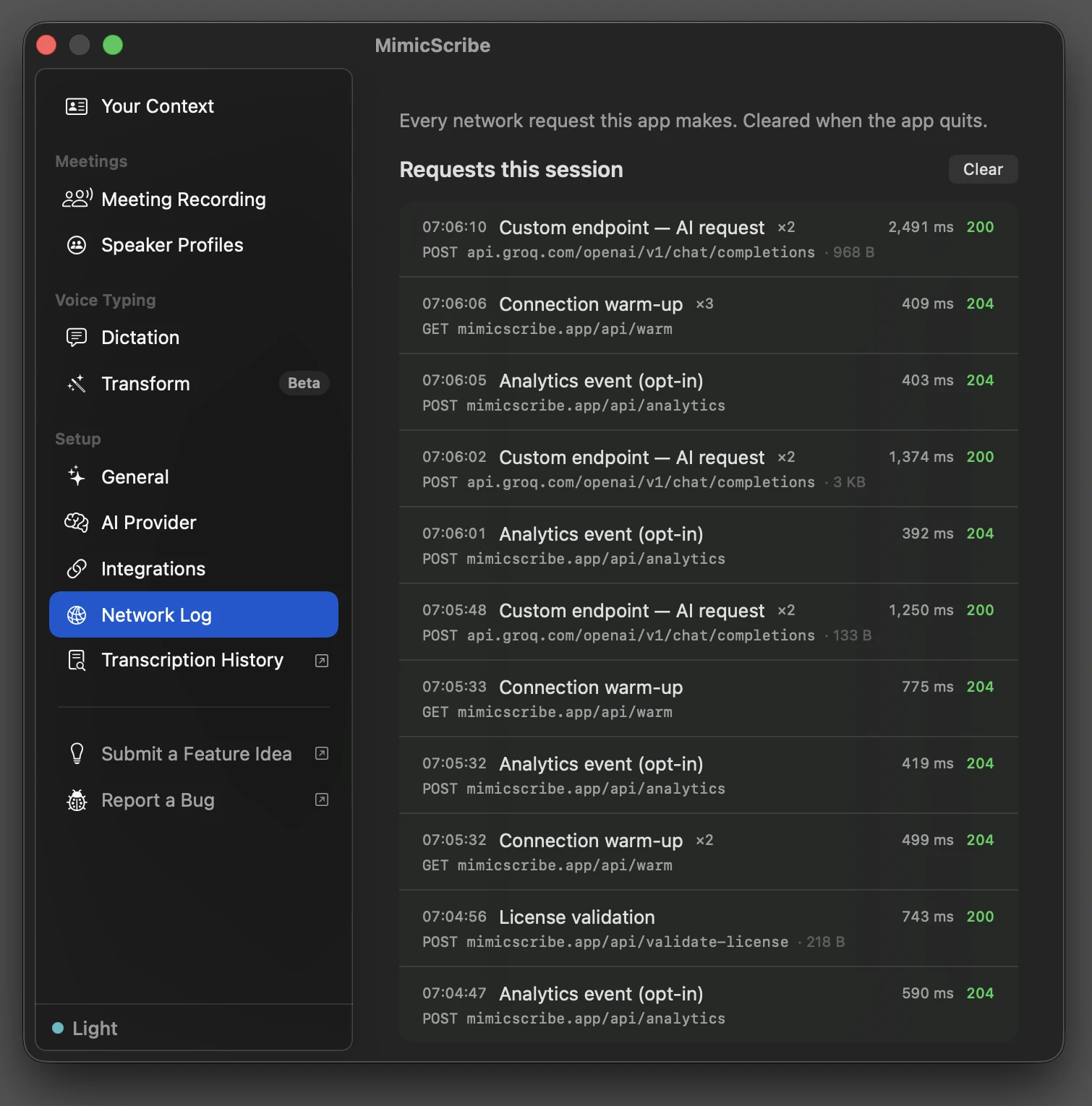
Each entry records metadata only: purpose, method, host and path, status, latency, and response size. Bodies, headers, and query strings are not recorded — a query string is where an API key can travel, so the log never holds anything worth protecting. The log lives in memory for the current session and clears when the app quits.
Two channels use their own networking and can't appear in the log request-by-request: Sparkle update checks and model downloads. Both are disclosed in the pane's "Where this app connects" card, and both are in the endpoint table below.
The log is the app's own accounting. To check it against what actually crosses the wire, see [Inspect it yourself](#inspect-it-yourself).
## Endpoints
| Host | When | What's in it |
| ----------------------------------------------------- | -------------------------------------------------------------------------------------------------------------------------------------------------- | ---------------------------------------------------------------------------------------------------------------------------------------------------------------------------------------------------------------------------------------------------------------------------------------------------------------- |
| `mimicscribe.app/api/gemini/...` (Cloudflare) | Cloud meeting summary, talking points, Q&A, transform, dictation refinement | Transcript text and your prompt. Not raw audio. |
| `mimicscribe.app/api/warm` | When a recording starts and periodically while one is active — only for features routed through the proxy | Empty GET — TLS handshake to shave latency off the first real call. |
| `mimicscribe.app/appcast.xml` | At launch, then every 24h (Sparkle) | GET request. App + macOS version in the User-Agent. |
| `mimicscribe.app/api/crash-report` | When a queued crash, daily hang/CPU metric, failure event, or degraded-transcript diagnostic exists, only if crash reporting is on (or you said Send after a crash) | Report type, app + build version, build channel, OS version, an anonymous device hash, a failure event's name + categorical codes, and — for crashes — the exception name + top stack frames (function names + offsets). No exception reason strings, no transcript text, no audio. |
| `mimicscribe.app/api/validate-license` | At launch and periodically, Pro and Cloud AI only | License key. Nothing else. |
| `mimicscribe.app/api/report-usage` | Every ~15 min, Pro and Cloud AI only | Aggregate token counts per feature for billing. No transcript content. |
| `mimicscribe.app/api/free-usage` | At launch, free tier only, and only when a feature uses MimicScribe Cloud AI — seeds the local usage meter | Anonymous device hash, local date. |
| `mimicscribe.app/api/device/register` | Once, in the background, when a feature first uses MimicScribe Cloud AI on the free tier (and about every 80 days after, or when your Pro license changes) | Anonymous device hash and a small proof-of-work answer (plus your license key if you own Pro, so new-device limits never apply to you), exchanged for a signed token the app sends with each Cloud AI request. Limits abuse of the free tier. |
| `mimicscribe.app/api/portal` | When you click Manage Subscription, Cloud AI only | License key, exchanged for a short-lived Stripe billing-portal link that opens in your browser. |
| `mimicscribe.app/api/pricing` and `/api/checkout/create` | When Settings shows plan prices, or you click Buy | Empty GET for prices; for checkout, your license key if you have one, exchanged for a Stripe checkout link that opens in your browser. |
| `mimicscribe.app/api/feedback/auth` | When you open the feedback board from Settings | Your license identity, exchanged for a sign-in link to the board. No transcript content. |
| `generativelanguage.googleapis.com` | Only if you point your Custom endpoint at Google's OpenAI-compatible address, with your own API key | Transcript text and your prompt, sent directly to Google with your key. Bypasses our proxy. Warm-up and keep-alive pings go here too (a one-model list request), not to `/api/warm`. |
| Your custom endpoint | Only if configured in Settings → AI & Data | Transcript text for the features you routed there, plus warm-up and keep-alive pings (`GET /models`) while recording. Localhost endpoints skip the pings. |
| **Your webhook URL** | Only if you turn on the webhook in Settings → Integrations — when a meeting finishes, and again if you edit it | **The one destination that carries meeting content to a third party you chose.** Summary, action items, tags, and participant names. Never the transcript. On-device meetings are sent too once they have a summary (turning the webhook on is your consent for every meeting). https only (localhost excepted); a Discord URL is reshaped into an embed. Optionally HMAC-signed with a secret you set. |
| HuggingFace CDN (`huggingface.co` via CloudFront) | When MiniLM, Parakeet, and LocalVQE models load, a speech-model update downloads, or the speaker-refinement model downloads, while the app is idle | Manifest revision check. No user data. |
| `github.com` | Only if you set up Import from URL — the yt-dlp helper and its checksum, then a weekly refresh check | A download from yt-dlp's official release page, SHA-256 verified. No user data. Your own Homebrew copy, if you have one, is used instead and never touched. |
| The site you paste into Import from URL | When you import a meeting from a page rather than a direct media file | The helper contacts that site, and whichever host it serves media from, to fetch the audio. The request to the site you named is shown in the log; the media host it redirects to is not. |
| An https link an agent hands to `import_meeting` | Only when you or an agent imports a meeting from a URL over MCP | A one-time download of that file. You supply the link. |
| Any URL you add as a reference or meeting-prep source | When you add a web URL under Settings → Meeting Recording → Reference Documents, or as prep for a meeting | A one-time GET of that page, fetched directly from its own host so its text can be indexed. You choose the URL; the fetched content is then processed via the Gemini proxy above. |
Audio capture, transcription (Parakeet), speaker diarization, echo cancellation, and VAD run on-device. Audio bytes are never sent anywhere.
This table is kept honest by a test rather than by memory: every hardcoded request host in the app source has to map to a row in the Network Log pane's "Where this app connects" card, or the build fails. The card and this table are the same list.
The Gemini proxy is open source: [github.com/mimicscribe/mimicscribe-proxy](https://github.com/mimicscribe/mimicscribe-proxy).
## Inspect it yourself
The Network Log is self-reported — the app telling you what it sent. The tools below observe from outside the app, so you don't have to take its word for it.
macOS ships `nettop` (live byte counters per process) and `lsof` (open sockets):
```sh
# Live view of every connection the app has open (press q to quit)
nettop -p mimicscribe
# One-time snapshot of its open sockets
lsof -i -nP -a -p $(pgrep -x mimicscribe)
```
For a UI alternative, **Little Snitch** ($69) prompts on each connection and works on macOS Tahoe. **LuLu** (free, by Objective-See) is the usual recommendation but currently has a [`NetworkExtension` provider issue on Tahoe 26.2+](https://github.com/objective-see/LuLu/issues/825) — verify it's actually catching traffic before relying on it.
## Offline meetings
An offline meeting skips every cloud feature. Transcription and speaker separation still run on your Mac. Cloud summaries and other AI features are skipped; you can add a summary later with AI on your Mac, or by turning Offline off for that meeting. What changes on the network:
- No `/api/gemini/...` calls. No transcript leaves the Mac during or after the meeting.
- No `/api/warm` prewarm at meeting start.
- A webhook you turned on still POSTs the meeting once it has a summary (for example, one you generate with a local model). Turning the webhook on is your consent for every meeting.
- Crash reporting is off by default; after a crash you're asked before anything is sent.
`appcast.xml` and HuggingFace model checks are unchanged — they're per-app, not per-meeting.
Run an offline meeting with the Network Log open and you can watch this hold: no AI requests appear for that meeting.
---
# Managed settings (MDM)
A configuration profile can set where MimicScribe's text AI runs and lock that choice. Audio is captured, transcribed and diarized on the Mac in every configuration; the profile decides where the transcript text may go.
The profile uses Apple's standard managed-preferences payload for the `app.mimicscribe` domain, so it works with any MDM: Jamf, Kandji, Intune, Mosyle and others. A setting the profile manages wins over anything the user picks. In the app, the matching controls are greyed out and read "Managed by your organization."
MimicScribe has no admin console or audit dashboard. The profile locks settings on each Mac; it does not report back.
## Local-only profile
[Download the local-only profile](/mimicscribe-local-only.mobileconfig). It turns off every AI provider, the MCP server and the webhook. With it installed:
- Every new meeting and imported file is offline, and the Offline switch can't be turned off. Meeting search makes no cloud AI call.
- The MCP server and the webhook are off, and their switches can't be turned on. Turning either on would share every meeting. To allow MCP alongside on-device AI, set `mcpServerEnabled` to `true` in your profile; leaving it out means a new install starts with MCP off and the user decides.
- Typed and spoken questions about any meeting, including ones recorded before the profile was installed, aren't sent to an AI provider.
- Dictation pastes the on-device cleanup (fillers, repeats, paragraphs, spoken punctuation). Per-app dictation profiles can't route to a provider.
- Transform is off. Its shortcut shows "Transform is turned off by your organization."
- Reference documents, vocabulary hints and meeting search make no AI calls.
- Onboarding shows a note instead of the "Where should AI run?" choices. With a profile that sets only some keys, the rest start off and the user can turn them on in Settings.
Upload it to your MDM as a custom profile, or deploy the same keys through your MDM's custom-settings payload.
### Locking your own Mac
You don't need an MDM. Double-click the downloaded profile, then approve it in **System Settings → General → Device Management**. Remove it from the same pane. A profile you installed yourself can be removed by you; one your MDM installed can't.
### From Terminal or an AI agent
An agent can download the profile and open it, but macOS requires you to approve the install yourself. No script can skip that step.
```bash
curl -fsSLo ~/Downloads/mimicscribe-local-only.mobileconfig \
https://mimicscribe.app/mimicscribe-local-only.mobileconfig
open ~/Downloads/mimicscribe-local-only.mobileconfig
# Now approve it: System Settings → General → Device Management
```
Then quit and reopen MimicScribe. To check it took effect:
```bash
defaults read app.mimicscribe meetingAIProvider # prints: none
```
In the app, **Settings → AI & Data** shows each picker greyed out with "Managed by your organization."
Without a profile, the same keys can be set with `defaults write` (for example `defaults write app.mimicscribe meetingAIProvider none`). That sets the value but doesn't lock it: the user can change it back in Settings. Quit MimicScribe before writing.
## Keys
All keys live in the `app.mimicscribe` domain.
| Key | Values | Controls |
|---|---|---|
| `meetingAIProvider` | `none`, `gemini`, `openAICompatible` | Post-meeting summary, speaker names, action items |
| `liveAssistantProvider` | `none`, `gemini`, `openAICompatible` | In-meeting briefings, talking points, live Q&A |
| `dictationProvider` | `none`, `gemini`, `openAICompatible` | Dictation cleanup |
| `instructionProvider` | `none`, `gemini`, `openAICompatible` | Transform (`none` turns it off) |
| `mcpServerEnabled` | `true` / `false` | MCP server. On lets connected AI tools read every meeting |
| `webhookEnabled` | `true` / `false` | Meeting webhook. On sends every meeting with a summary to its URL |
| `meetingDefaultOfflineMode` | `true` / `false` | Require on-device AI. On: no AI request leaves the Mac and every meeting stays on-device |
| `screenSnapshotsAllowed` | `true` / `false` | Window snapshots during meetings. `false` disables the Capture button |
| `crashReportingEnabled` | `true` / `false` | Crash and error reports. `false` also stops the after-crash prompt |
| `openAICompatibleBaseURL`, `openAICompatibleModelName` | URL / model name | Your company's endpoint (see below) |
| `SUEnableAutomaticChecks` | `true` / `false` | Daily update check (on by default) |
| `SUAutomaticallyUpdate` | `true` / `false` | Install updates without asking |
Values are case-sensitive. An unrecognized value turns that feature off rather than falling back to the cloud, so after deploying, open **Settings → AI & Data** on one Mac and check that each locked picker shows what you set.
`none` is off. `gemini` is the built-in cloud AI through MimicScribe's open-source proxy. `onDevice` (Apple Intelligence) is no longer offered; a profile that still sets it turns that feature off. `openAICompatible` is the [custom endpoint](/docs/custom-endpoint).
Meetings are forced offline when `meetingDefaultOfflineMode` is `true` (Require on-device AI: no feature can use off-device AI, and every meeting stays on-device) or when both `meetingAIProvider` and `liveAssistantProvider` are `none`. A key the profile leaves out stays under the user's control, so a local-only profile needs all four provider keys. (`supportingProvider` is no longer read: search and reference documents follow `meetingAIProvider`, and vocabulary extraction follows `dictationProvider`.) Meetings recorded before the profile was installed keep their own setting.
### Allowing only your company's endpoint
Set the provider keys to `openAICompatible` and also manage `openAICompatibleBaseURL` and `openAICompatibleModelName`. The managed values are the ones the app uses. The endpoint fields in Settings don't lock yet, so a user can type in them, but their edits aren't used. If the endpoint needs a key, the user enters it in Settings; keys are stored in the Keychain, not in preferences.
## What still connects
Update checks, and license validation on paid plans, still reach `mimicscribe.app` with a profile installed. Neither carries meeting content. Crash reports are off by default; after a crash the app asks before sending one. The full list is on the [network activity](/docs/network-activity) page.
---
# Purchasing & Licensing
MimicScribe has two things to buy, and you can have either or both. Checkout and billing are handled by [Stripe](https://stripe.com); license keys are managed by the MimicScribe server.
## Pricing
| Product | Price |
| -------- | --------------------------------------------------------- |
| Pro | $75 once ($50 launch price until October 31, 2026) |
| Cloud AI | $10/month, or $84/year (save 30%) |
**Pro** is a one-time purchase. It removes the limits on the MCP server, auto-export and AI on your own OpenAI-compatible endpoint, includes all 1.x updates, and keeps working offline with no check-ins.
**Cloud AI** is a subscription for unlimited cloud AI on our Gemini proxy: meeting summaries, in-meeting briefings, follow-ups and file imports, under fair-use limits. It includes Pro while you're subscribed. If you own Pro and cancel Cloud AI, you keep Pro.
See the [Free Tier](/docs/free-tier) page for what's included without either. If you were on an earlier Light or Unlimited plan, you were given a free Pro license on your existing key; see the email we sent.
## How to purchase
1. In the app, open **Settings → Subscription** and choose Pro or Cloud AI. Or use the [pricing section](https://mimicscribe.app/#pricing) on the website
2. Stripe Checkout opens. Enter your email and payment details (card, Apple Pay, Google Pay or Link)
3. Complete the purchase
Buying from the app adds the purchase to the license key you already have. After checkout you land on a welcome page that activates your license in MimicScribe and shows the key, and the key is emailed to you.
## Activating your license key
There are two ways to activate:
### Automatic activation from the welcome page
The welcome page on `mimicscribe.app/welcome` opens a `mimicscribe://activate?key=…` deep link, which launches MimicScribe and activates automatically.
### Manual activation
1. Open MimicScribe and click the menu bar icon, then the gear icon to open **Settings**
2. Click the plan status at the bottom of the sidebar
3. Paste your license key into the field (starts with `ms_live_…`)
4. Click **Activate**
A status indicator confirms your license state:
- **Active** (green) — your license is active (Pro, Cloud AI, or both)
- **Expired** (orange) — the subscription has ended and you don't own Pro; free tier limits apply
- **Invalid** (red) — key not recognized, check for typos
## Where to find your license key
- **Welcome page** immediately after purchase — save it there, it isn't shown again if you reload
- **Inside MimicScribe** — open Settings, click the plan status at the bottom of the sidebar
- **The confirmation email** sent right after checkout — separate from Stripe's payment receipt, which does not include the key
If you lost it, use [mimicscribe.app/resend-license](https://mimicscribe.app/resend-license) with the email you used at checkout, or email [support@mimicscribe.app](mailto:support@mimicscribe.app) if that doesn't work.
## Managing a Cloud AI subscription
Pro is a one-time purchase, so there's nothing to manage. A Cloud AI subscription is managed in the **Stripe billing portal**:
**[mimicscribe.app/account](https://mimicscribe.app/account)**
Enter the email you used at checkout — Stripe emails you a secure magic link. Click it to open the portal. From there you can:
- View your current subscription and next billing date
- See your order history and download invoices
- Update your card
- Cancel your subscription
- Switch between monthly and annual billing
If you're already in the app, **Settings → Subscription → Manage Subscription** opens the portal directly without the email step.
## Canceling Cloud AI
1. Go to [mimicscribe.app/account](https://mimicscribe.app/account)
2. Enter your checkout email — Stripe emails you a login link
3. Click the link, then **Cancel subscription** in the portal
When you cancel:
- Your subscription remains active until the end of your current billing period
- You won't be charged again after the current period ends
- Once the period ends, cloud AI returns to the free allowance. If you own Pro, it keeps working; otherwise free tier limits apply
- Your data, transcripts, and recordings are never deleted — they remain on your Mac
## Refund policy
### 30-day money-back guarantee
I offer a **30-day refund window** from the date of your purchase, for Pro and for your first Cloud AI payment. If MimicScribe isn't working out for you, email [support@mimicscribe.app](mailto:support@mimicscribe.app) with your purchase date and I'll process a refund — no questions asked.
### After 30 days
After the 30-day window, all sales are final. I encourage you to make full use of the free tier before purchasing to make sure MimicScribe meets your needs.
### Cloud AI renewals
If your Cloud AI subscription renews and you did not cancel beforehand, the renewal charge is not eligible for a refund. Cancel from [mimicscribe.app/account](https://mimicscribe.app/account) before your renewal date to prevent future charges.
### How refunds are processed
Refunds are returned to your original payment method. Processing time depends on your card issuer, typically 5–10 business days.
## Billing FAQ
### What payment methods are accepted?
Stripe accepts major credit and debit cards (Visa, Mastercard, American Express, Discover), Apple Pay, Google Pay, and Link.
### When am I charged?
- **Monthly**: on the same date each month as your original purchase
- **Annual**: on the same date each year as your original purchase
### What happens if my payment fails?
Stripe retries failed charges automatically. If payment keeps failing, cloud AI returns to the free allowance (Pro, if you own it, keeps working). Update your payment method at [mimicscribe.app/account](https://mimicscribe.app/account) to restore access.
### Can I switch between monthly and annual?
Yes — open [mimicscribe.app/account](https://mimicscribe.app/account), sign in with your checkout email (or use the **Manage Subscription** button in the app), and switch between monthly and annual billing in the Stripe billing portal. Prorations are handled automatically; your license key stays the same.
### I purchased but didn't receive my license key
Check the welcome page or the confirmation email. If you still can't find it, use [mimicscribe.app/resend-license](https://mimicscribe.app/resend-license) or email [support@mimicscribe.app](mailto:support@mimicscribe.app).
### My license shows as Invalid
- Double-check the key for typos — copy and paste from the welcome page or confirmation email rather than typing it
- If you bought Cloud AI, make sure the subscription is still active at [mimicscribe.app/account](https://mimicscribe.app/account)
- If you recently renewed, try clicking **Activate** again in Settings
- Still stuck? Email [support@mimicscribe.app](mailto:support@mimicscribe.app)
---
# Performance & Memory
MimicScribe runs speech recognition, speaker diarization and echo cancellation on your Mac. Here is what that costs, with the measurement behind each number.
Every table below says when it was measured and on what. A figure I can't trace to a real measurement isn't on this page.
## How much memory does it use when idle?
_Release build, M1 Max (10-core, 32 GB), macOS 26.6, `footprint -p` at 90 seconds idle against a real database. Measured 2026-09-14._
| Build | Physical footprint |
| ------------------------------ | ------------------ |
| Current | **145 MB** |
| Before on-demand model loading | 210 MB |
The drop is real: models aren't loaded until something needs them. The speaker-detection model loads when a meeting starts; the text model for search loads the first time something is embedded. Sitting in your menu bar, MimicScribe is holding very little.
## What about the ML models — don't they take 500 MB?
They occupy about 583 MB, and it is not charged against the app the way ordinary memory is.
The speech model runs on the **Neural Engine**, Apple's dedicated ML accelerator. macOS maps its weights as a clean, file-backed region: it counts toward RSS, but the system can reclaim it at any time without asking, and it is not what macOS looks at when deciding which app is under memory pressure. It also does not compete with your other apps for RAM the way a heap allocation does.
If you run `footprint` yourself you will see this region listed separately. The `phys_footprint` line at the bottom is the number macOS actually charges the app.
## How much memory does an active meeting use?
I don't have a current measurement to publish. The figure that used to sit here was taken before models moved to on-demand loading, so it no longer means anything.
What I can tell you is how the heaviest moment is bounded. It comes just after you stop a long meeting, when speaker diarization runs over the whole recording. That work is deliberately capped: audio is processed in streamed, memory-mapped chunks instead of being held in memory, the two channels are handled one at a time, and under system memory pressure the app sheds caches and shrinks its batch sizes mid-run. A three-hour meeting finishes within a bounded footprint rather than scaling with its length.
## How much CPU does a meeting use?
_Release build, M1 Max, idle desktop, offline replay of a 432-second field recording — on-device speech recognition, diarization and echo cancellation running together, no network calls. Sampled over 45 seconds of steady state. Measured 2026-08-23._
About **34% of one core**, of which echo cancellation is 17 points. On a 10-core machine that is roughly 3% of the total CPU.
The heavy ML inference is on the Neural Engine, which is why the CPU number is a third of a core rather than several. Echo cancellation is the largest CPU consumer because it runs continuously on every audio frame, unlike speech recognition which works in bursts.
## What about battery?
The Neural Engine is built for low-power inference and draws from a different power budget than the CPU and GPU, so the ML work is cheaper than its size suggests. The sustained cost is the audio pipeline — capture and echo cancellation — at the CPU figure above.
I haven't measured battery life directly. When I do, the number will be here with its method.
## Does it do anything when I'm not recording?
Yes, three things, all small and all network:
| What | How often |
| ---------------------------------------- | ----------------------------------------- |
| Checking for app updates | Every 24 hours |
| Validating your license | Every 6 hours |
| Reporting usage counts against your plan | Every 15 minutes while the app is running |
No audio is captured and no transcription runs when you are not recording. See [Network Activity](/docs/network-activity) for everything the app connects to and why.
## How long does the first launch take?
The first time the speech model runs, macOS compiles it for the Neural Engine. That compile takes about **26 seconds** and happens once — the result is cached, and every launch after that loads the model in 135–235 ms.
_Measured 2026-09-14, M1 Max, empty compile cache._
## How much disk does it use?
| Data | Size |
| -------------------------------------------------- | -------------------------------------------------- |
| Models, downloaded on first run | ~1.4 GB |
| Database — transcripts, meetings, speaker profiles | Grows with use; tens of MB is typical |
| Local backup snapshots | Roughly 10× the database, rotated |
| Meeting audio | 14.4 MB per hour, kept until you set a retention window |
The model download is one time. See [Privacy & Data](/docs/privacy-data) for what each model is, and [Audio Playback & Retention](/docs/audio-playback) for changing how long recordings are kept.
## Can I measure this myself?
Yes. With MimicScribe running:
```
footprint $(pgrep mimicscribe)
```
That prints the full breakdown, including the Neural Engine region listed separately from the app's own memory. `phys_footprint` at the bottom is the figure macOS charges the app, and the one comparable to Activity Monitor's Memory column.
---
# Troubleshooting
Can't find what you need here? Email [support@mimicscribe.app](mailto:support@mimicscribe.app) — I typically reply within a day.
## Where is the app? I don't see it in the Dock.
MimicScribe is a menu bar app — it appears as a small icon in the top-right area of your screen, not in the Dock.
## How do I re-grant a permission I denied?
Go to **System Settings > Privacy & Security**, find the relevant permission (Microphone, System Audio Recording Only, or Accessibility), and toggle MimicScribe on. Accessibility takes effect immediately; for Microphone or System Audio Recording Only, you may need to quit and relaunch the app.
## The model download failed. How do I retry?
A Retry button appears on the download card in the onboarding wizard. Click it to restart the download.
Once you're past onboarding, the same controls live in **Settings > General > Models**. Each model has a row showing whether it's on disk and how much space it's using, with **Show in Finder** to open it and **Re-download** to fetch it again. A re-download asks for confirmation first and keeps your current copy until the new one succeeds, so a failed retry can't leave you with nothing. Re-downloading is blocked while a recording — or a meeting's post-stop processing — is still running.
## No audio is being captured.
- **Microphone**: System Settings > Privacy & Security > Microphone — ensure MimicScribe is enabled
- **System audio** (for meetings): System Settings > Privacy & Security > System Audio Recording Only — must be enabled
- **Wrong device**: check Settings > General > Microphone and make sure the correct input is selected
## Words are missing from the transcript.
When audio is captured but parts of what was said don't show up, the input level is usually too low. Quiet voices, sitting back from a laptop mic, an external USB mic with low default gain, or a recently-changed audio device can all push the level below where the app reliably detects speech.
**Settings > General > Microphone level** has a built-in check. Click **Test**, read the prompt sentence aloud, and the row reports whether your peak speech level lands in the recommended -25 to -20 dB band. If it falls below the band, **Boost mic to recommended level** raises the input gain via Core Audio and re-measures.
Some devices ignore software volume changes — USB mics with hardware knobs, AirPods, headsets with fixed gain. The check reports that explicitly and points to **System Settings > Sound > Input** or the device's own control.
Two different meters show you the level, and they don't look the same:
- **On the meeting start screen**, before you hit record, the mic meter has six segments: four green, one yellow, one red. Red only lights at clipping levels, so aim to light the greens and touch the yellow on your loudest words.
- **While a meeting is recording**, the status bar at the top of the overlay shows a pair of four-segment meters — one for your mic, one for system audio. They run green to amber and have no red segment at all, so don't go looking for one. Most of the four should light when you speak; one or two faint bars means you're too quiet, and nothing lighting up means the channel isn't reaching the app.
If either meter sits low, run the calibration check above.
Worth re-running:
- After switching to a new microphone, headset, or pair of AirPods.
- After moving farther from a laptop mic — laptop on a stand, leaning back, working from across the room.
- In a new environment with different background noise (home office to coffee shop, quiet room to a car).
- After a macOS update, in case input device defaults reset.
If the level is in band and words are still missing, the issue is downstream of capture — check that the right input device is selected in Settings > General > Microphone, and that nothing is muted at the system level.
## My dictation isn't appearing at the cursor.
Check the following in order:
1. **Wrong input selected** — the target app's text field may not have focus. Click into the text field where you want text to appear before dictating.
2. **Accessibility permission** — Insert Mode requires Accessibility access. Go to **System Settings > Privacy & Security > Accessibility** and ensure MimicScribe is enabled. After updating MimicScribe, you may need to re-grant this permission.
3. **Recover from the status panel** — every dictation is saved to your history. Click the MimicScribe icon in the menu bar, find the transcription in the list, and click **Copy** to grab it. Then paste it wherever you need it.
4. **Re-paste your last result** — turn on **Double-Tap to Repaste** in **Settings > Voice Typing > Dictation** first; it's off by default so an accidental double-tap can't drop old text somewhere you didn't want it. With it on, tap the hotkey to start and stop again within 2 seconds without speaking, and your last result lands at the cursor. It covers both Dictation and Transform.
## Meeting mode shows no speaker labels.
Speaker identification requires both system audio and microphone input. (Named speakers in the summary are free on every tier — no subscription is required for them.) Verify:
- System Audio Recording Only permission is granted
- Your video call app is producing audio
- Your microphone is not muted at the system level
## Free tier limits reached.
Free limits reset each Monday. Current usage is shown in Settings › Subscription. See the [Free Tier](/docs/free-tier) page for details. Setting the dictation provider to **None** bypasses AI credits for raw transcription.
## How do I capture a detailed log for a bug report?
If I'm looking into something with you and ask for a trace, this is the tool. It's deliberately Terminal-only — there's no switch in Settings, because it's for a specific investigation rather than everyday use.
Turn it on, then quit and relaunch MimicScribe:
```sh
defaults write app.mimicscribe diagnosticLogging -bool YES
```
`/Applications/MimicScribe.app/Contents/MacOS/mimicscribe --enable-diagnostics` does the same thing and prints the log folder back to you. Logging starts at the next launch, not immediately.
Files land in `~/Library/Application Support/app.mimicscribe/DiagnosticLogs/`, one per launch, named `diag-app-…` for the app and `diag-mcp-…` for the background agent server. The app keeps the 20 most recent and deletes anything over 7 days old, and a single session stops writing at 512 MB so a forgotten switch can't fill your disk.
**These files contain your transcript text.** Debug lines quote what was said — that's what makes them useful for a transcription bug and what makes them worth reading before you send one. They stay on your Mac unless you attach one to an email. Read it first if the meeting was sensitive.
Turn it back off with `defaults delete app.mimicscribe diagnosticLogging` (or `--disable-diagnostics`) and relaunch. That stops new logs; delete the folder yourself to remove the ones already written.
## Does MimicScribe work on Intel Macs?
No. MimicScribe requires Apple Silicon (M1 or newer). The speech recognition model runs on the Neural Engine, which is only available on Apple Silicon.